
- 概述
- Apple Mail
- AppleNumbers
- Apple 脚本编写
- Excel
- 发行说明
- 关于 Excel 活动包
- 项目兼容性
- 受支持的字符编码
- 项目设置
- 添加或更新 Excel 敏感性标签
- 附加范围
- 自动填充
- 自动调整范围
- 更改透视表数据源
- 清除工作表/范围/表格
- 复制/粘贴范围
- 创建透视表
- 删除列
- 删除行
- 删除工作表
- 复制工作表
- 导出为 CSV
- 填充范围
- 筛选
- 筛选条件透视表
- 查找数据的首行/末行
- 查找/替换值
- 对每个 Excel 行
- 对每个 Excel 工作表
- 格式化为表格
- 设置单元格的格式
- 获取单元格颜色
- 获取 Excel 图表
- 获取 Excel 敏感性标签
- 获取选定范围
- 插入列
- 插入图表
- 插入行
- 插入工作表
- 调用 VBA
- 查找
- “匹配”功能
- 保护工作表
- 读取单元格公式
- 读取单元格值
- 读取范围
- 刷新 Excel 数据连接
- 刷新透视表
- 删除重复项
- 重命名工作表
- 运行电子表格宏
- 保存 Excel 文件
- 将 Excel 文件另存为
- 将 Excel 文件保存为 PDF 格式
- 选择范围
- 范围排序
- 分列
- 取消保护工作表
- 更新 Excel 图表
- 使用 Excel 文件
- VLookup
- 写入单元格
- 写入 CSV
- 将数据表写入 Excel
- Google Workspace
- 发行说明
- 关于“Google Workspace”活动包
- 项目兼容性
- 项目设置
- 添加参加者
- 创建活动
- 删除活动
- 修改活动
- 搜索活动
- 使用 Google 云端硬盘
- 共享文件
- 删除文件权限
- 获取文件权限
- 更新文件权限
- 复制文件
- 创建文件夹
- 删除文件
- 下载文件
- 查找文件和文件夹
- 获取文件信息
- 移动文件
- 上传文件
- 创建文档
- 创建新电子表格
- 获取邮件消息
- 发送邮件消息
- 更改标签
- 使用 Google 电子表格
- 添加/删除列
- 添加删除行
- 自动填充范围
- 添加新工作表
- 附加行
- 批量电子表格更新
- 复制工作表
- 复制粘贴范围
- 删除范围
- 删除工作表
- 获取单元格颜色
- 获取工作表
- 读取单元格
- 读取列
- 读取范围
- 读取行
- 重命名工作表
- 写入单元格
- 写入范围
- 清除范围
- 下载电子表格
- 使用 Google 文档
- 批量文档更新
- 获取文档
- 获取文本索引
- 插入文本
- 替换文本
- 读取所有文本
- 创建脚本项目
- 获取项目内容
- 上传脚本文件
- 创建部署
- 运行脚本
- 邮件
- Microsoft 365
- 发行说明
- 关于 Microsoft Office 365 活动包
- 项目兼容性
- 项目设置
- Microsoft Office 365 作用域
- 添加工作表
- 附加范围
- 清除范围
- 复制范围
- 复制工作表
- 创建工作簿
- 删除范围
- 删除工作表
- 获取单元格颜色
- 获取工作表
- 读取单元格
- 读取列
- 读取范围
- 读取行
- 重命名工作表
- 写入单元格
- 写入范围
- 设置范围颜色
- 创建表格
- 获取表格范围
- 插入列
- 删除列
- 插入行
- 删除行
- VLookup 范围
- 使用 OneDrive 和 SharePoint
- 复制文件/文件夹
- 创建文件夹
- 删除文件/文件夹
- 下载文件
- 将文件导出为 PDF
- 查找文件和文件夹
- 获取文件/文件夹
- 移动文件/文件夹
- 上传文件
- 共享文件/文件夹
- 遍历每个文件/文件夹
- 转发邮件
- 查找会议时间
- 获取邮件
- 移动邮件
- 发送邮件
- 回复邮件
- 删除邮件
- 设置邮件类别
- 添加附件
- 添加参加者
- 添加地点
- 创建活动
- 删除活动
- 获取日历
- 修改活动
- RSVP
- 搜索活动
- 创建组
- 删除组
- 获取组
- 列出组
- 创建存储桶
- 删除存储桶
- 列出存储桶
- 列出存储桶任务
- 创建计划
- 获取计划
- 列出计划
- 创建任务
- 删除任务
- 获取任务
- 列出任务
- 更新任务
- 遍历列表
- 获取列表信息
- 遍历列表项目
- 删除列表项目
- 添加列表项目
- 更新列表项目
- 获取列表项目
- 身份验证故障排除
- AADSTS50011:重定向 URI 不匹配
- AADTS50076:使用多重身份验证
- AADSTS50079:用户需要使用多重身份验证
- AADSTS500113:没有为应用程序注册回复地址
- AADSTS900971:未提供回复地址
- AADSTS65001:用户或管理员未同意使用该应用程序
- AADSTS65004:用户拒绝同意访问该应用程序
- AADSTS7000218:请求正文必须包含以下参数:client_assertion 或 client_secret
- AADSTS700025:客户端是公开的,因此不应提供“client_assertion”和“client_secret”
- AADSTS70002:InvalidClient - 验证凭据时出错
- AADSTS7000215:提供的客户端密码无效
- AADSTS50055:密码已过期
- AADSTS700082:由于不活动,刷新令牌已过期
- AADSTS50194:应用程序未配置为多租户应用程序
- AADSTS53003:条件访问策略已阻止访问
- 邮件故障排除
- 日历故障排除
- 文件故障排除
- 表格故障排除
- 演示文稿
- Word


生产力活动
创建活动
UiPath.MicrosoftOffice365.Activities.Calendar.CreateEvent
描述
使用 Microsoft Graph创建事件API 在指定的日历(日历)中创建新事件。
When creating your event, you specify the date and time (Start Time, End Time, and Time Zone) and the content that you want to include (Body and Subject). Additionally, you have the option to assign this event a category from your specified calendar (Categories).
作用域
此活动需要以下作用域:
- Calendars.ReadWrite
或
- Calendars.ReadWrite.Shared
项目兼容性
Windows - Legacy | Windows
配置
属性
常见
- “显示名称”- 活动的显示名称。 此属性支持
String变量和字符串格式的值。
活动内容
- 正文- 活动的正文。如果选择了“正文是 HTML”选项,则需要以 HTML 格式指定正文。此属性支持
String变量和字符串格式的值。 - 正文是 HTML - 如果选中,正文将以 HTML 格式解读。该字段仅支持“布尔值”。
- 主题 - 事件的主题。此属性支持
String变量和字符串格式的值。
事件计划
-
End Time - The end time for the event. This field supports only
DateTimevariables. -
Start Time - The start time for the event. This field supports only
DateTimevariables.备注:- Your
DateTimevalues must be formatted as MM/DD/YYYY Hour:Minute:Seconds (e.g., 10/31/2019 12:00:00). - The
DateTimeformat is auto-corrected if you enter enough details. For example, if you enter 10/31/19 3pm it auto-corrects to 10/31/2019 15:00:00.
- Your
-
TimeZone - The time zone in which the Start Time and End Time are interpreted. The default value is Your system's time zone (not displayed). Enter a valid
String(e.g., "Pacific Standard Time").
输入
-
帐户-(可选)要与之交互的电子邮件地址。这可能包括当前用户有权访问的任何共享邮箱。如果留空,则假定为当前用户的帐户。此属性支持
String变量和字符串格式的值。备注:Account field is mandatory for ApplicationIdAndSecret and ApplicationIdAndCertificate authentication types.
其他
- “私有” - 选中后将不再以“Verbose”级别记录变量和参数的值。该字段仅支持“布尔值”。
选项
- Categories - The categories associated with the event. This field supports only
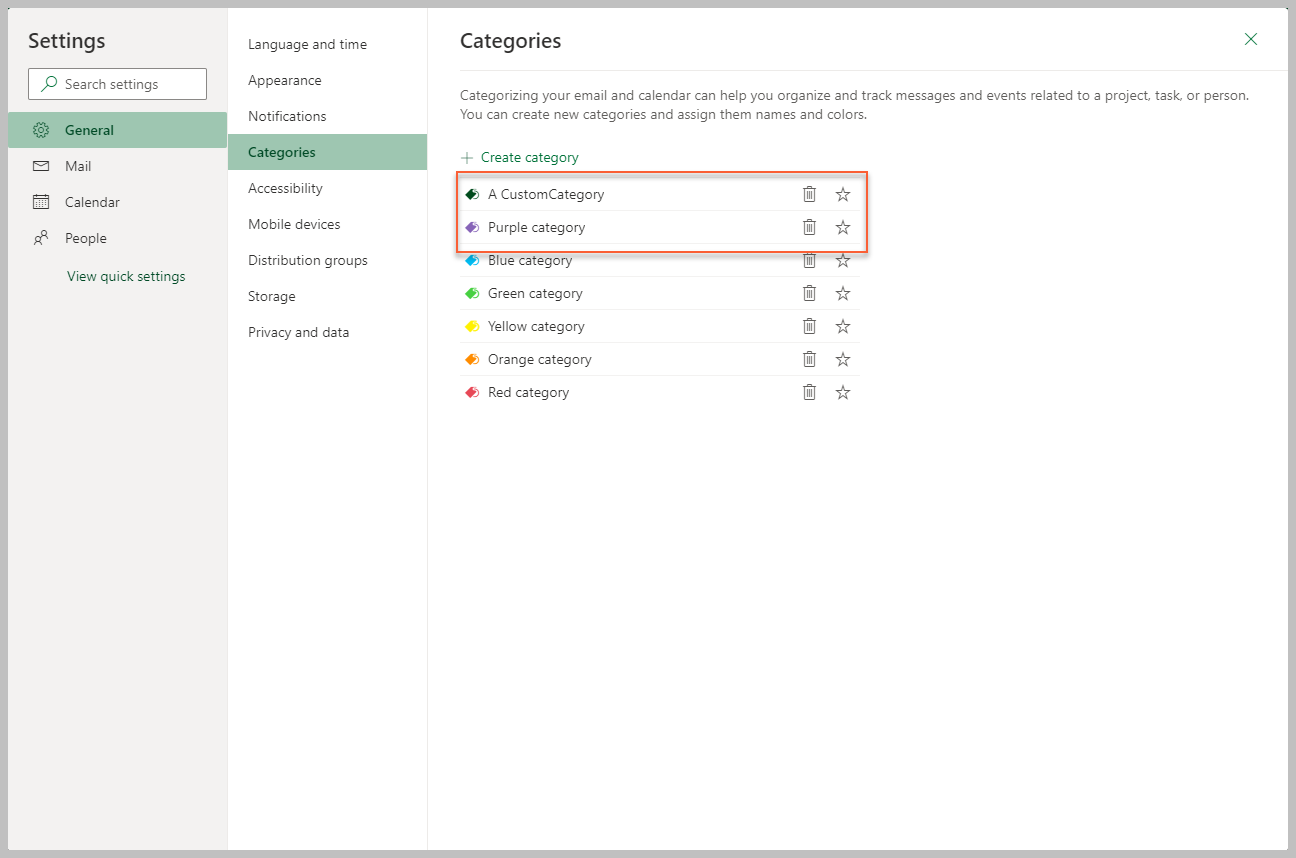
String[]variables. Your value must match a name from your specified Calendar list of categories (see example image below). To enter one category, include it between { } and declare it with " " (e.g., {"Purple category"}). To enter multiple categories, include all between { }, declare each with " ", and separate each by a comma (e.g., {"A CustomCategory", "Purple category"}).
- “全天” - 如果选中,则会将事件计划为一整天。如果选中,在“开始时间”和“结束时间”属性中输入的值将被覆盖。即使选择此属性,也需要在“开始时间”和“结束时间”属性中输入值。该字段仅支持“布尔值”。
- Show As - The user's availability during the event. Select one of the six options: Unknown, Free, Tentative, Busy, Oof or WorkingElsewhere. The default value is Free.
输出
- 事件- 创建的事件。其他活动可以使用此对象来添加参加者或修改信息。此字段仅支持
Event变量。如果您计划在后续活动中使用输出数据,则为必填。您可以将此变量用作其他活动中的输入变量,例如“添加参加者” 、 “添加位置”等。
工作方式
以下步骤和消息序列图是活动从设计时(即活动依赖项和输入/输出属性)到运行时如何工作的示例。
- 完成步骤。
- 将“Microsoft Office 365 作用域”活动添加到您的项目。
- (可选)添加活动或运行输出
Calendar对象(例如,获取日历)的外部流程。 - Add the Create Event activity inside the Microsoft Office 365 Scope activity.
- 输入“事件内容” 和“事件计划” 属性的值。
- 为“输出”属性创建并输入
Event变量。 - 运行活动。
- 您的输入属性值将发送到创建事件API。
- API 会将
Event值返回到您的输出属性变量。
