
- 入门指南
- 教程
- 自动化项目
- 创建自动化
- 故障排除
自动化基础知识
适用于 Windows 的 StudioX 和 Windows - 旧版项目中的活动、数据配置、变量、参数、运行的自动化以及常见场景。
此页面上的信息适用于兼容 Windows 和“Windows - 旧版”的项目。有关设计跨平台项目的特定信息,请参阅 Studio 指南中的跨平台项目。
关于活动
活动是自动化项目的基本构建块,每一个活动代表 StudioX 可以自动化的一个或多个手动任务。一系列相互关联的相关活动构成一个自动化项目。在考虑对重复性流程执行自动化时,必须首先将该流程分解为您要执行的各个单独的手动步骤,然后在 StudioX 中确定要将每个步骤自动化的活动。
例如,假设您要自动化以下工作流:
- 打开电子表格。
- 打开业务应用程序
- 从电子表格中的单元格复制数据。
- 将复制的数据粘贴到业务应用程序的字段中。
- 单击应用程序中的按钮以提交数据。
当您在 StudioX 中创建一个项目以使该过程自动化时,您将使用以下活动:
- 使用 Excel 文件指定您要使用的电子表格。
- 使用应用程序/浏览器指定您要使用的应用程序。
- “键入到”,以选择业务应用程序中要在其中复制数据的输入字段以及要从中复制数据的单元格。
- 点击指定要单击哪个按钮以在业务应用程序中提交数据。
手动步骤与 StudioX 活动之间并不总是一对一的关系。如上例所示,“键入到”活动涵盖两个手动步骤,因为您可以使用该活动来指定所复制文本的来源和目标。
活动面板
“活动”面板显示可添加到当前项目的可用活动。在 Windows 和跨平台项目中,您可以看到已安装和可安装的活动,而在 Windows - 旧版项目中,仅显示已安装的活动。已安装是指已经是项目一部分的活动包,而可安装是指可从官方订阅源和 Orchestrator 租户订阅源安装的包。要将活动添加到自动化中,请双击该活动或将其拖放到“设计器”面板中的所需位置。添加可安装活动会安装其项目中相应的活动包。
将鼠标悬停在面板中的活动上会显示该活动所属的包及其描述。要将活动添加到收藏夹列表,请右键单击它,然后选择“添加至收藏夹”。
自定义活动面板
单击面板顶部的“分组依据”按钮,以按可用活动所属的类别或所属的包对可用活动进行分组。您还可以清除这两个选项,以查看按字母顺序排列的未分组活动列表。
单击“筛选依据” 按钮以根据以下选项筛选活动。
适用于 Windows 和跨平台项目
- 按可用性筛选:
- 已安装 - 显示已安装且属于项目中的包的活动(无法停用此筛选器)
- 可用 - 显示可添加到项目中的已发现活动
- Windows - 显示仅在 Windows 项目中可用的活动(此筛选器仅在跨平台项目中可用)
- 按类型筛选:
- 活动 - 显示活动
- 触发器 - 显示触发器
- 按类别筛选
- 开发者 - 显示针对 Studio 配置文件设计的活动。
适用于 Windows - 旧版项目
- 按类型筛选:
- 活动 - 显示活动
- 触发器 - 显示触发器
- 按类别筛选:
- 开发者- 显示针对 Studio 配置文件设计的活动。这些活动在 StudioX 配置文件中可能无法按预期工作。
例如,如果您尝试查看所有 Excel 活动,则可以选择“按包分组”并取消选择“显示类别”。
容器活动
容器活动定义了执行添加到其中的活动所要满足的范围或条件。容器活动可以描述为包含一个或多个子活动的父活动。容器活动的示例包括:
- 资源活动 - 将应用程序资源添加到自动化中,并使该资源可用于其中添加的活动。
- 遍历活动 - 定义一个项目集合,并为每个项目重复一次添加在其中的活动。
- 重复次数 - 与“遍历”类似,但是它会按指定的次数重复其中添加的活动。
- If、开关和检查 App 状态 - 评估条件并通过基于评估结果执行其中添加的特定活动来确定自动化流程。
- 等待下载 - 检测由内部添加的活动启动的文件下载,并使文件在自动化中可用。
资源活动
根据活动所适用的应用程序将活动分类。在将您在应用程序中执行的任务自动化之前,必须先将所需的应用程序资源添加到自动化中。以下活动可将资源添加到您的自动化中:
- 使用 Excel 文件- 使用指定的 Excel 文件。Excel 文件中的数据可用于此活动中添加的所有活动。配置子活动时,可以直接从 StudioX 选择文件中的单个单元格、范围或工作表。
- 使用 Outlook 桌面应用程序、使用 Outlook 365和使用 Gmail可将桌面 Outlook 桌面版、Outlook 365 和 Gmail 帐户添加到自动化中。帐户中的电子邮件可用于此活动中添加的所有活动。配置子活动时,可以直接从 StudioX 选择单个文件夹、消息或消息字段。
- 使用 Word 文件- 使用指定的 Word 文档。添加活动以在此活动中的文件上执行。
- 使用应用程序/浏览器 - 使用指定的桌面应用程序或 Web 浏览器页面。在活动中添加要在应用程序或 Web 浏览器中执行的活动。
- 使用 PowerPoint 演示文稿- 使用指定的 PowerPoint 文件。添加活动以在此活动中的文件上执行。
- 使用 OneDrive 和 SharePoint - 选择要用于 OneDrive 和 SharePoint 自动化的帐户。在此活动中添加相关活动。
您可以根据自动化需求添加任意数量的资源。对于使用多个应用程序的活动,请在另一个资源中添加资源。例如:
- 要添加同时使用 Excel 文件中的数据和 Outlook 帐户中的电子邮件的活动,请在“使用桌面 Outlook App”活动中添加“使用 Excel 文件”活动,然后在“使用 Excel 文件”中添加常见活动。
- 要添加同时使用网页和 Word 文档中数据的活动,请在“使用 Word 文件”活动中添加“使用应用程序/浏览器”活动,然后在“使用应用程序/浏览器”中添加常用活动。
向自动化添加全局资源
使用资源活动将资源添加到自动化中时,该资源仅可用于在资源活动内部添加的活动。要使资源可用于项目中的所有活动,可以通过将项目连接到资源来全局添加资源。全局资源是从“Data Manager”面板中管理,而不是作为活动添加到项目中。这意味着将项目连接到资源还有助于节省“设计器”面板中的空间。
有关如何将项目连接到 Excel 工作簿的信息,请参见将项目连接到 Excel 文件。
遍历项目
迭代是指对项目集合中的每个单独项目重复自动化项目中的一项或多项活动。要迭代访问项目,请在定义集合时所在的可用“遍历”活动中选择一个活动,然后添加要在“遍历活动”内重复执行的活动。配置要重复执行的活动时,请从“+”中选择当前项目选项,以指明活动应使用迭代中每个项目的数据。 菜单。
菜单。
StudioX 随附以下“遍历”活动:
-
遍历 Excel 中的行 - 为 Excel 表格、范围或工作表中的每一行重复一项或多项活动。
当前项目选项为
CurrentRow。对于某些活动,还必须从当前行中选择要使用的列。 -
遍历 Excel 工作表 - 对 Excel 文件中的每个工作表重复一个或多个活动。
当前项目选项为
CurrentSheet。 -
遍历邮件:为 Outlook 文件夹、Gmail 标签或所选邮件中的每封邮件重复一项或多项活动。
当前项目选项为
CurrentMail。对于某些活动,您还必须从当前邮件中选择要使用的字段:主题、正文、HTML 正文、密件抄送、抄送、收件人、发件人或优先级。 -
遍历文件夹中的文件 - 为计算机上文件夹中的每个文件重复一项或多项活动。
当前项目选项为
CurrentFile。您还必须从当前文件中选择要使用的文件属性:大小、名称、完整名称(包括完整路径)、文件夹、上次修改日期、上次访问日期、创建日期、只读或以 KB 为单位的大小。 -
遍历文件夹中的文件夹 - 为计算机上指定文件夹中的每个文件夹重复一项或多项活动。
当前项目选项为
CurrentFolder。对于某些活动,您还必须从当前文件夹中选择要使用的文件夹属性:名称、完整路径或上次修改日期。
在配置“遍历活动”中添加的活动时,为了更容易识别,您可以使用描述您要迭代访问之项目的名称来重命名当前项目选项。
配置活动使用的数据
活动可以接收数据作为输入,执行后就可以生成输出数据。您可以使用数据字段右侧的“加号”菜单来配置每个活动的数据。
根据活动的目的,一个活动可能没有数据字段,也可能有一个或多个数据字段。以下信息描述您可以在“加号”菜单中找到的选项。因为菜单显示与每个字段、活动和父活动的上下文相关的选项,所以每个字段只有一部分选项可用。
输入字段的选项
输入字段使用以下选项定义活动接收的数据:
-
来自已添加至项目的资源的数据:
- Excel - 来自项目笔记本或添加至自动化的 Excel 文件的数据。直接从Plus中选择已命名的单元格、已命名的范围、表格或工作表。菜单,或选择在 Excel 中指定,以在 Excel 中打开 Workbook 并在其中指定。选择“自定义输入” ,您可以手动输入工作表名称、表格名称、单元格地址或范围地址。如果该活动在“遍历 Excel 中的行”活动中,您可以在迭代中选择当前行。
- Outlook/Gmail/Outlook 365 - 来自为父级邮件资源活动定义的电子邮件帐户的数据。执行项目时,可以使用在 Outlook 桌面应用程序中选择的消息;如果该活动在“遍历电子邮件”活动中,则可以使用迭代中的当前电子邮件。
- PowerPoint - 来自为父级“使用 PowerPoint 演示文稿”活动定义的 PowerPoint 演示文稿中的数据。您可以选择幻灯片、占位符、幻灯片母版或布局。
- 文件 - 如果活动位于“遍历文件夹中的文件”活动中,则可以使用迭代中当前文件的属性。
- Excel - 来自项目笔记本或添加至自动化的 Excel 文件的数据。直接从Plus中选择已命名的单元格、已命名的范围、表格或工作表。
-
“文本”- 使用内置的文本生成器输入文本。您可以单击文本生成器中的加号
,将 Excel 数据、邮件数据或您保存以备后用的值添加到文本中。 -
文本 - 空值 - 此选项使您能够在要添加其他文本或稍后更新文本的情况下将空文本作为值。
-
数字 - 输入数值或公式。公式支持以下运算符和符号:
+(加)、-(减)、*(乘)、/(除)、^(指数,例如 2^3 代表 2 的 3 次方)、( )(强制执行运算顺序)。您可以单击“数值计算”窗口中的“加号”
,从项目中添加数值。例如,在 Excel 文件中选择一个单元格,或者选择一个之前保存以备后用的数值。 -
条件生成器- 添加条件语句,用于根据是否满足条件来确定要执行的活动。例如, “If”活动包含一个条件字段,如果满足条件,它将执行一系列活动,如果不满足条件,它将执行另一组活动。您可以通过选择两个值并使用其中一个可用的运算符对其进行比较来创建条件语句:大于、大于或等于、小于、小于或等于、等于、不等于、为空、非空、为true、为 false、开头为、结尾为包含、是数字、不是数字。您可以添加多个语句,并选择是否所有语句或任何一条语句都必须为真才能满足条件。
-
True/False - 添加条件语句。为活动(如 If 条件活动)中支持条件语句的字段选择
True或False。 -
使用变量- 将您在项目中作为变量存储的另一个活动的输出用于当前字段。在某些情况下,StudioX 会调整变量类型,使其与字段所需的类型相匹配。例如,您可以在需要“数字”的字段中使用“文本”变量,因为值会自动从“文本”转换为“数字” 。将变量类型转换为另一种类型时,StudioX 会在变量名称的末尾添加新类型。在 Windows 和跨平台项目中,变量选择窗口会显示项目中的所有变量和参数,以及特定于每种数据类型的属性。您可以导航到所需的属性,或使用搜索栏进行查找。每个属性旁边的图标会指示类型(例如, Tt表示字符串, 123表示数字类型)。StudioX 为活动输出自动生成的变量会显示在生成它们的活动下。
-
“选择日期/时间” - 从日历中选择日期或时间(小时、分钟)。此选项可用于日期和时间字段。
-
“选择持续时间” - 选择持续时间(小时、分钟和秒)。此选项可用于持续时间字段。
-
Runtime 选项- 包含“运行时询问”和“从剪贴板粘贴” 选项。“运行时询问” -在项目执行期间提示输入值,此选项可用于接受文本、数字、日期/时间或布尔值 (True/False) 值的字段。“从剪贴板粘贴”使用您在另一个活动中复制到剪贴板的输出值作为当前字段的输入。此选项可用于接受文本值或 Excel 范围的字段。
-
“变量” - 选择一个为在 App/Web 活动选取器中使用而创建的变量。
-
“在高级编辑器中打开” - 输入 VB 表达式。
-
“清除值” - 清除字段中的当前选择。
输出字段的选项
输出字段使用以下选项定义活动生成的数据:
- Excel - 保存到项目笔记本的输出,或为父级“使用 Excel 文件”活动定义的 Excel 文件。直接从Plus中选择已命名的单元格、已命名的范围、表格或工作表。菜单,或选择在 Excel 中指定,以在 Excel 中打开 Workbook 并在其中指定。选择“自定义输入” ,您可以手动输入工作表名称、表格名称、单元格地址或范围地址。如果该活动在“遍历 Excel 中的行”活动中,您可以在迭代中选择当前行。
- “创建变量” - 将输出保存为变量,以备以后在自动化中使用。输入用于引用项目中变量的名称,从以下选项中选择作用域和数据类型:“文本”、“数字”、“True 或 False”、“带小数的数字”、“日期”和“持续时间”。然后,可以选择创建的变量作为另一个活动的输入。
- Runtime 选项- 包含“复制到剪贴板”选项,可将输出保存到剪贴板。然后,您可以将值粘贴到另一个活动的输入字段中。此选项可用于输出文本、布尔值(True/False)、数字或 Excel 范围的字段(例如,“复制范围” 活动中的“目标” 字段)。复制到剪贴板时,布尔值和数字值将转换为文本。
- 使用变量- 将您在项目中作为变量存储的另一个活动的输出用于当前字段。在某些情况下,StudioX 会调整变量类型,使其与字段所需的类型相匹配。例如,您可以在需要“数字”的字段中使用“文本”变量,因为值会自动从“文本”转换为“数字” 。将变量类型转换为另一种类型时,StudioX 会在变量名称的末尾添加新类型。在 Windows 和跨平台项目中,变量选择窗口会显示项目中的所有变量和参数,以及特定于每种数据类型的属性。您可以导航到所需的属性,或使用搜索栏进行查找。每个属性旁边的图标会指示类型(例如, Tt表示字符串, 123表示数字类型)。StudioX 为活动输出自动生成的变量会显示在生成它们的活动下。
- 重命名变量 - 重命名您创建的变量以供以后使用。
- “变量” - 选择一个为在 App/Web 活动选取器中使用而创建的变量。
- “在高级编辑器中打开” - 输入 VB 表达式。
- “清除值” - 清除字段中的当前选择。
使用一个活动的输出作为另一个活动的输入
将数据从一项活动传递到另一项活动可能非常有用,即使在尝试实现某些工作流程时也至关重要。StudioX 使您能够将活动生成的输出保存在变量中,然后在后面将其用作项目中其他活动的输入:
- 要保存数据并在其他活动中使用数据,请选择Plus中的“创建变量”选项配置活动输出数据的字段的菜单,并输入变量(保存的值)的名称。您稍后将使用该名称来标识并选择该变量作为其他活动的输入,因此请确保使用唯一名称描述该变量。
备注:
某些活动可能要求您选择数据类型以及变量名称。请从以下选项中进行选择:“文本”、“数字”、“True 或 False”、“带小数位的数字”、“日期”和“持续时间”。如果列表中没有您需要存储的数据类型,请选择“高级选项”。
- 要稍后使用该变量作为项目中其他活动的输入,请从Plus中的“使用变量”选项中选择该变量配置活动输入数据字段的菜单。
在多种情况下,此功能可能会很有用。以下是几个示例:
- “读取文本文件”活动可读取并输出文本文件的内容,然后可以将其用作“追加文本”活动的输入,以将文本添加到 Word 文件。
- “文件存在”活动检查文件是否存在,并输出结果(真或假),然后在“If”活动的条件下使用该结果来确定文件已存在时要执行的特定操作。
属性面板
“属性”面板包含上下文,用于查看和编辑所选活动的高级属性。如果选择多个活动,则仅可从“属性”面板修改通用属性。
默认情况下,“属性”面板处于隐藏状态。在大多数情况下,您可以使用“设计器”面板中的可用选项配置活动。在具有跨平台兼容性的项目中,所有活动属性都在“设计器”面板的活动卡中可用。这也适用于使用 Windows 兼容性的项目中的某些活动。
管理变量
变量用于存储不同类型的数据,并在项目中的活动之间传递数据。项目中使用的所有变量都可以在“Data Manager”面板中找到并进行管理。要编辑或重命名变量,请打开 Data Manager 面板,右键单击变量并选择“编辑变量” 。
有关变量的更多信息,请参阅“管理项目数据”页面。
从 StudioX v2022.4 开始,“已保存的值”已替换为“变量”。核心功能是相同的,但是变量允许在创建变量时设置数据类型,其以后可以由某些活动或由用户手动更改。在 StudioX v2022.4 中打开在旧版 StudioX 中创建的项目时,仍将使用“已保存的值”系统。
管理参数
参数用于在项目中的活动之间传递数据,并可用于将工作流与其他产品(例如UiPath Apps)集成。
配置后,您可以在活动中使用参数,就像使用“变量” (保存的值)一样。要编辑或重命名参数,请打开 Data Manager 面板,右键单击参数,然后选择“编辑” 。有关参数的更多信息,请参阅“管理项目数据”页面。
运行自动化
我们建议在设计阶段经常运行自动化。这使您能够验证项目是否按预期工作,并让您及早发现潜在的错误。
要运行自动化,请在 StudioX 功能区中单击“运行”,或在键盘上按 F5 键。
您可以通过单击功能区中的“停止”或按键盘上的 F5 来停止执行项目。执行项目后,“设计器”面板顶部显示的消息将通知您运行是否成功。
要仅运行项目的一部分,请右键单击任何活动,然后选择:
- “运行至该活动”,以执行项目中该活动之前的所有活动。
- “自该活动运行”,以从该活动开始执行项目中的所有活动。
以画中画模式运行
如果要在项目执行期间使用计算机而不受 Robot 的干扰,则可以以画中画模式运行自动化。这将在另一个在单独的窗口中打开的会话中执行项目,从而使您可以完全控制键盘、鼠标和屏幕。
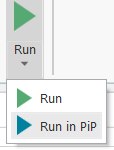
要在画中画模式中运行自动化,请在 StudioX 功能区中单击“运行”旁边的箭头,然后选择“在 PiP 中运行”。或者,您可以按键盘上的 F6键。Robot 会在新窗口中开始执行项目中的活动。
如果资源已在主会话中打开,则使用 Microsoft Office 资源的自动化将无法以画中画模式成功运行。在画中画中运行自动化之前,请关闭该自动化访问的所有 PowerPoint、Excel 或 Word 文件。
常见场景
为了帮助加快自动化设计的速度,StudioX 附带了常见场景,您可以将这些可重复使用的自动化片段添加到任何项目中。一个常见场景代表一个或多个活动,这些活动以逻辑顺序分组,用以自动完成一项任务或任务的一部分。
常见场景是上下文相关的,这意味着可用选项取决于您在自动化中的确切位置。例如,在 “使用桌面 Outlook App”活动中,可用的常见场景与 Outlook 任务相关,例如“下载电子邮件附件” 。有关可用常见场景的列表,请参阅常见场景说明。
要在项目中使用常见场景:
-
单击“添加活动”
 图标,以在其中添加场景的“设计器”面板中使用。此时将显示“添加活动”搜索栏,顶部会显示相关活动和常见场景的列表。
 -
单击您要添加的常见场景。 场景中的活动随即添加到“设计器”面板中。
-
如果需要,请配置所添加的活动。
下表描述了 StudioX 中可用的常见场景及其可能需要的任何配置。这些常见场景根据您可以添加的活动列出。
自动化中的任何地方
| 常见场景 | 操作 | 所需配置项 |
|---|---|---|
| 添加日期至文件夹文件名 | 提示包含要更新文件名的文件夹,添加“写入单元格”活动,在项目笔记本的单元格中输入今天的日期,并且添加“遍历文件夹中文件”活动,迭代访问所选文件夹。在“遍历文件夹中文件”活动中,另一个“写入单元格”活动会将迭代中当前文件的名称复制到项目笔记本中,而“移动文件”活动会使用项目笔记本中的公式将当前日期添加到名称中。 | |
| 删除文件夹和子文件夹 | 提示要删除的文件夹,并添加“删除文件夹”活动,即使该文件夹包含文件或子文件夹,亦将其配置为删除。 |
使用 Excel 文件
以下常见场景如未添加到“使用 Excel 文件”活动中,则可以与项目笔记本一起使用。
| 常见场景 | 操作 | 所需配置项 |
|---|---|---|
| 合并范围 | 添加“附加范围”活动,该活动会复制一个范围中的所有值并将其附加到另一个范围;同时添加“删除行”活动,该活动将在附加数据后从目标中删除所有重复的行。 |
|
| 针对 Excel 范围内的行重复操作 | 添加遍历 Excel 中的行活动。 |
|
| 将 Excel 图表粘贴到 Powerpoint 中 注意:仅当“使用 Excel 文件”置于“使用 PowerPoint 演示文稿”活动中时,此场景才可用。 | 添加一个“获取图表”活动,该活动从 Excel 文件中选择一个图表并将其复制到剪贴板,以及一个“粘贴项目到幻灯片”活动,该活动将保存的 Excel 图表插入到 PowerPoint 演示文稿中。 |
|
使用 PowerPoint 演示文稿
| 常见场景 | 操作 | 所需配置项 |
|---|---|---|
| 将 Excel 图表粘贴到 Powerpoint 中 注意:要正常使用此场景,请在添加场景之前将“使用 Excel 文件”活动置于“使用 PowerPoint 演示文稿”活动中。 | 添加一个“获取图表”活动,该活动从 Excel 文件中选择一个图表并将其复制到剪贴板,以及一个“粘贴项目到幻灯片”活动,该活动将保存的 Excel 图表插入到 PowerPoint 演示文稿中。 |
|
使用应用程序/浏览器
| 常见场景 | 操作 | 所需配置项 |
|---|---|---|
| 填写 Excel 表单 | 添加一个“遍历 Excel 中的行”活动,该活动包含三个"输入到"活动,这些活动配置为从所选范围的第一、第二和第三列复制数据,并将其粘贴到目标应用程序或网页中三个指定的字段中。默认情况下,使用项目笔记本的 Scratchpad 工作表中的范围 A1:C3。 |
|
使用 Outlook 桌面应用程序
| 常见场景 | 操作 | 所需配置项 |
|---|---|---|
| 对电子邮件重复操作 | 添加“遍历电子邮件”活动。 |
|
| 发送电子邮件 | 添加“发送电子邮件”活动。 | 配置“发送电子邮件”活动。 |
| 下载电子邮件附件 | 提示输入要保存附件的文件夹,添加“保存电子邮件附件”活动,然后添加“遍历文件夹中文件”活动,该活动包含配置为在“输出”面板中显示文件名的“写入行”活动。 | |
| 电子邮件文件夹备份 | 提示在计算机上指定要保存电子邮件的文件夹,并在其中添加包含“保存电子邮件”活动的“遍历电子邮件”活动。 | 选择此文件夹,以从“遍历电子邮件”进行备份。默认情况下,选择“收件箱”。 |
| 创建联系人详细信息数据库 | 添加配置为使用收件箱中电子邮件的“遍历电子邮件”活动。“遍历电子邮件”内的“写入单元格”活动和“附加范围”活动会将每封电子邮件的发件人复制到项目笔记本中的新“联系人”表,“删除行”活动会删除重复项。 | |
| 将电子邮件详细信息复制到 Excel | 添加一系列“写入单元格”活动,这些活动会将电子邮件字段作为列标题添加到项目笔记本中名为“电子邮件”的新工作表中。 然后添加一个“遍历电子邮件”活动,该活动包含一系列将每个电子邮件的字段复制到 Scratchpad 工作表的“写入单元格”活动,以及一个将所有字段复制到电子邮件工作表的“附加范围”活动。 | 在“遍历电子邮件”中,选择要从中获取电子邮件的文件夹。默认情况下,选择“收件箱”。 |
| 通过电子邮件发送文件夹中的所有文件 | 提示要选择的文件夹并添加“发送电子邮件”活动,该活动配置为将所选文件夹中的文件用作附件。默认情况下,当前 Outlook 帐户会被添加到“收件人”字段。 | 编辑添加到活动字段的默认值以自定义电子邮件,例如添加一个或多个收件人,或编辑主题和正文。 |
适用于每封电子邮件
| 常见场景 | 操作 | 所需配置项 |
|---|---|---|
| 回复电子邮件 | 添加“回复电子邮件”活动,以回复迭代中的当前邮件,添加“将电子邮件标记为已读/未读”活动和“移动电子邮件”活动,以将电子邮件移动到另一个文件夹。 |
|
| 转发电子邮件 | 添加“转发电子邮件”活动,以转发迭代中的当前邮件,添加“将电子邮件标记为已读/未读”活动和“移动电子邮件”活动,以将电子邮件移动到另一个文件夹。 |
|
| 移动电子邮件 | 添加“移动电子邮件”活动,以将迭代中的当前电子邮件移动到另一个文件夹。 | 在“移动电子邮件”中,选择要将电子邮件移动到哪个文件夹。 |
| 保存并处理电子邮件附件 | 提示输入用于保存附件的文件夹,添加“保存电子邮件附件”活动和“遍历文件夹中的文件”活动,在其中添加针对每个附件重复进行的活动。 | 在“遍历文件夹中的文件”活动中添加要针对每个附件重复执行的活动。 |
适用于文件夹中的每个文件
| 常见场景 | 操作 | 所需配置项 |
|---|---|---|
| 尝试以 Excel 格式打开文件 | 添加一个“If”活动,该活动会检查迭代中的当前文件是否具有 .xlsx 扩展名。Then 分支包含“使用 Excel 文件”活动,如果满足条件,该活动会将当前文件添加到项目中。 | |
| 添加日期至文件并将文件移动到子文件夹 | 添加一个“创建文件夹”活动,该活动会在当前文件夹中创建一个名为 Processed 的子文件夹;一个“写入单元格”活动,将迭代中当前文件的名称复制到“项目笔记本”;以及一个“移动文件”活动,该活动会将当前文件移动到子文件夹,并使用项目笔记本中的公式将当前日期添加到名称中。 | |
| 按类型对文件进行分组 | 添加一个“写入单元格”活动,以将迭代中当前文件的名称复制到项目笔记本;一个“创建文件夹”活动,该活动使用项目笔记本中的公式在当前文件夹中创建一个以当前文件的扩展名命名的子文件夹;以及一个“移动文件”活动,将当前文件移动到子文件夹。 | |
| 按大小对文件进行分组 | 添加一个“If 条件”活动,该活动用于检查迭代中的当前文件是否小于 100KB。“Then”分支包含“创建文件夹”活动,该活动用于创建标题设置为 100 K 的新文件夹,以及“移动文件”活动,该活动将迭代中的当前文件移动到新创建的文件夹。 “Else”分支包含一个“If 条件”活动,该活动检查当前文件是否小于 1000KB。“Then”和“Else”分支均包含“创建文件夹”和“移动文件”活动。 | |
| 按创建日期对文件进行分组 | 添加一个“写入单元格”活动,以便将迭代中当前文件的创建日期复制到项目笔记本;一个“创建文件夹”活动,该活动使用项目笔记本中的公式在当前文件夹中创建一个以当前文件的创建日期命名的子文件夹;以及一个“移动文件”活动,将当前文件移动到子文件夹。 | |
| 将文件信息复制到 Excel | 添加一系列“写入单元格”活动,这些活动将迭代中当前文件的名称、完整路径、大小和创建日期复制到 Scratchpad 工作表中,并添加一个“附加范围”活动以将所有字段复制到 Files 工作表中。 |
技巧和窍门
常规
-
您可以直接从“Data Manager”面板中打开已添加到自动化中的 Excel、Word 和 PowerPoint 文件。右键单击任何 Excel 或 Word 资源,然后选择“打开”。您也可以选择“打开文件位置”,以打开包含此文件的文件夹。
-
如果不确定哪个活动可以帮助您自动执行特定操作,请使用“活动”面板顶部的搜索栏或在“设计器”面板中单击“添加活动”
后屏幕顶部显示的活动来搜索活动。搜索会从活动名称和描述中返回结果,因此这可能是查找尚未发现的活动的好方法。 -
关于您已添加到项目中的活动,如您需要帮助,请右键单击该活动,然后选择“帮助”,或者选中该活动后按键盘上的 F1 键以打开其文档页面,其中包含有关如何配置该活动的信息。
-
在设计自动化项目时,如果想要少一些点击,可以双击大多数活动字段,以在“加号”
菜单中打开配置该字段时最常用的选项。例如,双击接受文本输入的字段将打开“文本生成器”,如对“If”活动中的“条件”字段执行相同的操作,将打开“条件生成器”。 -
当您在加号中选择“文本”时
菜单向活动字段添加文本后,您可以使用文本生成器撰写包含多种数据类型的文本。除了输入文本外,您还可以从加号中选择其他类型的数据。文本生成器右上角的菜单。例如,您可以在 Excel 文件中添加单元格的内容,在 Outlook 电子邮件中添加字段,或者将您在上一个活动中保存在计算机上以备后用的文件中添加一个属性。
用户界面自动化
-
在配置“使用应用程序/浏览器”活动以将桌面应用程序添加到自动化中时,如果您希望自动化打开特定文件,请指定该应用程序,然后在“应用程序参数”字段中添加该文件的路径。例如,如果您指定 Acrobat Reader 为要自动化的应用程序,并且想要使用位于
C:\Work文件夹中的form_template.pdf文件,请在自动化配置文件时在“应用程序参数” 字段中输入C:\Work\form_template.pdf,以在 Acrobat 中打开文件将执行。 -
在网页浏览器中指定 App/Web 活动的目标元素时,请一律添加至少一个锚点,以确保该元素被 Robot 正确识别。如需详细了解目标和锚点,请参阅用户界面自动化。
-
在配置“使用应用程序/浏览器”活动以自动化您在网页浏览器中执行的任务时,在指示网页浏览器之前,请导航至自动化执行第一个操作的网页。这样做会自动将页面的 URL 添加到“浏览器 URL”字段中,因此您不必手动输入它。
-
如果您不想添加太多的“键入到”活动来填写包含多个字段的表单,可以通过配置一个“键入到”活动来实现在多个字段中输入文本,以简化工作流。指定表单上的第一个字段并选择要键入的文本后,您可以打开“输入此项”字段的文本生成器,从加号添加
tab特殊键文本生成器中的菜单,然后选择以下字段的文本。例如,假设tab键将光标移动到目标应用程序中的下一个字段,则像在下图中一样配置“键入此项”字段,复制三个不同单元格的文本并将其粘贴到三个不同的字段中。 -
如果两个连续的 App/Web 活动未正确计时(例如,第一个活动花费很长时间才能执行操作,而第二个活动在上一个操作完成之前就开始),请在这些活动的“属性”面板中配置“之前延时”或“之后延时”属性,以确保第二个活动在第一个活动完成后才开始。这些属性在活动执行之前或之后增加了延时,从而在需要时增加了两次活动之间的时间。
-
当您要在桌面应用程序或 Web 浏览器中执行的操作取决于应用程序的状态时,请使用“检查应用程序状态”活动来根据状态确定要执行的操作。此活动可验证元素是出现在目标应用程序的用户界面中还是从目标应用程序的用户界面中消失,并让您能够添加不同的活动,以便在找到和/或找不到元素时执行。例如,您可以通过验证是否存在“登录”按钮来检查是否已经登录到 Web 应用程序,并且仅在找到该按钮时执行登录所需的操作。
Excel
- 您添加到自动化中的 Excel 文件在设计时并不总是可用(例如,文件可以由自动化创建,也可以在自动化期间下载)。在这种情况下,您仍然可以利用 StudioX 与 Excel 的深度集成,通过将另一个具有相同格式(相同的工作表、列、表格等)的文件定义为模板文件,来配置使用该文件的活动。定义后,您可以在 Excel 中指定数据,也可以直接从Plus模块中选择模板文件中的数据。菜单。例如,如果您要创建一个包含每月报告的自动化项目,请使用与模板格式相同的现有报告。要定义模板,请添加“Excel 文件”活动使用Excel 文件,输入要自动执行之文件的路径,然后选择“模板文件”选项并指定要使用的文件。
- 当您要使用.xls(Excel 97-2003) workbook,则无法从Plus直接访问文件中的数据菜单。在这种情况下,您可以通过加号中的“在 Excel 中指定”或“自定义输入”选项来配置使用该文件的活动。菜单。。或者,为了能够直接从菜单中选择数据,也可以创建一个 .xlsx 副本并将其添加为“模板文件” 。
- 当您筛选大工作表中的行并使用“Excel 遍历行”活动对其进行迭代时,不要在应用筛选器后迭代原始工作表,请使用“复制范围”活动将筛选后的行复制到其他工作表,然后迭代遍历新工作表中筛选的范围。这有助于提高项目执行效能。
桌面 Outlook App
-
您可以使用邮件活动,为从桌面 Outlook 应用程序发出的电子邮件添加 HTML 格式的正文,方法是在“正文”字段选择“使用 Word 文档”选项。这样,您就可以选择包含格式化文本、图像或表格的 Word 文档作为通过发送电子邮件、回复电子邮件和转发电子邮件活动发送的电子邮件的正文。
运行项目
-
如果您要在项目执行期间使用计算机而不受 Robot 的干扰,您可以以画中画模式运行自动化。此功能让您可以在单独的窗口中打开的另一个会话中执行项目,从而完全控制键盘、鼠标和屏幕。要在画中画中运行自动化,请在 StudioX 功能区中单击“运行”旁边的箭头,然后选择“在画中画中运行”。
-
如果您在有机会阅读错误消息之前消除了在执行项目时发生的错误,则可以在“输出”面板中找到该错误消息。要访问“输出”面板,请在 StudioX 窗口的左下角单击“输出”。
-
为避免打开同一应用程序的多个实例,在运行自动化之前,请关闭其中使用的所有应用程序和文件。