
- Getting started
- Capabilities
- Data privacy and governance
- Data privacy
- Architecture and data flow
- Product availability
- Earlier Autopilot capability sets
- User scenarios
- Prompting guide
- Example prompts
- Autopilot usage pool for testing
- Best practices and limitations
- Supported models and limits
- Quality-check requirements
- Generate tests for requirement
- Import manual test cases
- Find obsolete tests
- Generate tests for SAP transactions
- Generate synthetic test data
- Generate test reports
- Generate coded test cases
- Search Test Manager project
- Troubleshooting
- Troubleshooting
- Autopilot for Everyone
- About Autopilot for Everyone
- Licensing
- User types
- Data sources
- Toolset automations
- Localization
- Prerequisites
- Autopilot widget
- The Autopilot for Everyone tenant card
- Prerequisites for installation
- Enabling Anthropic models
- Installing Autopilot for Everyone
- Updating Autopilot for Everyone
- Uninstalling Autopilot for Everyone
- Configuring Autopilot for Everyone
- Disabling the Autopilot welcome screen in Assistant
- Configuring an LLM for Autopilot for Everyone
- Deploying toolset automations
- Prompt-to-response flow
- Launching Autopilot for Everyone
- Autopilot settings for business users
- Using a specialized Autopilot
- Using a starting prompt
- Uploading and analyzing files
- Running automations
- Interacting with Autopilot answers
- Using suggested prompts
- Starting a new chat
- Chat history
- Providing general feedback
- Clipboard AI Enterprise version
- Designing relevant automations for Autopilot for Everyone
- Troubleshooting
Architecture and data flow
How Autopilot requests travel from the Autopilot chat in Studio or your editor through the UiPath LLM Gateway to the model provider, and how Autopilot handles your data.
Autopilot runs as a chat inside a host application, such as Studio Desktop, Studio Web, or a VS Code-compatible editor. Each request goes to the Autopilot Agents Service in UiPath Automation Cloud, which builds the prompt and sends it to the selected model through the UiPath LLM Gateway. When the model needs a tool, the tool runs in the host, on your project.
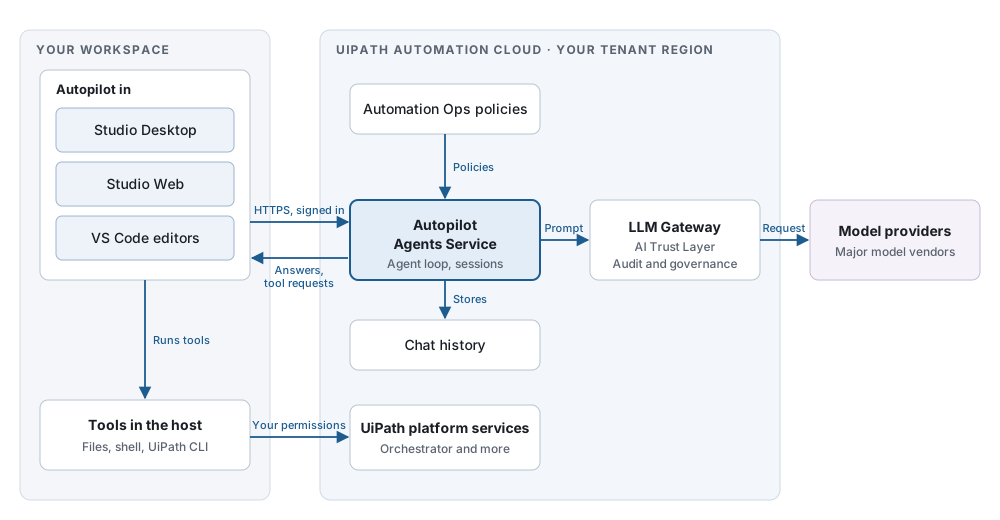
Each message follows the same path:
- You send a message in the Autopilot chat. Autopilot adds context from the host: the project, the active file path, and your settings.
- Autopilot sends the request over HTTPS to the Autopilot Agents Service in your tenant region, signed in as you.
- The Agents Service applies Automation Ops policies, builds the prompt, and stores the chat history in your tenant region.
- The UiPath LLM Gateway receives the prompt with a UiPath service credential, audits it, applies the AI Trust Layer settings, and routes it to the model you selected.
- The answer streams back to the chat.
- When the model needs a tool, such as reading a file or running a command, Autopilot runs the tool in the host and sends the result back through steps 2 to 4. Depending on the approval mode, Autopilot first asks you to approve the tool.
- Usage records feed licensing and consumption reports.
Autopilot offers a curated list of models from major vendors, such as OpenAI, Anthropic, and Google, chosen for building, fixing, and operating UiPath automations. Your machine does not call model providers directly and holds no model keys. Any model in the list can use your own subscription through the AI Trust Layer. For details, refer to Configuring an LLM for Autopilot.
Where tools run depends on the host:
- Studio Desktop - Tools run on your machine and use Studio services, PowerShell (Bash on macOS), and the UiPath CLI. Network calls that these commands make, such as npm installs, use the network and proxy settings of the machine.
- Studio Web - Tools use a sandboxed shell and the UiPath CLI.
- VS Code-compatible editors - Tools run in the extension host, which is the remote machine when you work in a remote workspace.
Web search runs in the UiPath service in every host.
In Studio Desktop, other coding agents listed in Home > Tools > Coding Agents, such as Claude Code and Codex, connect to their own vendor. Their requests do not go through the Autopilot Agents Service or the UiPath LLM Gateway.
Data sent to the model
Some data goes with every message. Other data reaches the model only as a tool result, when the task needs it. The agent reads files one at a time, for the task, and does not upload a project in bulk.
| Data | Details | When sent |
|---|---|---|
| Message and attachments | Your message and any files you attach. | Every message |
| Conversation | The messages so far in the current chat. | Every message |
| Host context | Host version, such as the Studio version, project and solution name, project type and path, and the path and type of the active file. The content of the active file is not included. | Every message |
| User profile | First name, last name, login email, local time and time zone, and UI language. In Studio Desktop and Studio Web, also the organization, tenant, and user IDs. | Every message |
| Settings | Selected model, approval mode, preferences, and the custom instructions that you and your organization set. | Every message |
| Project rules file | AGENTS.md, CLAUDE.md, CODEX.md, or GEMINI.md. | First message of a chat |
| Project files | Workflow and code files, such as .xaml, .cs, and project.json, that the agent reads or searches. | When the task needs them |
| Command output | PowerShell output in Studio Desktop (Bash on macOS). Sandboxed shell and UiPath CLI output in Studio Web. Shell output in VS Code-compatible editors. | When the task needs it |
| Orchestrator data | Run results, logs, queues, assets, and connections. | When the task needs it |
| Error text | Errors you send with Fix with Autopilot, or that the agent reads. | When the task needs it |
| Task recording | In Studio Desktop, the recorded actions, including what you typed except in password fields, and the screenshots Autopilot opens to understand the steps. The recording video and your voice are not sent. | When you build a workflow from a task recording |
| Search results | Documentation and web search results. | When the task needs them |
| MCP server results | Results from connected Model Context Protocol (MCP) servers. Depending on the approval mode, Autopilot asks before it calls an MCP server. | When the task needs them |
Model providers receive only the prompt for each request, through the UiPath LLM Gateway. The following data stays out of the prompt:
- Your sign-in token - only UiPath services use it. The LLM Gateway uses a UiPath service credential.
- Files the agent does not read - Autopilot sends file content only for files that the task needs.
- Active file content - Autopilot sends the path of the active file, not its content, unless the agent reads the file.
Stored and logged data
| Record | Details |
|---|---|
| Chat history | Your messages, the host context sent with them, and tool results, which can include file content. Attachments are stored only as a fingerprint, not their content. |
| Usage records | Model, tokens, and cost, used for licensing and consumption reports. |
| AI Trust Layer audit | Your prompt text, recorded by the LLM Gateway as configured in the AI Trust Layer. |
| Task recordings | Stored on your machine by UiPath Assistant and deleted after 7 days. |
| Memories | Notes Autopilot saves about you and your work for later chats. Studio Desktop and VS Code-compatible editors keep them on your machine, and Studio Web keeps them in UiPath cloud storage. |
| Feedback reports | Reports you choose to send to UiPath, with the conversation if you include it. Credentials and detected personal data are masked before the report is sent. |
| Local session data | In Studio Desktop and VS Code-compatible editors, checkpoints of the files Autopilot changes in each turn, and large tool results saved during a chat, kept on your machine. Saved tool results are deleted after 90 days. |
Chat history is stored in your tenant region until the user deletes the chat, or until the organization or tenant is deleted.
Controls
The following settings control what Autopilot can do.
| Control | What it governs |
|---|---|
| Automation Ops policy | Allowed tools, models, and attachments, organization custom instructions, and approval modes. |
| Approval mode | When Autopilot asks before it acts. Cautious asks before every action, Adaptive (recommended) approves actions known to be safe and asks before the others, and Full access never asks. |
| AI Trust Layer | Audit of LLM Gateway requests and the settings your admin applies to LLM traffic. For details, refer to About AI Trust Layer and Settings for AI Trust Layer policies. |
For data residency, data centers, and the UiPath privacy and security policies, refer to Data privacy.