
- Introduction
- Setting up your account
- Balance
- Clusters
- Concept drift
- Coverage
- Datasets
- General fields
- Labels (predictions, confidence levels, label hierarchy, and label sentiment)
- Models
- Streams
- Model Rating
- Projects
- Precision
- Recall
- Annotated and unannotated messages
- Extraction Fields
- Sources
- Taxonomies
- Training
- True and false positive and negative predictions
- Validation
- Messages
- Access control and administration
- Manage sources and datasets
- Understanding the data structure and permissions
- Creating or deleting a data source in the GUI
- Preparing data for .CSV upload
- Uploading a CSV file into a source
- Creating a dataset
- Multilingual sources and datasets
- Enabling sentiment on a dataset
- Amending dataset settings
- Deleting a message
- Deleting a dataset
- Exporting a dataset
- Using Exchange integrations
- Model training and maintenance
- Understanding labels, general fields, and metadata
- Label hierarchy and best practices
- Comparing analytics and automation use cases
- Turning your objectives into labels
- Overview of the model training process
- Generative Annotation
- Dastaset status
- Model training and annotating best practice
- Training with label sentiment analysis enabled
- Understanding data requirements
- Train
- Introduction to Refine
- Precision and recall explained
- Precision and Recall
- How validation works
- Understanding and improving model performance
- Reasons for label low average precision
- Training using Check label and Missed label
- Training using Teach label (Refine)
- Training using Search (Refine)
- Understanding and increasing coverage
- Improving Balance and using Rebalance
- When to stop training your model
- Using general fields
- Generative extraction
- Using analytics and monitoring
- Automations and Communications Mining™
- Developer
- Uploading data
- Downloading data
- Exchange Integration with Azure service user
- Exchange Integration with Azure Application Authentication
- Exchange Integration with Azure Application Authentication and Graph
- Migration Guide: Exchange Web Services (EWS) to Microsoft Graph API
- Fetching data for Tableau with Python
- Elasticsearch integration
- General field extraction
- Self-hosted Exchange integration
- UiPath® Automation Framework
- UiPath® official activities
- How machines learn to understand words: a guide to embeddings in NLP
- Prompt-based learning with Transformers
- Efficient Transformers II: knowledge distillation & fine-tuning
- Efficient Transformers I: attention mechanisms
- Deep hierarchical unsupervised intent modelling: getting value without training data
- Fixing annotating bias with Communications Mining™
- Active learning: better ML models in less time
- It's all in the numbers - assessing model performance with metrics
- Why model validation is important
- Comparing Communications Mining™ and Google AutoML for conversational data intelligence
- Licensing
- FAQs and more
Communications Mining user guide
You can filter messages by whether they have assigned extraction fields. Filter messages both in the Explore and Reports pages, similarly as you do for labels.
Use any combination of AND, ANY OF, and NOT filters when applying more than one extraction field type filter. These filters can give you more flexibility when training and interpreting your data, and can provide much deeper insights on what's happening in your communication channels.
The following list contains some of the actions you can perform when filtering by annotated extraction field type:
- Apply multiple extraction field type filters at once, in both Explore and Reports.
- Filter to messages that have one of the selected annotated extraction field types, that is, the ANY OF the extraction field type X AND extraction field type Y AND so on.
- Filter to messages that have multiple different annotated extraction field types, that is, the extraction field type X AND extraction field type Y AND so on.
- Filter to messages that do not have certain annotated extraction field types, that is, NOT extraction field type Y.
- Search for messages containing specific search terms, while having extraction field type filters applied.
Applying advanced extraction field type filters
You can apply extraction field types filters and use them in combination with each other, to create the right type of query.
All of the extraction field types that you enable on your dataset appear in the filter bar:

This image displays the default state, where you do not apply any filter, and you can view all the messages, unless another filter is applied.
To update the extraction field type filter, use the checkmark button mentioned in the following table:
 | Shows messages containing any annotated extraction field types. |
The button changes its colour when you select it.
If you want to filter to messages that have any annotated extraction field types to contain an extraction field type, use the checkmark button. The same button appears when you hover over the extraction field type.
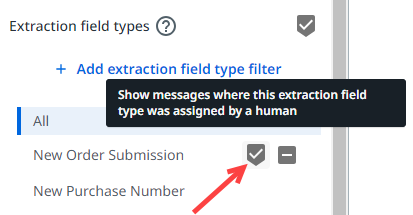
To remove your selection, select the checkmark button again.
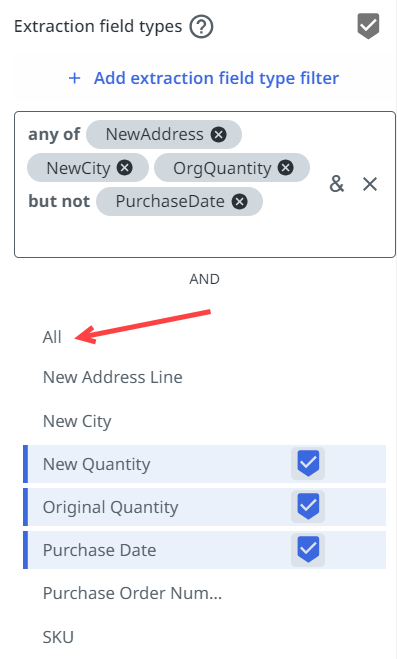
To remove multiple selections, select All.
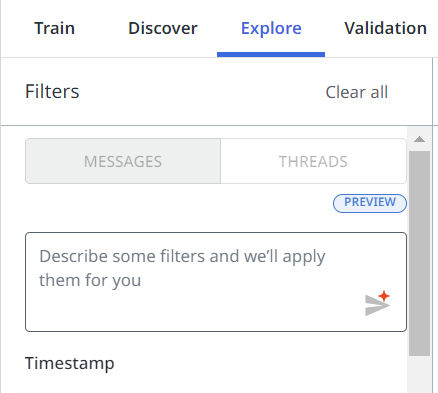
You can also select Clear All, but this option clears every filter that you have selected, not just extraction field type filters.
Extraction field type bar
The taxonomy of extraction field types functions as a normal filter bar, and allows you to select multiple extraction field types at once, with a single select for each.
Selecting multiple extraction field types from the list creates an ANY OF type query.
Select extraction field type A, extraction field type B, and extraction field type C in the extraction field type bar. Making this selection creates the following annotated query: Show me messages with extraction field type A, extraction field type B, or extraction field type C.
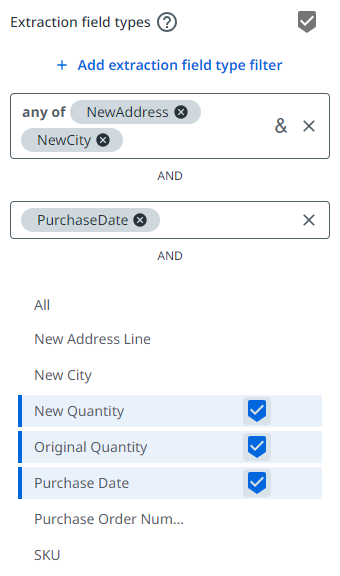
You can make multiple selections to filter by specific extraction field types:
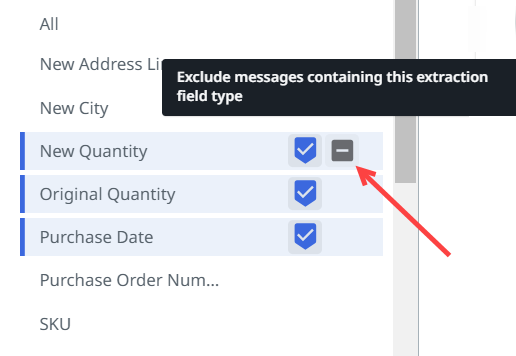
To exclude extraction field types, hover over the extraction field type and select the hyphen - button:
Add extraction field type filter
The second filter option is the + Add extraction field type filter button on top of the Extraction field type bar.
This enables an extraction field type dropdown menu, from which you can select more complex filters, such as excluding certain messages containing a specific extraction field type.
From the dropdown menu, select the names of the extraction field types, to select multiple extraction field types that you want to include or exclude.
You can select extraction field types by also selecting the individual buttons, including minus.
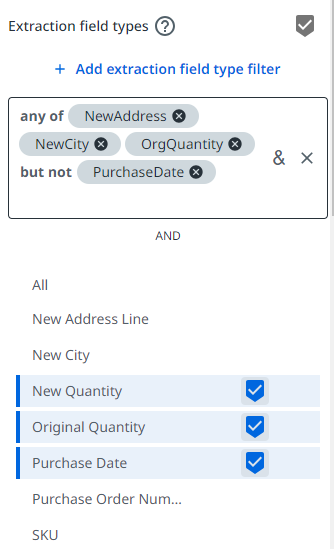
You can select + Add extraction field type filter multiple times, to add additional layers to your query. Two separate extraction field types create an AND type query, while multiple extraction field types selected in the same filter, create an ANY OF type query.
In this example, you apply multiple extraction field type filters individually. This creates a filter that returns messages containing the selected annotated extraction field types to have any of the three extraction field types in the first filter, but not the PurchaseDate annotated extraction field type.
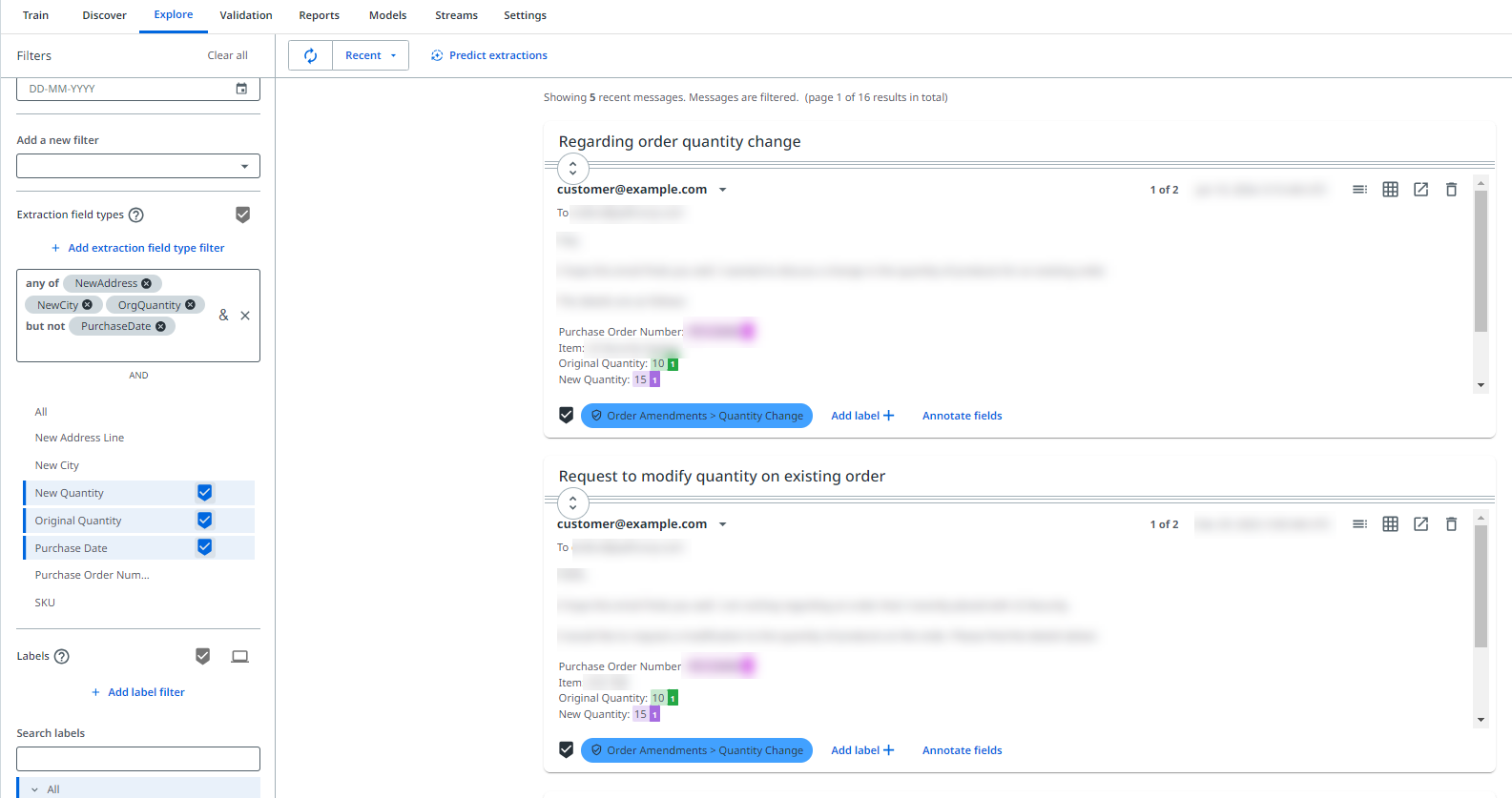
Selecting the ampersand & sign in an individual filter containing multiple extraction field types, you can automatically split them out into individual filters. This changes the query from ANY OF, that is, any of these annotated extraction field types, to AND.