
- Getting started
- UiPath Agents in Studio Web
- About UiPath Agents
- Licensing
- Running agents
- Prompts
- Working with files
- Contexts
- Escalations and Agent Memory
- Evaluations
- Agent traces
- Agent score
- Managing UiPath agents
- UiPath Coded agents
Agents user guide
About traces
Traces are detailed records of everything an agent does during a run, including steps taken, data processed, decisions made, and results generated. Each trace captures a complete timeline of the agent’s behavior, including timestamps, errors, inputs/outputs, and contextual metadata. Use traces for:
- Debugging and troubleshooting: Identify exactly where an agent failed or behaved unexpectedly.
- Performance analysis: Evaluate latency, errors, and throughput across agent runs to optimize behavior.
- Compliance and auditing: Maintain a verifiable record of what the agent did, when, and how — essential for audits or regulated workflows.
- Continuous improvement: Use trace insights to fine-tune agent logic, adapt behavior, or train new models.
The following table outlines common use cases where trace visualization can enhance your ability to debug, analyze, and optimize agent behavior. Each example highlights how trace data helps uncover insights and drive better decision-making during development and runtime monitoring.
| Use case | What traces help you do |
|---|---|
| Agent fails during tool call | Find and inspect the exact step, inputs, outputs, and error |
| Performance is slow | Use timestamps to locate bottlenecks |
| Investigating a spike in errors | Filter runs by status and trace the pattern |
| Verifying a production fix | Replay the original run and confirm the issue no longer occurs |
| Preparing an audit report | Export or review traces that show decision paths and data handled |
Trace types
Traces come in two distinct types, each serving a specific purpose in understanding and analyzing agent behavior:
- Agent run traces: These traces capture the step-by-step execution of an agent during a live or scheduled run. They show how the agent processed data, invoked tools, handled conditions, and responded to different states in real-time.
- Evaluation run traces: Evaluation traces are generated when an agent is tested against predefined inputs, typically during model evaluations, scenario validations, or test cases. These help assess agent accuracy, decision quality, and behavior under controlled conditions.
Accessing traces
You can access both types of traces from two key locations:
- Agent Builder – While designing or testing your agent, traces are available directly in the builder:
- The bottom panel opens automatically to the Execution Trail tab when you run your agent, showing live traces for the current run. You can also switch to the History tab to view past runs and add them directly to evaluation sets.
- The Evaluations and Output tabs provide another view into recent runs, where you can inspect behavior and results alongside your agent definition.
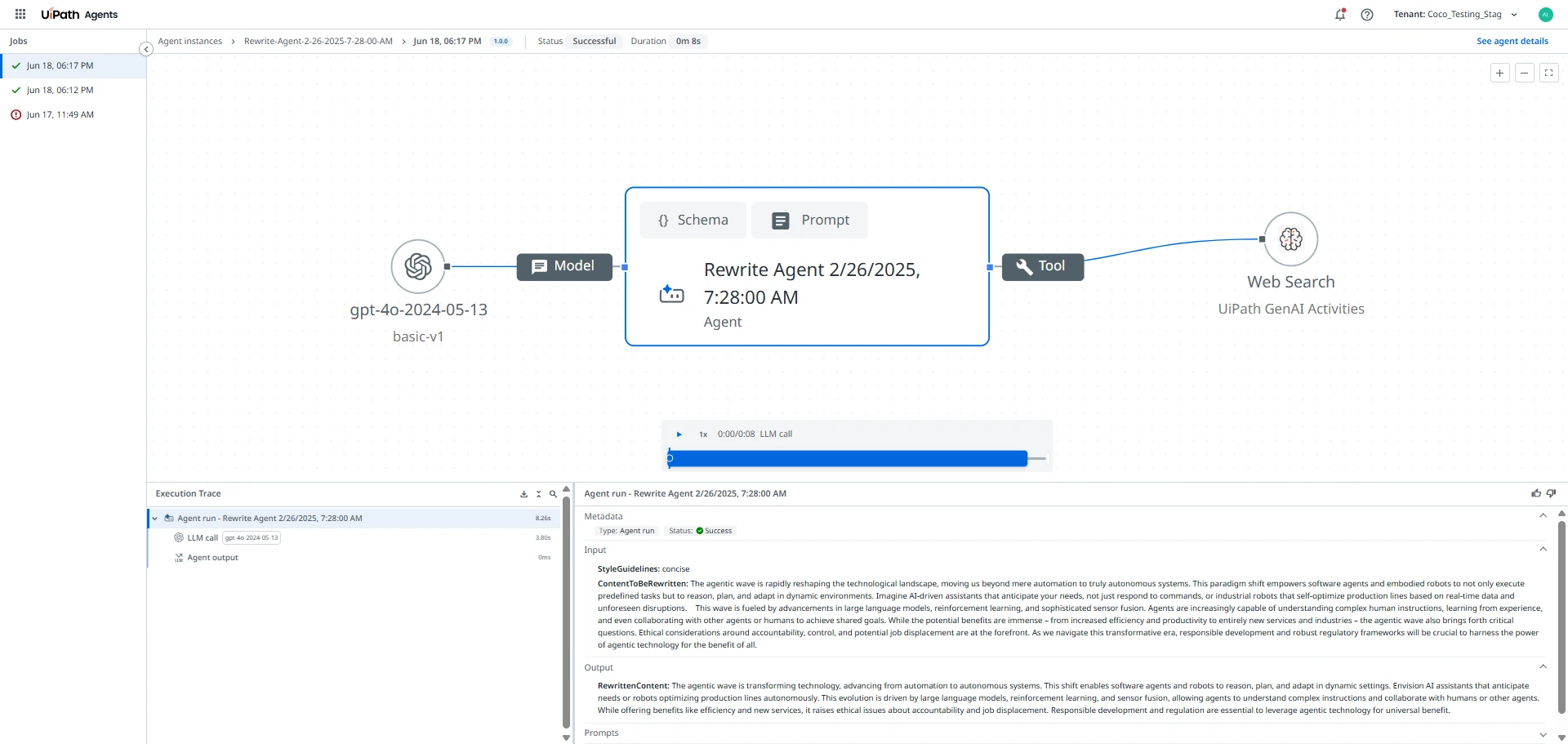
- Agent Instances page – Navigate to the Agents > Instances section. From here, select a specific agent and select any run to open its trace view, which includes the full visual trace and log panel.
When viewing traces for either agent runs or evaluation runs, you gain visibility into the agent’s execution. You can:
- See execution outcomes, as indicated with color-coded nodes: success, failure, or retry.
- Hover over any node to preview: start and end timestamps, execution status, input and output snippets.
- Select a node to view the details, including: complete JSON payloads, logs and errors, runtime metrics, (token usage, latency).
Managing access to trace data
This section outlines how administrators can configure access to trace data using the role-based access control model.
To view trace logs you need the following permissions:
Logs.ViewJobs.View
For details on default roles permissions, refer to Default roles.
The following matrix explains the visibility outcomes based on permissions combinations. These combinations define what trace details you can view depending on your role-based permissions.
Logs.View | Jobs.View | Access result |
|---|---|---|
| Enable | Enable | All attributes |
| Enable | Disable | All attributes |
| Disable | Enable | Partial attributes (for example, name, type) |
| Disable | Disable | No access |
When you lack the necessary permissions to view trace data, you see a message that explains whether access is fully or partially limited and provides guidance to request the required permission.
Trace data, including input and output data, can be encrypted using Customer-Managed Keys (CMK). CMK encryption for Agent traces is an opt-in feature — it is not automatically enabled when CMK is configured for your organization. To enable it, submit a support ticket. For details, refer to Encryption per service in the admin guide.
Feedback on agent runs
This feature is available in preview.
Feedback is a critical mechanism for interpreting and improving agent runtimes. It enables you to review behavior, diagnose issues, and document meaningful patterns in how an agent makes decisions.
Beyond debugging, feedback acts as the core input to feedback-based episodic memory, letting the agent refine its decision policy gradually—without requiring full prompt rewrites for every adjustment.
The relationship between feedback and memory
While feedback acts as an annotation tool, its most powerful application is influencing episodic memory.
Providing feedback on a trace highlights behaviors the agent should replicate or avoid in future runs.
- Evolution over repetition: Unlike static resolutions, feedback-based memory allows the agent's behavior to improve over time. The agent learns to recognize patterns flagged as correct or incorrect.
- Targeted improvement: This approach is most valuable in flows where the agent is frequently "almost right" or where the decision policy is still developing.
- Selective memory: Not all feedback automatically becomes memory. You must actively determine which annotations represent high-value learning opportunities, to prevent low-quality or inconsistent feedback from degrading performance.
Where to apply feedback
You can provide feedback on any span within an agent trace. This flexibility lets you annotate specific tool calls, guardrail checks, or LLM outputs when reviewing or diagnosing behavior.

Only feedback applied to the agent run span is eligible for episodic memory. While you may annotate any part of the trace for analysis, only feedback attached directly to the agent run span will be stored and retrieved as memory in future runs.
When to apply feedback
While providing feedback on all traces would maximize iterative learning, in practice you should concentrate on traces that offer the highest value for optimization.
Focus on the following scenarios:
- Critical scenarios: Traces involving high-stakes decisions or high-impact errors.
- Recurring patterns: Areas where the agent consistently struggles or exhibits repetitive faults.
- Difficult decisions: Instances where the agent faced a complex choice.
- Negative sentiment: Runs that resulted in a poor user experience.
- Model behavior: Examples that clearly illustrate a specific behavior you want the agent to strictly copy or strictly avoid.
Applying feedback is crucial for continuous improvement. It lets you encode better behaviors incrementally, making agent runs more reliable and consistent.
- Prioritize traces: Focus on traces from critical scenarios, high-impact errors, or recurring patterns where the agent struggles.
- High-value scenarios: Prioritize runs that represent difficult decisions for the agent, show negative user sentiment, or clearly illustrate a behavior you want the agent to copy or avoid.
- Focus areas: Clearly identify what you are providing feedback on:
- Output: Did the final result meet expectations?
- Plan execution (trajectory): Did the agent perform the task steps in the expected order?
- Comments: Use comments to enrich the feedback and inform memory retrieval.
Time-to-Live settings for traces
You can use the AI Trust Layer policy in Automation Ops to configure how long trace spans are retained by configuring Time-to-Live (TTL).
Traces Time-to-Live defines the retention window for execution traces in the AI Trust Layer. Each trace consists of spans that record the steps of an automation or AI interaction. The TTL setting determines how long these spans remain available, and automatically deletes any data older than the selected duration.
TTL enforcement offers three fixed options: off, on with a 1-day retention window, or on with a 7-day retention window. There is no option to specify an arbitrary number of days. Choose the option that best aligns with your privacy, compliance, and operational requirements.
The policy is enforced at the tenant level, meaning the configured TTL applies to all spans and affects what every user in the tenant is able to view.
Within the Automation Ops policy settings under the AI Trust Layer feature toggles, you can enable or disable TTL enforcement:
- When enabled: spans are retained for the duration selected in the TTL Days field (1 day or 7 days) and deleted automatically once they expire.
- When disabled: traces are not subject to a strict TTL policy.
To enable and configure TTL for traces, follow these steps:
- Navigate to Automation Ops.
- If you don’t already have an AI Trust Layer policy, select Add Product Policy – AI Trust Layer. Otherwise, open and edit your existing policy.
- Select Feature Toggles.
- Configure the following fields:
- Time-To-Live enforcement for trace data – When enabled, this setting controls how long spans remain visible before being removed. After the TTL expires, all affected spans are permanently deleted from the UI.
- TTL days – Specifies how long trace spans are stored before being purged. Select either 1 day or 7 days.
- Restricted Insights Trace data – If enabled, all non-UiPath metadata is removed from trace data before it is sent to Insights. This limits the detail available in Insights and affects the ability to view detailed or aggregated metrics on the Agents page.
- Time-To-Live enforcement for trace data – When enabled, this setting controls how long spans remain visible before being removed. After the TTL expires, all affected spans are permanently deleted from the UI.
If feedback or memory is added to any span within a trace, the entire trace is preserved and no longer subject to the configured TTL. To allow the trace to be cleaned up, you must first remove the associated feedback or memory.
Trace governance implications
Configuring custom TTLs for trace data has several important effects:
- Analytics: Your TTL configuration determines how much historical trace data is available for analysis. Shorter retention supports stricter data-minimization requirements, while longer retention preserves more execution context for investigation and troubleshooting.
- Data deletion: Spans are automatically deleted once they exceed the configured TTL. Changing your TTL does not restore any data that has already expired or been restricted.
- Visibility: Execution runs that fall outside the TTL window no longer appear in the Traces UI or in components that rely on speed-layer trace data.
- Scope: The configured TTL applies to all spans within the tenant and affects visibility for every user.
- Exceptions: Some features may bypass TTL entirely, such as agent memory and trace feedback. Data for these features is retained indefinitely until a dedicated end-of-life policy is defined.