
- 发行说明
- 入门指南
- 硬件和软件要求
- 设置和配置
- 使用 Task Capture
- 其他资源
管理 Word 模板
You can export your workflow diagram in a Word format and create a Process Definition Document (PDD) using the Word templates available in File > Export > Word Document > Template View. To manage these templates use the below options:
如果所需模板已添加,则应显示在“模板视图”中。选中它。所选模板周围有一个蓝色框 (1),其名称显示在面板顶部。(2).
右击模板或将鼠标悬停在模板上即可访问上下文菜单,查看以下选项:
重命名模板
将鼠标悬停在模板上,通过三点图标或右击模板访问上下文菜单。
-
如果要更改模板名称,请选择“重命名模板”选项。
备注:“重命名”选项不适用于默认模板。
-
输入新名称,然后单击“保存”。
编辑模板
无法编辑默认模板。如果您尝试这样做,则会生成副本,使您可以编辑副本。
将鼠标悬停在模板上,通过三点图标或右击模板访问上下文菜单。
-
如果要修改模板内容,请选择“编辑模板”选项。
-
查看自动打开的 .docx 格式模板文件。应用所需更改,保存文件并返回到 Task Capture 以将其用于 PDD。
重要提示:无法编辑默认模板。如果您尝试这样做,则会生成副本,使您可以编辑副本。
您可以根据品牌需求从默认模板调整设计和结构。
You can use the default template as a basis as it's easier to ensure you added all the needed placeholders.
保存
将鼠标悬停在模板上,通过三点图标或右击模板访问上下文菜单。
-
如果要与团队成员共享模板,请选择“保存”选项
-
系统将显示“另存为”弹出窗口。选择位置,并在需要时更新文件名。
-
单击“保存”。
-
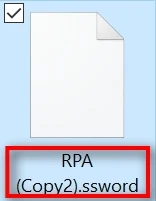
该文档将保存为 .ssword格式。这是 Task Capture 支持的 Word 模板文件格式。
删除模板
无法删除默认模板。
将鼠标悬停在模板上,通过三点图标或右击模板访问上下文菜单。
-
如果要删除,请选择“删除”选项
-
确认操作。
添加模板
Please visit Creating your own template to find out more about creating your template before adding it to the list.
-
单击“添加模板”按钮。
-
Choose the file (1) and click Open (2).
支持两种格式的模板:
-
.docx 文件 - 模板将添加到所有模板的列表中,并且预览图像为通用图像。
-
.ssword - 模板将添加到所有模板的列表中,并且预览图像来自插入的文件。
备注:In case you try to add an invalid template, an error message is displayed guiding you to troubleshoot the template using the information from the Troubleshooting a broken template or contact our technical support.
-
-
模板已添加到 Task Capture,您可以选中它,用于在 PDD 中导出工作流图表。