
- Überblick
- Erste Schritte
- Konzepte
- Verwenden der UiPath CLI
- Anleitungen
- CI/CD-Rezepte
- Befehlsreferenz
- Überblick
- Exitcodes
- Globale Optionen
- UIP-codierter Agent
- UIP-Coded
- UIP-Kontextgrundlage
- UIP-Dokumentation
- UIP-Funktion
- UIP-Leitplanken
- uip llm-configuration
- uip llm-gateway
- UIP-Modellhub
- Add-Test-Data-Entität
- Add-Test-Data-Queue
- Add-Test-Data-Variation
- Analysieren
- Erstellen
- Ein Projekt erstellen
- Diff
- Suchaktivitäten
- Get-Analyse-Regeln
- get-standard-aktivität-xaml
- Fehler abrufen
- Manuelle-Testfälle erhalten
- Manuelle-Testschritte erhalten
- Get-Library-Object-Repository
- Get-Object-Repository
- Get-Versionen
- Beispiel für einen Workflow abrufen
- Anwendung anzeigen
- Anzeigeelement
- Inspektionspaket
- install-data-fabric-entities
- Pakete installieren oder aktualisieren
- list-data-fabric-entities
- Listeninstanzen
- Beispiele für Listenworkflows
- Packen
- Veröffentlichen
- Remote
- restore
- Ausführen, Debuggen & Ausführung enthält
- Ausführungsdatei installieren
- Suchvorlagen
- Studio starten
- Ausführung anhalten
- TM
- UIA
- UIP-Aufgaben
- UIP-Ablaufverfolgungen
- Feedback zu UIP-Ablaufverfolgungen
- Migration
- Referenz und Support
Development Lifecycle
Follow a UiPath automation from a developer's machine to production when code lives in a third-party Git repository, with the CLI commands the release pipeline runs at each stage.
This page follows a UiPath automation from a developer's machine to production when code, history, and collaboration live in a third-party Git repository. Each step below matches a numbered operation in the diagram. Every step explains what happens and, where one applies, shows the uip command that performs it. Placeholders in $CAPS are values you provide.
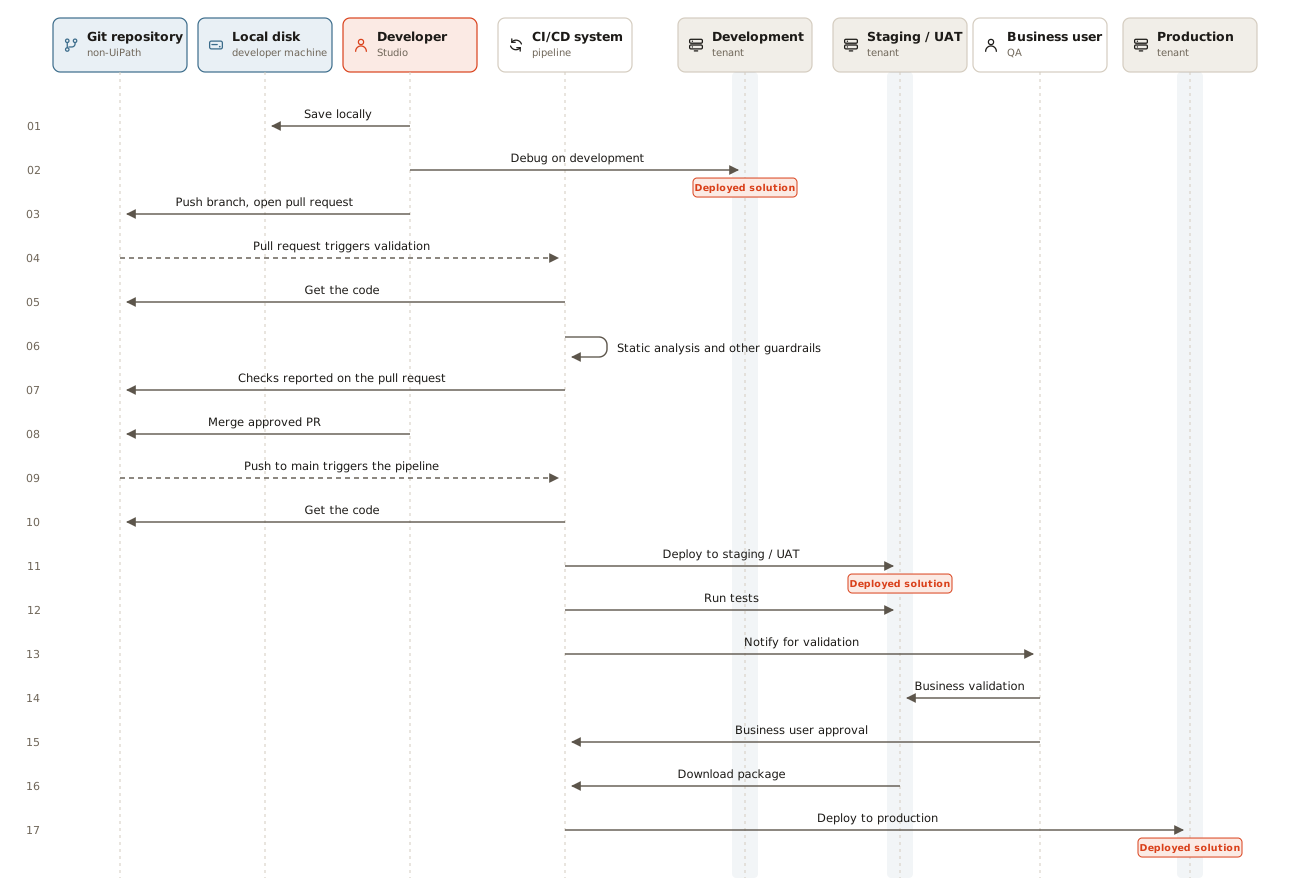
The happy path from the developer's machine to production. Guardrails run on the pull request, so main moves only on a merge that already passed them, and that merge triggers the release pipeline. Blue boxes are non-UiPath systems, orange boxes are UiPath, and gray boxes are runtime environments. Dashed arrows are events, not actions taken by a person. Select the diagram to open it at full size.
Voraussetzungen
- A source control repository for your automation projects.
- A continuous integration and continuous delivery (CI/CD) system that can run the UiPath CLI and pause for manual approval.
- Separate UiPath environments for development, testing, and production.
- Credentials the pipeline can use to authenticate to UiPath. See Authentication.
Schritt für Schritt
01. Save locally
Studio writes the project to the developer's disk. The work is in progress and not visible to anyone else.
No uip command. This is a Studio action.
02. Debug on development
The developer runs and debugs the project against the Development tenant from Studio.
No uip command. The developer works in Studio.
03. Push branch, open pull request
The change goes up on a feature branch, and the developer opens a pull request against main.
No uip command. This is a Git operation.
04. Pull request triggers validation
Opening the pull request triggers the CI system automatically. Nobody starts the run by hand.
No uip command. This is an event in the Git repository.
05. Get the code
The validation run checks out the pull request head.
No uip command. The CI system checks out the code.
06. Static analysis and other guardrails
Workflow Analyzer and governance rules run against the project. A violation fails the run before main changes. For a Solution, run the analyzer once for each project it contains.
uip rpa analyze ./my-solution/MyProject \
  --governance-file-path ./governance.json
uip rpa analyze ./my-solution/MyProject \
  --governance-file-path ./governance.json
See uip rpa analyze.
07. Checks reported on the pull request
The result appears as a status check on the pull request. Branch protection makes the check blocking rather than advisory.
No uip command. The CI system reports the result to the Git repository.
08. Merge approved PR
A reviewer approves, the checks pass, and the pull request is merged into main.
No uip command. This is a Git operation.
09. Push to main triggers the pipeline
The merge commit on main triggers the release pipeline automatically.
No uip command. This is an event in the Git repository.
10. Get the code
The release run checks out main at the merge commit.
No uip command. The CI system checks out the code.
11. Deploy to staging / User Acceptance Testing (UAT) environment
The release pipeline packs the Solution, publishes it to the Staging/UAT tenant, and deploys it there. Packing happens in this step, because the sequence has no separate build step. Before deploying, the pipeline edits the deployment configuration so the Solution reuses resources that already exist in the tenant instead of creating duplicates.
uip login --client-id env.UIPATH_CLIENT_ID \
  --client-secret env.UIPATH_CLIENT_SECRET --tenant "$UAT_TENANT"

uip solution pack ./my-solution ./dist \
  --name my-solution --version "$BUILD_VERSION"

uip solution publish "./dist/my-solution_${BUILD_VERSION}.zip"

uip solution deploy config get my-solution \
  --package-version "$BUILD_VERSION" -d ./deploy-config.uat.json
uip solution deploy config link ./deploy-config.uat.json "MyConnection" \
  --name "UatCrmConnection" --folder-path "Shared"
uip solution deploy config set ./deploy-config.uat.json \
  --all conflictFixingAction UseExisting

uip solution deploy run --name "my-solution-uat-${GIT_SHA}" \
  --package-name my-solution --package-version "$BUILD_VERSION" \
  --folder-name MySolution --parent-folder-path Shared \
  --config-file ./deploy-config.uat.json
uip login --client-id env.UIPATH_CLIENT_ID \
  --client-secret env.UIPATH_CLIENT_SECRET --tenant "$UAT_TENANT"

uip solution pack ./my-solution ./dist \
  --name my-solution --version "$BUILD_VERSION"

uip solution publish "./dist/my-solution_${BUILD_VERSION}.zip"

uip solution deploy config get my-solution \
  --package-version "$BUILD_VERSION" -d ./deploy-config.uat.json
uip solution deploy config link ./deploy-config.uat.json "MyConnection" \
  --name "UatCrmConnection" --folder-path "Shared"
uip solution deploy config set ./deploy-config.uat.json \
  --all conflictFixingAction UseExisting

uip solution deploy run --name "my-solution-uat-${GIT_SHA}" \
  --package-name my-solution --package-version "$BUILD_VERSION" \
  --folder-name MySolution --parent-folder-path Shared \
  --config-file ./deploy-config.uat.json
For details on linking declared resources to existing ones, see Reuse existing Orchestrator resources.
12. Run tests
The pipeline runs the test set against the deployed Solution in Staging/UAT, waits for the run to finish, and gets the report. See Run tests in a pipeline.
uip tm testsets run --test-set-key "$TEST_SET_KEY"
uip tm wait --execution-id "$EXECUTION_ID"
uip tm report get --execution-id "$EXECUTION_ID"
uip tm testsets run --test-set-key "$TEST_SET_KEY"
uip tm wait --execution-id "$EXECUTION_ID"
uip tm report get --execution-id "$EXECUTION_ID"
13. Notify for validation
The pipeline tells the business user that the release is ready for validation in Staging/UAT.
No uip command. The approval gate in the CI system notifies its reviewers on its own.
14. Business validation
The business user tests the solution in the Staging/UAT tenant. Meanwhile, the pipeline run pauses on the approval gate and doesn't poll for an answer.
No uip command. This is a human step.
15. Business user approval
The business user approves the release, which lets the pipeline continue.
No uip command. The approver acts in the CI system, not in the shell.
16. Download package
The UAT tenant also serves as the artifact feed. Take the exact package that passed testing instead of packing again from source.
uip login --client-id env.UIPATH_CLIENT_ID \
  --client-secret env.UIPATH_CLIENT_SECRET --tenant "$UAT_TENANT"
uip solution packages download my-solution "$BUILD_VERSION" -d ./artifacts/
uip login --client-id env.UIPATH_CLIENT_ID \
  --client-secret env.UIPATH_CLIENT_SECRET --tenant "$UAT_TENANT"
uip solution packages download my-solution "$BUILD_VERSION" -d ./artifacts/
17. Deploy to production
The pipeline publishes the package to the Production tenant and deploys it, using the same deployment configuration approach as step 11. Publish the same file that you downloaded in step 16. Don't pack a second time.
uip login --client-id env.UIPATH_CLIENT_ID \
  --client-secret env.UIPATH_CLIENT_SECRET --tenant "$PROD_TENANT"

uip solution publish "./artifacts/my-solution_${BUILD_VERSION}.zip"

uip solution deploy config get my-solution \
  --package-version "$BUILD_VERSION" -d ./deploy-config.prod.json
uip solution deploy config link ./deploy-config.prod.json "MyConnection" \
  --name "ProdCrmConnection" --folder-path "Shared"
uip solution deploy config set ./deploy-config.prod.json \
  --all conflictFixingAction UseExisting

uip solution deploy run --name "my-solution-prod-${GIT_SHA}" \
  --package-name my-solution --package-version "$BUILD_VERSION" \
  --folder-name MySolution --parent-folder-path Shared \
  --config-file ./deploy-config.prod.json
uip login --client-id env.UIPATH_CLIENT_ID \
  --client-secret env.UIPATH_CLIENT_SECRET --tenant "$PROD_TENANT"

uip solution publish "./artifacts/my-solution_${BUILD_VERSION}.zip"

uip solution deploy config get my-solution \
  --package-version "$BUILD_VERSION" -d ./deploy-config.prod.json
uip solution deploy config link ./deploy-config.prod.json "MyConnection" \
  --name "ProdCrmConnection" --folder-path "Shared"
uip solution deploy config set ./deploy-config.prod.json \
  --all conflictFixingAction UseExisting

uip solution deploy run --name "my-solution-prod-${GIT_SHA}" \
  --package-name my-solution --package-version "$BUILD_VERSION" \
  --folder-name MySolution --parent-folder-path Shared \
  --config-file ./deploy-config.prod.json
For details on linking declared resources to existing ones, see Reuse existing Orchestrator resources.
To roll back, run the same deploy run command with --package-version "$PREVIOUS_VERSION".
Siehe auch
- Voraussetzungen
- Schritt für Schritt
- 01. Save locally
- 02. Debug on development
- 03. Push branch, open pull request
- 04. Pull request triggers validation
- 05. Get the code
- 06. Static analysis and other guardrails
- 07. Checks reported on the pull request
- 08. Merge approved PR
- 09. Push to main triggers the pipeline
- 10. Get the code
- 11. Deploy to staging / User Acceptance Testing (UAT) environment
- 12. Run tests
- 13. Notify for validation
- 14. Business validation
- 15. Business user approval
- 16. Download package
- 17. Deploy to production
- Siehe auch