# Introduction
> Coded automations allow you to create automations using code instead of drag-and-drop activities, allowing collaborative work on complex projects. In coded workflows and test cases, you can use UiPath services (equal to activity packages), coded automation APIs (similar to activities), external.NET NuGet packages, and your custom C# classes in UiPath Studio. This makes it easy to integrate with external systems, databases, APIs, and other services.
Coded automations allow you to create automations using code instead of drag-and-drop activities, allowing collaborative work on complex projects. In coded workflows and test cases, you can use UiPath services (equal to activity packages), coded automation APIs (similar to activities), external.NET NuGet packages, and your custom C# classes in UiPath Studio. This makes it easy to integrate with external systems, databases, APIs, and other services.
Coded workflows behave just as standard workflows, meaning that they can also be invoked from standard UiPath workflows, and vice versa, using the **Invoke Workflow File** activity.
Additionally, types defined in code, such as enums, can be used as inputs in standard UiPath workflows.
Coded automations can be of three types:
* **Coded workflows** – used for designing workflows in code.
* **Coded test cases** – used for designing test cases.
* **Code source files** – used for creating code that you can later call in other coded file types.

## Using coded automations
To create coded automations in your project, you typically have the `UiPath.CodedWorkflows` package pre-installed. The package comes with the `CodedWorkflowBase` base and `CodedWorkflow` partial class.
The package is pre-installed when:
* You create a new project with at least version 23.10 of **System.Activities**, **Testing.Activities**, or **UIAutomation.Activities**, or any other activity package that has coded workflow support.
* You create a new **Coded Workflow**, **Coded Test Case**, or **Code Source File** in your project.
If you can't use coded automations in the stated scenarios, download the package from the **Manage Packages** menu.
## Benefits
Here are some of the benefits of using coded automations:
1. **Enhanced productivity** – If you’re familiar with coding or scripting you can leverage your skills and increase your productivity. Working within a familiar coding environment allows you to develop more efficient automations.
2. **Complexity management** – Coded automations provide a flexible solution for managing complex automation scenarios. By using code, you can implement custom logic, manage exceptions, and create reusable functions.
3. **Hybrid automation** – You can use coded automations interchangeably with low-code automations. This promotes seamless integration between the two approaches, enabling you to create flexible automation solutions.
4. **Improved performance** – Coded automations empower you to optimize your automation workflows to enhance performance. By using code, you can implement specific algorithms to make your automation executions faster.
5. **Readability** – Coded automations allow you to create structured code, resulting in code readability. If you organize your code and document it, you can easily maintain it and share it with other collaborators.
## Structure
Coded automations feature a structured design with namespaces, helper classes, and entry point methods. The framework of coded automations allows you to write the automations using the C# programming language.
Follow the detailed structure of a coded automation as described in the following sections.
### Namespaces
When you create a coded automation, a namespace is automatically generated using the name of the Studio project. For instance, if your Studio project is named "My project", the namespace for all coded automations will be "Myproject".
Additionally, if you create a coded automation inside a folder in your Studio project, then the namespace will be the name of the project and the name of the folder. For instance, if your Studio project is named "My project", and the folder is named "place", then the namespace will be "Myproject.place".
### Base class
Both **coded workflow** and **coded test case** automations use the `CodedWorkflow` partial class from the **UiPath.CodedWorkflows** package. This class gives the automation access to necessary interfaces for services (equal to activity packages), based on the installed activity packages in your project.
:::note
The **UiPath.CodedWorkflows** package is automatically included when you import an activity package that supports coded automations, such as **UiPath.System.Activities 23.10** or higher.
:::
#### `CodedWorkflow`
Coded automations inherit the `CodedWorkflow` partial class, creating a relationship of type `CodedAutomationExample : CodedWorkflow`. This means that the `CodedAutomationExample` class inherits attributes, methods, and functionality from the `CodedWorkflow` class. Essentially, it can access and utilize the features defined in the `CodedWorkflow` class, which provides a foundation for the coded automation, making it easier to build upon and customize the automation's behavior.
The `CodedWorkflow` class is declared as a partial class, allowing you to extend its functionalities by defining the same partial `CodedWorkflow` class in a code source file. This way, you can add new fields and methods to further customize the behavior of your coded automations. You can use this approach to implement a **Before** and **After** interface, specifically for coded test cases.
Additionally, the `CodedWorkflow` partial class inherits the `CodedWorkflowBase` class.

#### `CodedWorkflowBase`
The **`CodedWorkflowBase`** class holds the built-in functionalities that a coded automation inherits. This class contains methods and specific properties for managing workflow instances, runtime access, handling service containers, and configuring environment contexts. The `CodedWorkflowBase` class also offers another separate method for logging that you can customize yourself.
:::note
In the **Code Editor Settings**, select **Enable Source Decompilation** to view the `CodedWorkflowBase` class.
:::
Check out the `CodedWorkflowBase` methods in the table below:
Method
Description
ICodedWorkflowServices servicesNote: We recommend you to use the Log , BuildClient , and RunWorkflow methods through the services class and their corresponding services, instead of using them as standalone, readily available methods.
Provides access to the available services for coded workflows, such as:
OutputLoggerService : Allows you to output logs, using the Log method.
OrchestratorClientService (the BuildClient method): Allows you to enable the interaction with Orchestrator, through the BuildClient method.
WorkflowInvocationService : Allows you to invoke other workflows, using the RunWorkflow method.
Container : The container where all the services are stored. Allows you to manage resources for coded workflows, handling automatic import of namespaces and types, using the AutoImportedNamespaces and AutoImportedTypes methods. Additionally, it provides an instance of a specific service, using the Resolve method.
serviceContainer(ICodedWorkflowServiceContainer)Note: This has been replaced by ICodedWorkflowServices services . If you continue to use this syntax, you get a warning pointing you to use the new services.Container syntax.
Provides access to the dependency injection container that is specific to the current coded workflow. This container, known as the service container, allows you to retrieve instances of services that have been registered within it.
GetRunningJobInformation()
Retrieves information about the currently running job within the context of the coded workflow. The method accesses the RunningJobInformation property of the executorRuntime object, that holds information about job status, progress, parameters, and timestamps.
Log(string message, LogLevel level= LogLevel.Info, IDictionary<string, object>additionalLogFields = null)
Adds additional log fields to log messages with specified attributes.
RunWorkflow(string workflowFilePath,IDictionary<string, object> inputArguments = null,TimeSpan? timeout = null, bool isolated = false,InvokeTargetSession targetSession = InvokeTargetSession.Current)
Provides a structure to execute a workflow within the context of the given workflow runtime. It can set parameters, handle potential isolation, and initiate workflow execution. The returned task provides the results of the executed workflow, including its output and input/output arguments.
RunWorkflowAsync(string workflowFilePath,IDictionary<string, object> inputArguments = null, TimeSpan?timeout = null, bool isolated = false,InvokeTargetSession targetSession = InvokeTargetSession.Current)
Provides a structure to execute a workflow asynchronously within the context of the given workflow runtime. It can set parameters, handle potential isolation, and initiate workflow execution. The returned task provides the results of the executed workflow, including its output and input/output arguments.
DelayAsync(TimeSpan time) and DelayAsync(int delayMs)
Suspends execution for a specified period of time asynchronously.
Delay(TimeSpan time) and Delay(int delayMs)
Suspends execution for a specified period of time.
HttpClient BuildClient(string scope = "Orchestrator", bool force = true)
Builds an HTTP client with a specified scope and access token.
RegisterServices(ICodedWorkflowsServiceLocator serviceLocator)
Registers services (activity packages) to the coded workflow's service locator. You can override it when you want to inject custom services into the dependency injection container. Learn how to create and use custom services (coded activity packages) here .
#### Related articles
* [Registering custom services](https://docs.uipath.com/studio/standalone/latest/user-guide/registering-custom-services)
* [Implementing before and after executions](https://docs.uipath.com/studio/standalone/latest/user-guide/before-and-after-contexts#implementing-before-and-after-executions)
### Entry points
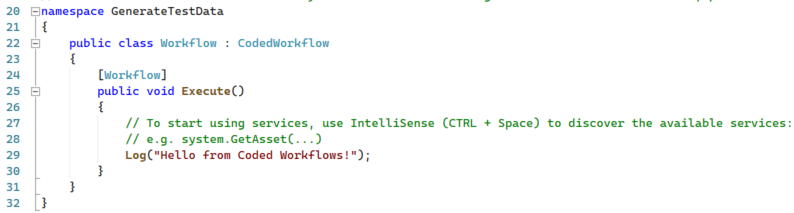
The entry point method for both coded workflows and coded test cases is named `Execute()` and is attributed as either `Workflow` or `TestCase`. You can change the name of the method, as long as you attribute it to either `Workflow` or `TestCase`.
You can only use one `Execute()` method (`[TestCase]` or `[Workflow]`) inside a file, that inherits the `Coded Workflow` class.
In this method, you can add input and/or output arguments, which are equivalent to **In**, **Out** or **In/Out** arguments in low-code automations. Go through the [Working with Input and Output arguments](https://docs.uipath.com/studio/standalone/latest/user-guide/working-with-input-and-output-parameters) tutorial to learn how to use arguments in coded automations.
This entry point method serves as the starting point for running the automations. This makes coded workflows and test cases easy to identify as entry points due to their `Execute()` method.
#### Project compatibility
You can use Coded automations only in **Windows** and **Cross-platform** projects.
## Services
To design coded automations, you can use services, that are equal to activity packages. For example, `System.Activities` is not only an activity package in low-code automations, but also a service in coded automations. Similarly to the activities inside an activity package, a service has coded automation APIs that you can use to create coded automations.
The services available to use inside coded automations are the following:
| Service | Version |
| --- | --- |
| [System.Activities](https://docs.uipath.com/activities/other/latest/workflow/system-apis) | 23.10.2 and higher |
| [UiAutomation.Activities](https://docs.uipath.com/activities/other/latest/ui-automation/ui-automation-apis) | 23.10.3 and higher |
| [Testing.Activities](https://docs.uipath.com/activities/other/latest/workflow/testing-apis) | 23.10.0 and higher |
| [MobileAutomation.Activities](https://docs.uipath.com/activities/other/latest/ui-automation/mobile-automation-apis-introduction) | 24.10.0 and higher |
| [Mail.Activities](https://docs.uipath.com/activities/other/latest/productivity/mail-apis) | 1.22.1 and higher |
| [Excel.Activities](https://docs.uipath.com/activities/other/latest/productivity/about-the-excel-activities-pack) | 2.24.1 and higher |
| [GSuite.Activities](https://docs.uipath.com/activities/other/latest/productivity/about-google-gsuite-activities) | 2.6.21 and higher |
| [Presentations.Activities](https://docs.uipath.com/activities/other/latest/productivity/about-the-presentations-activities-pack) | 1.14.1 and higher |
| [MicrosoftOffice365.Activities](https://docs.uipath.com/activities/other/latest/productivity/set-up-your-integration-service-connectors) | 2.6.21 and higher |
To use activity packages in coded automations, perform the following steps:
1. [Download the activity package](https://docs.uipath.com/studio/standalone/latest/user-guide/managing-activities-packages#installing-packages), equal to a service, similar to how you would in low-code automations. This provides you with a collection of coded automation APIs to use in your code.
2. Call the coded automation APIs within the services using the format: **service.API**. For instance, if you want to use the [GetAsset](https://docs.uipath.com/activities/other/latest/workflow/get-asset-coded) coded automation API, you would call it as `system.GetAsset`.
3. Coded automation APIs have parameters instead of properties. After calling a coded automation API, you can configure its parameters by providing values between parentheses. For example, if you have an asset in the Orchestrator instance that you’re connected to, called `Email Address`, then you can pass this asset’s name as a `String` to the coded automation API: `system.GetAsset("Email Address")`.
:::tip
Inside coded automations, you can also use any .NET class libraries available to download from the **nuget.org** feed.
:::