# Chrome Extension on Mac
> This extension helps you create browser automations in Google Chrome on Mac.
This extension helps you create browser automations in Google Chrome on Mac.
## Installation methods
The **UiPath extension for Chrome** can be installed in several ways, depending on how much user interaction is permitted.
Extensions can be installed either for a specific user or per machine (for all users). The only difference between these two installation types is the location of the configuration files.
| Install type | Configuration files locations |
|---|---|
| Per user | `~{userId}/Library/Application Support/Google/Chrome/External Extensions/``~{userId}/Library/Application Support/Google/Chrome/NativeMessagingHosts/`Replace `{userId}` with the username of the user. |
| Per machine | `/Library/Application Support/Google/Chrome/External Extensions/``/Library/Google/Chrome/NativeMessagingHosts/` |
## Install from UiPath Assistant
Installation using **UiPath Assistant** requires only a few clicks, with no additional configuration, as long as UiPath Assistant is already installed. This method installs the latest extension version published to the Web Store for the **current user** only.
1. Access **UiPath Assistant**.
2. Select the account icon.
3. Select **Preferences**.
4. Go to **UiPath Extensions**.
5. Select **Install** for **Google Chrome**.
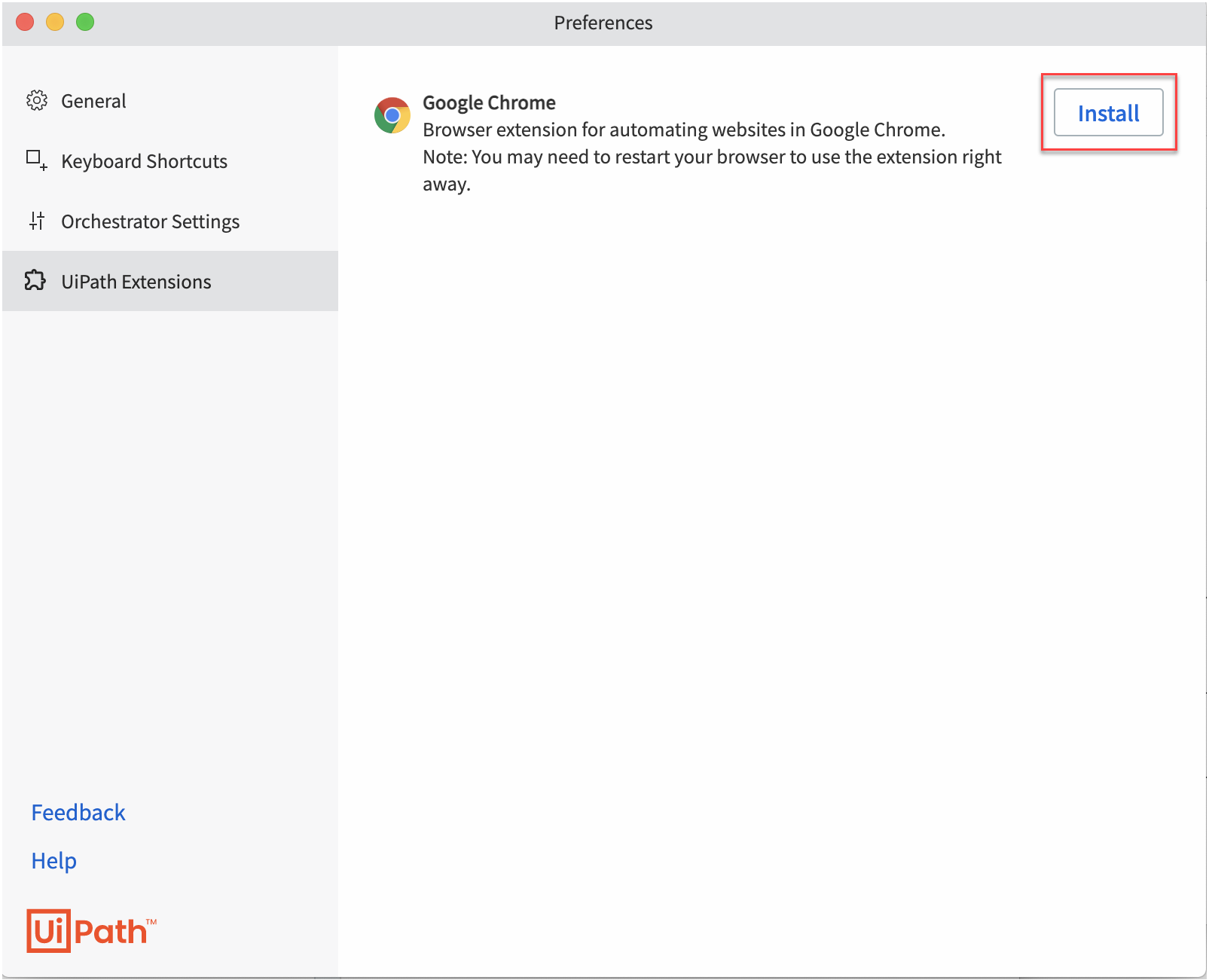
6. Select **Enable Extension** in the Google Chrome confirmation pop-up.

### Result
The extension is installed and enabled.
## Install from Terminal (via UiPath.ExtensionControl.Portable.dll)
UiPath provides a tool for managing extension installation: `UiPath.ExtensionControl.Portable.dll`. This tool is distributed with **UiPath Assistant**, along with the additional files required to run the extension.
### Prerequisites
* Always run the command using the `UiPath.ExtensionControl.Portable.dll` file from the `/Applications` directory, as macOS is sensitive when it comes to executing binaries from other locations.
* Close all Chrome windows before running the command.
You can use one of the following installation methods:
* [Current User](https://docs.uipath.com/studio/standalone/latest/user-guide/chrome-extension-on-mac#current-user)
* [All Users](https://docs.uipath.com/studio/standalone/latest/user-guide/chrome-extension-on-mac#all-users)
* [Group Policy Online](https://docs.uipath.com/studio/standalone/latest/user-guide/chrome-extension-on-mac#group-policy-online)
* [Group Policy Offline](https://docs.uipath.com/studio/standalone/latest/user-guide/chrome-extension-on-mac#group-policy-offline)
### Current User
This method installs the extension only for the current user. It creates or updates the JSON configuration files used by Chrome to detect extensions. These files define the extension ID, update URL, and the path to the native messaging host.
:::note
* Add the `--ext-id={extensionId}` option to target a specific extension version. Replace `{extensionId}` with the ID of the desired extension. For a list of available IDs, see [Studio - List of extensions for Chrome](https://docs.uipath.com/studio/standalone/latest/user-guide/chrome-extensions).
* The `--ext-id={extensionId}` part of the command is optional. If omitted, the latest version of the extension published to the Web Store is installed.
:::
#### Install Steps
1. Open a Terminal and run the following command:
```bash
dotnet /Applications/UiPath\ Assistant.app/Contents/Extensions/UiPath.ExtensionControl.Portable.dll install chrome
```
2. Select **Enable Extension** in the Google Chrome confirmation pop-up.

##### Result
The extension is installed and enabled.
### All Users
This method installs the extension for all users on the machine. It works similarly to the [Current User](https://docs.uipath.com/studio/standalone/latest/user-guide/chrome-extension-on-mac#current-user) method by creating or updating the JSON configuration files that Chrome uses to detect extensions. The difference lies in the file location: this method writes the configuration files to a system-wide location, whereas the **Current User** method writes them to a user-specific location.
:::note
* `sudo` is needed to run this command, as it updates system configuration files.
* Add the `--ext-id={extensionId}` option to target a specific extension version. Replace `{extensionId}` with the ID of the desired extension. For a list of available IDs, see [Studio - List of extensions for Chrome](https://docs.uipath.com/studio/standalone/latest/user-guide/chrome-extensions).
* The `--ext-id={extensionId}` part of the command is optional. If omitted, the latest version of the extension published to the Web Store is installed.
:::
#### Install Steps
1. Open a Terminal and run the following command:
```bash
sudo dotnet /Applications/UiPath\ Assistant.app/Contents/Extensions/UiPath.ExtensionControl.Portable.dll install chrome --scope=machine
```
2. Select **Enable Extension** in the Google Chrome confirmation pop-up.

##### Result
The extension is installed and enabled.
### Group Policy Online
This method doesn't require the manual step to enable the extension after Chrome is first started. This is because it relies on Configuration profiles deployed by MDM (Mobile Device Management) tools.
The Configuration profile sets the [ExtensionInstallForcelist](https://chromeenterprise.google/policies/#ExtensionInstallForcelist) policy. This policy ensures that the extension is enabled and that it can't be disabled manually.
This procedure is similar to the Windows Group Policy Online installation method described here: [Studio - Extension for Chrome](https://docs.uipath.com/studio/standalone/latest/user-guide/extension-for-chrome#online).
To install a Configuration profile (a `.mobileconfig` file) an MDM application should be present on the machine, and the machine has to be enrolled to be managed.
Examples of MDMs include:
- [Jamf](https://www.jamf.com/)
- [Microsoft Intune](https://www.microsoft.com/en-us/security/business/microsoft-intune)
- [Kandji](https://www.kandji.io/)
- [MicroMDM](https://micromdm.io/) (open-source)
If the device is enrolled in an MDM solution, ensure that the configuration is not overridden by the Configuration updates pushed via MDM. To prevent this, deploy the Configuration profile directly via MDM. The profile should contain settings similar to the example below:
```xml
PayloadContent
ExtensionInstallForcelist
{extensionId};https://clients2.google.com/service/update2/crx
DeveloperToolsAvailability
1
BlockExternalExtensions
ExtensionAllowedTypes
extension
NativeMessagingUserLevelHosts
NativeMessagingAllowlist
com.uipath.portable_host
PayloadDisplayName
Google Chrome
PayloadIdentifier
com.google.Chrome.2C2280F4-2955-49E9-8161-A599B9BB6685
PayloadType
com.google.Chrome
PayloadUUID
2C2280F4-2955-49E9-8161-A599B9BB6685
PayloadVersion
1
PayloadDisplayName
UiPath Studio Web Automation Chrome Extension Installation
PayloadIdentifier
com.uipath.chrome.extension.A64BC628-4ECF-4A71-91D5-20D7C7475C38
PayloadOrganization
com.uipath
PayloadScope
System
PayloadType
Configuration
PayloadUUID
A64BC628-4ECF-4A71-91D5-20D7C7475C38
PayloadVersion
1
TargetDeviceType
5
```
If the device is not enrolled in an MDM solution, the `UiPath.ExtensionControl.Portable.dll` tool writes the required configuration locally, without it being overridden by MDM‑applied policies. This allows Chrome to apply the policy and ensures that the extension is enabled without requiring user interaction.
:::note
* `sudo` is needed to run this command, as it updates system configuration files.
* Using the `bypolicy` option automatically sets the scope to machine.
* The command can be issued with `--scope=user` instead of `--scope=machine`, with the effect that only the current user gets the extension installed and automatically enabled. Any other user will not get the extension installed.
* Add the `--ext-id={extensionId}` option to target a specific extension version. Replace `{extensionId}` with the ID of the desired extension. For a list of available IDs, see [Studio - List of extensions for Chrome](https://docs.uipath.com/studio/standalone/latest/user-guide/chrome-extensions).
* The `--ext-id={extensionId}` part of the command is optional. If omitted, the latest version of the extension published to the Web Store is installed.
:::
#### Install Steps
##### A. MDM-enrolled machine
1. Open a Terminal and run the following command. The `bypolicy` argument can be removed if the configuration pushed via MDM is set to override existing values.
```bash
sudo dotnet /Applications/UiPath\ Assistant.app/Contents/Extensions/UiPath.ExtensionControl.Portable.dll install chrome bypolicy --scope=machine
```
2. Create a new `.mobileconfig` file to configure the required policies. The `.mobileconfig` file should have roughly the content described above.
3. Install the Configuration profile using the MDM provider.
4. Start Chrome.
5. Design and run automations.
##### Result
The extension is installed and enabled.
##### B. Not MDM-enrolled machine
1. Open a Terminal and run the following command:
```bash
sudo dotnet /Applications/UiPath\ Assistant.app/Contents/Extensions/UiPath.ExtensionControl.Portable.dll install chrome bypolicy --scope=machine
```
2. Design and run automations.
##### Result
The extension is installed and enabled.
### Group Policy Offline
`UiPath.ExtensionControl.Portable.dll` cannot be used to fully perform this install type, as it requires intervention (either on the local machine or from an administrator machine).
`UiPath.ExtensionControl.Portable.dll` provides support for updating the configuration files needed by the extension for its communication with the native host. Therefore, it can be used to install the extension per user or per machine, as previously shown, but additional steps are required to ensure the extension is installed and enabled.
The Configuration profile sets the [ExtensionInstallForcelist](https://chromeenterprise.google/policies/#ExtensionInstallForcelist) policy. This policy ensures that the extension is enabled and that it can't be disabled manually.
This method:
- Lets you install any extension, whether published to WebStore or unpublished.
- Is useful in environments with restricted Internet access (where `https://clients2.google.com/service/update2/crx` cannot be accessed).
The Configuration profile should have roughly the following content:
```xml
PayloadContent
ExtensionInstallForcelist
{extensionId}
DeveloperToolsAvailability
1
BlockExternalExtensions
ExtensionAllowedTypes
extension
NativeMessagingUserLevelHosts
NativeMessagingAllowlist
com.uipath.portable_host
PayloadDisplayName
Google Chrome
PayloadIdentifier
com.google.Chrome.2C2280F4-2955-49E9-8161-A599B9BB6685
PayloadType
com.google.Chrome
PayloadUUID
2C2280F4-2955-49E9-8161-A599B9BB6685
PayloadVersion
1
PayloadDisplayName
UiPath Studio Web Automation Chrome Extension Installation
PayloadIdentifier
com.uipath.chrome.extension.A64BC628-4ECF-4A71-91D5-20D7C7475C38
PayloadOrganization
com.uipath
PayloadScope
System
PayloadType
Configuration
PayloadUUID
A64BC628-4ECF-4A71-91D5-20D7C7475C38
PayloadVersion
1
TargetDeviceType
5
```
The [ExtensionInstallForcelist](https://chromeenterprise.google/policies/#ExtensionInstallForcelist) string has the following formats:
- `{extensionId}`
- `{extensionId};{urlWithThePathToTheUpdateManifestXmlFile}`
The `{urlWithThePathToTheUpdateManifestXmlFile}` value has to be replaced with an URL (`https://` or `file://`) to the update manifest XML file. This file has the following content:
```xml
```
:::note
* Replace `{extensionId}` with the ID of the extension.
* The `{crxUrl}` has to be replaced with the URL of the CRX (`https://` - if the CRX is hosted on a server, or `file://` - if the file is placed on the local machine).
* The `{extensionVersion}` has to be replaced with the version of the extension (something like 24.10.3).
:::
#### Install Steps
:::note
Steps 1 and 2 are performed on the administrator machine.
:::
1. Create the Configuration profile as described above.
2. Push the profile using an MDM provider.
3. Install the native messaging host by opening a Terminal and running the following command:
```bash
dotnet /Applications/UiPath\ Assistant.app/Contents/Extensions/UiPath.ExtensionControl.Portable.dll install chrome native-messaging-host-only --scope=machine
```
4. Start Chrome.
5. Design and run automations.
##### Result
The extension is installed and enabled.
This method relies on Configuration profiles deployed by MDM (Mobile Device Management) tools. The Configuration profile applies the [ExtensionInstallForcelist](https://chromeenterprise.google/policies/#ExtensionInstallForcelist) policy, which ensures that the extension is automatically enabled and cannot be disabled by users.
This procedure is similar to the Windows Group Policy Offline installation method described here: [Studio - Extension for Chrome](https://docs.uipath.com/studio/standalone/latest/user-guide/extension-for-chrome#offline).
## Uninstall
### Uninstall from UiPath Assistant
1. Access **UiPath Assistant**.
2. Go to **UiPath Extensions**.
3. Select **Uninstall** for **Google Chrome**.

#### Result
The extension is uninstalled.
### Uninstall from Terminal
You can uninstall the UiPath extension for Chrome, regardless of the installation method, by running the following command:
```bash
dotnet UiPath.ExtensionControl.Portable.dll cleanup chrome
```
#### Result
The extension is uninstalled.
## Check status
To check the status of the Chrome Extension, run the corresponding Terminal command based on your installation method:
* Current User
```bash
dotnet UiPath.ExtensionControl.Portable.dll status chrome
```
* All Users
```bash
dotnet UiPath.ExtensionControl.Portable.dll status chrome --scope=machine
```
* Group Policy Online
```bash
dotnet UiPath.ExtensionControl.Portable.dll status chrome bypolicy --scope=machine
```
* Group Policy Offline
```bash
dotnet UiPath.ExtensionControl.Portable.dll status chrome native-messaging-host-only --scope=machine
```