# About the Windows - Legacy Compatibility
> Studio 2021.10 brought support for .NET-based projects and introduced the concept of project compatibility based on robot type. In releases prior to 2021.10, all projects used the Windows - Legacy compatibility. Starting with Studio 2021.10, you have the option to create projects with the Windows and cross-platform compatibilities in addition to Windows - Legacy.
Studio 2021.10 brought support for .NET-based projects and introduced the concept of project compatibility based on robot type. In releases prior to 2021.10, all projects used the Windows - Legacy compatibility. Starting with Studio 2021.10, you have the option to create projects with the Windows and cross-platform compatibilities in addition to Windows - Legacy.
## Benefits of converting Windows - Legacy projects to the Windows compatibility
The default compatibility for new projects is now Windows. While we continue to support the Windows - Legacy compatibility, new features will only be available in projects with the Windows and cross-platform compatibilities.
Using the Windows or cross-platform compatibilities unlocks future innovations and prepares you for the UiPath **Agentic Automation** vision, featuring:
* **Robots** that handle structured, rule-based tasks efficiently.
* **AI-Powered Agents** that process unstructured data and make intelligent decisions.
* **Humans** that validate and oversee critical automation workflows.
Agentic Automation enables you to automate more complex processes, leveraging AI-driven decision-making across enterprise systems.
### Access new capabilities
Windows and cross-platform projects give you access to a next-generation capabilities which are not available in Windows - Legacy, including:
* Support for creating global variables and constants in the [Data Manager](https://docs.uipath.com/studio/standalone/2025.10/user-guide/using-the-data-manager).
* New [design experience](https://docs.uipath.com/studio/standalone/2025.10/user-guide/designing-automations#cross-platform-projects) available for cross-platform projects and some activities in Windows projects.
* The ability to [customize the layout](https://docs.uipath.com/studio/standalone/2025.10/user-guide/about-libraries#configuring-the-layout-of-an-activity) of activities generated from libraries.
* [Coded automations](https://docs.uipath.com/studio/standalone/2025.10/user-guide/coded-automations-introduction#introduction).
* [Autopilot](https://docs.uipath.com/autopilot/automation-cloud/latest/overview/about-autopilot) capabilities.
* Business Process Model and Notation modeling through [long running workflows](https://docs.uipath.com/studio/standalone/2025.10/user-guide/long-running-workflows).
* [Solutions](https://docs.uipath.com/studio/standalone/2025.10/user-guide/solutions).
### Enhanced performance and scalability
Windows and cross-platform projects:
* Are compiled and provide significant performance improvements, reducing execution time for automations.
* Are ideal for large-scale automation scenarios with high transaction volumes.
* Feature modern memory management and Just-In-Time (JIT) compilation.
### Enhanced security
* .NET includes the latest encryption algorithms and security protocols to protect sensitive data.
* Active maintenance ensures quick resolution of vulnerabilities, minimizing risks.
### Reduced technical debt
* Converting Windows-Legacy projects removes reliance on deprecated libraries and outdated technologies.
* Future upgrades and enhancements will be easier and more cost-effective.
* Modern workflows are easier to debug, scale, and adapt to evolving business needs.
## How to continue creating Windows - Legacy projects
While you can only create new projects with the Windows or cross-platform compatibility from **Backstage** view, organizations are still able to use governance policies to restore the option of creating Windows - Legacy projects by configuring the **Allowed compatibility frameworks** setting. To do this:
1. Navigate to **Automation Ops™** > **Governance**.
2. Define a new Studio governance policy. Make sure to use the 24.10.0 Studio policy template.
3. In the governance policy window, select the **Design** tab and scroll to the **Design Style** section.
4. Enable the **Allowed compatibility frameworks** setting and select the **Windows - Legacy** target framework.
5. Save and deploy the governance policy.
To learn more, refer to [Settings for Studio Policies](https://docs.uipath.com/automation-ops/automation-cloud/latest/USER-GUIDE/settings-for-studio-policies) in the Automation Ops guide.
Alternatively, you can configure the setting by using the file-based governance model:
1. Generate a JSON governance file from Studio.
2. Locate the **AllowedProjectFrameworks** setting inside the governance file.
3. Set the value of the **Classic** parameter to **True.**
4. Save and deploy the governance file.
To learn more, refer to [Governance](https://docs.uipath.com/studio/standalone/2024.10/user-guide/governance) in the Studio guide.
To stay up to date with upcoming changes, see [Deprecation Timeline](https://docs.uipath.com/overview/other/latest/overview/deprecation-timeline).
## How to edit existing Windows - Legacy projects
Editing, publishing, and running Windows - Legacy projects will continue to be supported in future releases. Windows - Legacy projects are opened in a new Studio Legacy instance dedicated for Windows - Legacy projects. This Studio Legacy instance allows you to edit, publish, and convert Windows - Legacy projects to the Windows compatibility.
:::note
The Studio Legacy instance is not currently available for [Studio Continuous Release, Short Term Support (STS)](https://docs.uipath.com/studio/standalone/latest/user-guide/about-the-windows-legacy-compatibility). Studio STS does not currently allow the creation or editing of Windows - Legacy projects.
:::
## How to convert Windows-Legacy projects to the Windows compatibility
:::important
Dependencies for which no versions with the Windows compatibility are found are marked as unresolved and the version used in the Windows - Legacy project is displayed in the Project panel after the conversion. Most activity packages developed by UiPath and available on the Official feed support the Windows compatibility. For a complete list, see the [Activities Guides](https://docs.uipath.com/activities/other/latest).
:::
Studio comes with a built-in conversion tool that enables you to convert any Windows - Legacy project to Windows.
When you convert a project to Windows:
* Project dependencies are managed based on the following rules:
+ If the same version of the package exists in the configured package sources, the version used in the Windows - Legacy project is not changed.
+ If the same version of the package does not exist, the version used in the Windows - Legacy project is changed to the highest patch of the nearest version.
* All the activities and properties are preserved in the converted project.
* Namespaces that are different in Windows
- Legacy and Windows projects are updated.
* Namespaces that are required in Windows projects are added and those used only in Windows - Legacy projects are removed.
:::note
Convert and republish Windows - Legacy libraries before you convert the processes where they are installed as dependencies.
:::
To convert a legacy project to the Windows compatibility:
1. Open the Windows - Legacy project in Studio and make sure you only open it in one Studio instance.
2. Right-click the project node in the **Project** panel and then select **Convert to Windows**. A new window is displayed.
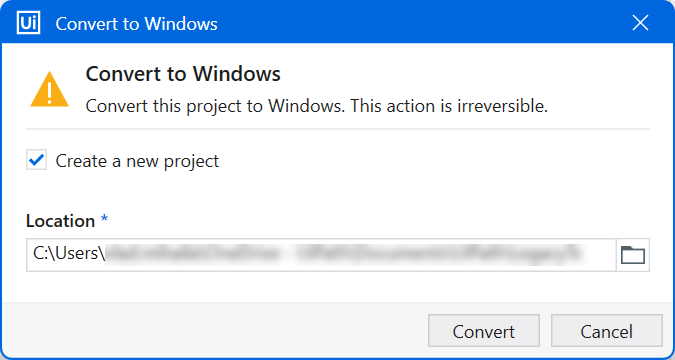
3. Select how to convert:
* To create a copy of the current project using the Windows compatibility and keep the original Windows - Legacy project, select **Create a new project**. Enter the location where to create the project. The new project takes the name of the old project + `_Windows`.
* To update the existing project and convert it to the Windows compatibility, clear the **Create a new project** checkbox. The changes made to the project if you select this option cannot be undone.
4. Click **Convert**.
If dependency issues cause unresolved activities after the conversion, a message displayed at the top of each such activity indicates that it is missing or it could not be loaded. The following information is available for each one: display name, activity namespace, activity properties and values. Click **Replace** to find an alternative and replace the missing or invalid activity. For more information, see [Missing or Invalid Activities](https://docs.uipath.com/studio/standalone/2025.10/user-guide/unresolved-activity).
## Legacy library migration scenarios
See the scenarios below when migrating legacy libraries:
1. Legacy library created with Studio (source code available): Migrate the library first, publish it, and then migrate the process.
2. .NET library with .NET Framework target (source code available): For .NET libraries, change the target to .NET. You can:
* Check the supported .NET Studio version (for example, Studio 24.10.X runs on .NET 8).
* Multi-target to support both .NET Framework and .NET.
* Use flavors for the .NET version. `net6.0-windows` targets are compatible only with Windows projects, while `net6.0` is compatible with both Windows and cross-platform project.
:::note
See the following resources:
* [Creating activities with code](https://docs.uipath.com/sdk/other/latest/developer-guide/creating-activities-with-code) in the SDK guide.
* [Migrating Activities to .NET 6](https://docs.uipath.com/sdk/other/latest/developer-guide/migrating-activities-to-net) in the SDK guide.
* [MSBuild reference for .NET SDK projects](https://learn.microsoft.com/en-us/dotnet/core/project-sdk/msbuild-props).
:::
3. Third-party legacy library (source code not available): Replace activities using alternatives recommended by UiPath.
## Blueprint for converting Windows - Legacy projects
This step-by-step guide aims to help you to seamlessly transition your automations from Windows-Legacy to Windows.
1. **Inventory and assessment** - Prepare a detailed inventory of all your Windows - Legacy projects and their dependencies:
* List all projects, libraries, and dependencies.
* Assess compatibility with the Windows (.NET) environment.
* Identify components that need updates or replacements.
:::note
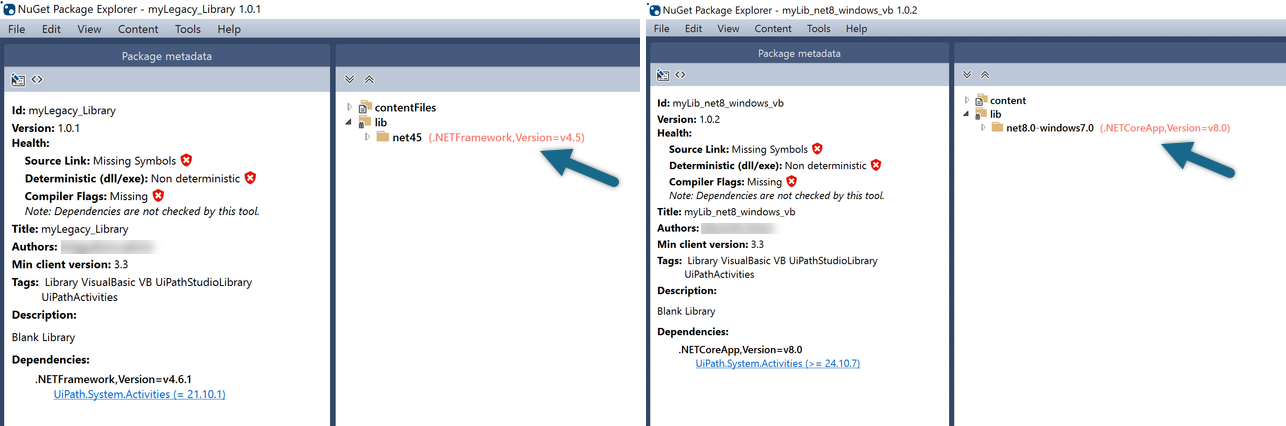
The **NuGet Package Explorer** application can be used to inspect .NET target frameworks.
:::
2. **Proof of concept** - Test the conversion process on a small subset of workflows:
* Select a representative workflow that has a library added as a dependency.
* Perform a pilot conversion to identify challenges and blockers.
* Validate the result with tests.
:::tip
* Create a backup of the Windows - Legacy project and library.
* Do not change the name of the project or library when migrating.
* Migrate the library first and publish it. Don’t worry – the migrated version of the library cannot be used in Windows - Legacy projects.
:::
3. **Scaling** - Convert all projects and libraries systematically:
* Migrate all libraries and publish them.
* Migrate all projects.
4. **Validation and testing** - Ensure the converted workflows perform as intended:
* Perform testing.
* Address errors or compatibility issues iteratively.
* Test interactions with external systems and data sources.
5. **Production deployment** - Transition the project to the production environment:
* Deploy workflows to production.
* Monitor for stability and performance issues.
* Provide user training or updated documentation if necessary.
6. **Post-migration monitoring** - Report migration issues to UiPath for future improvements:
* Send feedback.
* Share challenges or solutions with UiPath representatives.
## Known issues
Issue
Solution
Some expressions are incompatible with Windows projects and need to be manually changed to successfully convert a Windows - Legacy project to Windows.
{} to new Object() {}new Object() {task_output.Id.ToString,task_action,now,I_comment } to new Object() {task_output.Id.ToString,task_action,now,I_comment }
Validation errors generated by other expressions that worked before the conversion.
Cut the expression using the CTRL + X keyboard shortcut and paste it back in the activity field using CTRL + V .
In a For Each activity, naming the variable whose values you want to iterate as “expression” results in a compilation error.
Refrain from naming the variable "expression".
Communication between UiPath Studio and the Taxonomy Manager ended unexpectedly.
After converting a project that contained an older versions of the IntelligentOCR activity package , make sure to upgrade to the latest version of the IntelligentOCR package.
BC36915: Cannot infer an element type because more than one type is possible. Specifying the type of the array might correct this error.BC30512: Option Strict On disallows implicit conversions from 'Object()' to 'String()'. The selected value is incompatible with the property type.BC36914: Cannot infer an element type, and Option Strict On does not allow 'Object' to be assumed. Specifying the type of the array might correct this error.
Modern programming languages enforce stricter type inference compared to older versions. Cast the array or the element to the desired type, for example: {} to new Object() {}<object>.ToString()CType(<element>, Object)
Encoding-sensitive operations
Add System.Text.Encoding.RegisterProvider(System.Text.CodePagesEncodingProvider.Instance) using InvokeMethod .
“ (0x201C) vs. " (0x22)
Replace all instances with " (0x22), which is the only valid quotation mark for string literals in modern .NET.
BC30311: Value of type 'SecureString' cannot be converted to 'CvString'. The selected value is incompatible with the property type.
Remove and re-add the Computer Vision activity arguments.
BC31424: Type ‘System.Data.DataTable' in assembly ‘…’ has been forwarded to assembly 'System.Data.Common’ …BC30652: Reference required to assembly ‘System.Collections’ … containing the type 'List(Of )'. Add one to your project.BC30057: Too many arguments to 'Public Overloads Property SpecificContent As Dictionary(Of String, Object)'.
To fix these validation errors:
Navigate to the activity properties that contain the errors.
Remove the configuration (Cut or Ctrl + X).
Click outside the activity.
Add the configuration back (Paste or Ctrl + V).