# Mass Update Command Line Parameters
> The **Project Dependencies Mass Update** command-line user interface can be used to mass update the `project.json` files belonging to multiple automation projects. It allows for adding or removing dependencies, changing package versions and runtime rules, and signing processes or libraries before publishing them.
The **Project Dependencies Mass Update** command-line user interface can be used to mass update the `project.json` files belonging to multiple automation projects. It allows for adding or removing dependencies, changing package versions and runtime rules, and signing processes or libraries before publishing them.
Please note that when using the **Project Dependencies Mass Update Tool**, you implicitly accept the license terms of each package version that you update.
:::note
The **Project Dependencies Mass Update** command-line user interface is available for Studio Enterprise Edition starting with Studio v2018.4.4.
:::
`UiPath.Studio.CommandLine.exe` is available in the installation folder:
* For per-machine installations, the default path is `C:\Program Files\UiPath\Studio\`.
* For per-user installations, the default path is `%localappdata%\Programs\UiPath\Studio`.
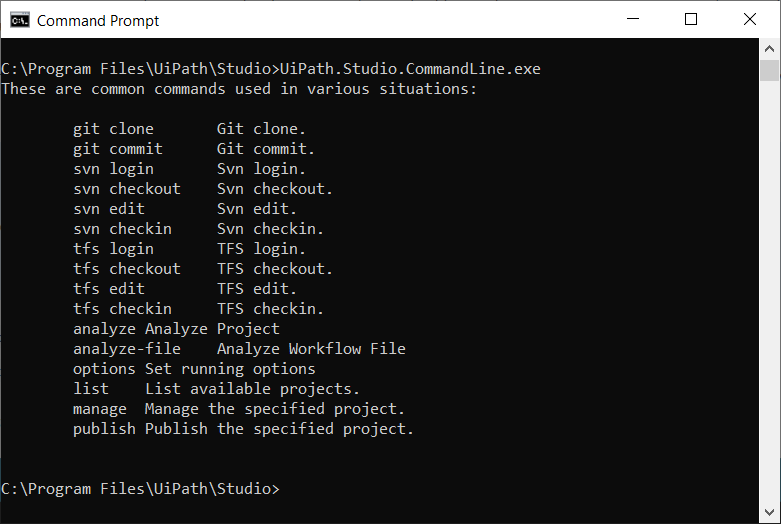
Some commands may be unavailable depending on what source control systems Studio is connected to (GIT, SVN, or TFS). To view the arguments specific for each command simply use `--help`. Use `--version` to check the version of `UiPath.Studio.CommandLine.exe`.
Combinations of multiple commands can be used in a single command line. In addition, certain arguments don't need to be repeated in the same command line, for example `r, --repository` when used with `svn login` and `svn checkout`.
:::note
Before using the **Project Dependencies Mass Update** command-line user interface with **TFS**, make sure the projects you want to update are disconnected from **TFS** for the current user.
:::
It is recommended to save and close projects from Studio, before making changes to them using the **Project Dependencies Mass Update Tool**.
## Commands for Updating Local Files
* `list` - Find and display the paths to `project.json` files stored in a certain directory. Projects from a local network drive can also be listed. The following arguments should be used with the `list` command:
| Argument | Description |
| --- | --- |
| `-d, --directory` | The directory that stores the files that you want to list. Use `-u, --user` and `-p, --pass` arguments for password-protected remote directories. |
:::note
If the `--directory` argument is not used with the `list` command, the paths to all `project.json` files from the current working directory are displayed.
:::
* `manage` - Manage the specified project. Please note that multiple dependencies and rules can be added or removed provided that they are separated by blank spaces. The following arguments should be used with the `manage` command:
Argument
Description
-a, --add-ref
”dependencyname|version|runtimerule” = adds or updates the dependency version and runtime rule.
”dependencyname|prereleaseversion|runtimerule” = adds the dependency’s prereleased version and the specified runtime rule.
r, --rem-ref
"dependencyname" - the dependency to be removed from the project, regardless of its version.
"dependencyname|version" - removes the dependency with this specific version, regardless if it’s a prerelease version.
-p, --project-path
The path to the project.json file.
:::note
The syntax for runtime rules is `lowest` for **Lowest Applicable Version**, and `strict` for **Strict** version. If none of these two parameters are mentioned, the **Lowest Applicable Version** is applied by default.
:::
For example, the following command `manage --project-path "C:\Users\username\Documents\UiPath\BlankProcess\project.json" --add-ref "UiPath.Excel.Activities|2.6.2|lowest"` changes the package version to 2.6.2 and the runtime rule to Lowest Applicable Version.
* `publish` - Publish the project along with the changes to dependencies. The following arguments should be used with the `publish` command:
Argument
Description
-p, --project-path
The path to the project.json to publish. The argument is mandatory.
-g, --target
Custom - Custom URL or local folder. Define the location using the -f, --feed argument.
Robot - Default publish location for the Robot, if not connected to Orchestrator. Not available for publishing libraries or templates.
OrchestratorTenant - Orchestrator Tenant Processes Feed (for processes and test cases) or Orchestrator Libraries Feed (for libraries and templates).
OrchestratorPersonalFolder - Orchestrator Personal Workspace Feed. Not available for publishing libraries, templates, or test cases.
OrchestratorFolderHierarchy - If a first-level folder with a separate package feed or one if its subfolders is selected from the folders menu in the Studio status bar, the feed for that folder hierarchy. Not available for publishing libraries or templates.
-f, --feed
The custom URL for publishing the project. This can also be a custom local directory, similar to the path in the Publish options tab in Studio.
-a, --api-key
The API key for publishing the project. This argument can be used for a custom target.
-i, --icon
Path to the custom icon to use for the package.
-n, --notes
Release notes that contain changes brought to the project.
-v, --new-version
The new version for the project.
-t, --timeout
Specifies the timeout value for publishing projects. The default timeout is 30 seconds. This setting only applies for the package transfer to Orchestrator duration.
--cer-path
The local path to the certificate for package signing.
--cer-password
The password for the certificate.
--timestamper-url
The URL to the timestamper.
--incl-all-feeds
Not required.
:::note
Currently `.pfx` and `.p12` certificate extensions are accepted for signing projects. For more details, check out the [Signing Packages](https://docs.uipath.com/studio/standalone/2023.10/user-guide/signing-packages#signing-packages) page.
:::
Building upon the example from above, the following command updates the `UiPath.Excel.Activities` pack to version 2.6.2, changes the runtime rule to Lowest Applicable Version, adds release notes and a new version, and publishes the project to a custom location:
`manage --project-path "C:\Users\username\Documents\UiPath\BlankProcess\project.json" --add-ref "UiPath.Excel.Activities|2.6.2|lowest" publish --project-path "C:\Users\username\Documents\UiPath\BlankProcess\project.json" --target Custom --feed "C:\Users\username\Desktop\myfeed" --notes "Changes were made to the Excel package" --new-version "1.0.2"`.
## Workflow Analyzer Commands
Command-line parameters can be used for analyzing files or projects against a set of rules.
* `analyze` - Analyzes the whole project. Requires the path to the `project.json` file.
* `analyze-file` - Analyzes a single file. Requires the path to the `.xaml` file.
| Argument | Description |
| --- | --- |
| `-p, --project-path` | For analyzing one file, provide the path to the `.xaml`. For analyzing the entire project, specify the path to the `project.json` file. |
| `-c, --config-path` | Path to the `RuleConfig.json` file. Specify this path only if the rule configuration file is not placed in the default location (`%LocalAppData%\UiPath\Rules`). |
Read the [About Workflow Analyzer](https://docs.uipath.com/studio/standalone/2023.10/user-guide/about-workflow-analyzer) page to find out more about how to analyze files/projects and configure rules using command-line parameters.
## GIT Specific Commands
* `git clone` = Clone a repository into a new directory.
:::note
Before you run `UiPath.Studio.CommandLine.exe git clone`, make sure the credentials for the repository are already stored in the Windows Credential Manager. Otherwise, an authentication error occurs.
:::
The following arguments should be used with the `git clone` command:
| Argument | Description |
| --- | --- |
| `r, --repository` | The repository address/URL that stores the projects that you would like to modify. The argument is mandatory. |
| `-d, --directory` | The working directory. If not specified, the current environment directory is used. |
* `git commit` = Record changes to the repository. The following arguments should be used with the `git commit` command:
| Argument | Description |
| --- | --- |
| `-m, --message` | Write a commit message to detail the changes brought to the projects. The commit message is mandatory. |
| `-p, --push` | Upload changes to the remote repository. |
| `-d, --directory` | The working directory. If not specified, the current environment directory is used. |
| `-f, --files` | The paths to the files that you want to edit. The paths should be relative to the working directory and separated by semicolons. |
## SVN Specific Commands
* `svn login` = Use credentials to login to a certain SVN repository. The following arguments should be used with the `svn login` command:
| Argument | Description |
| --- | --- |
| `r, --repository` | The repository address/URL that stores the projects that you would like to modify. The argument is mandatory. |
| `-p, --password` | The password required for authentication to the SVN repository. |
| `-s, --password-stdin` | Reads the authentication password from STDIN (standard input). You are prompted to input the password to the desired repository. |
| `u, --user` | The username required for authentication. |
* `svn checkout` = Check out projects from a SVN repository. The following arguments should be used with the `svn checkout` command:
| Argument | Description |
| --- | --- |
| `-d, --directory` | The destination checkout folder for the files. The argument is mandatory. |
| `-r, --repository` | The address of the repository that stores the files you want to checkout. The argument is mandatory. |
* `svn edit` = Unlock one or multiple projects and make them available for edit. The following arguments should be used with the `svn edit` command:
| Argument | Description |
| --- | --- |
| `-f, --files` | The paths to the files that you want to edit. The paths should be relative to the working directory and separated by semicolons. The argument is mandatory. |
| `-d, --directory` | The working directory which contains the files that you want to edit. If a working directory isn’t specified, the current environment directory is used. |
* `svn checkin` = Check in the changes made to automation projects. The following arguments should be used with the `svn checkin` command:
| Argument | Description |
| --- | --- |
| `-m, --message` | Write a commit message to detail the changes brought to the projects. The commit message is mandatory. |
| `-d, --directory` | The working directory where the projects are being checked in. If a working directory isn’t specified, the current environment directory is used. |
| `-f, --files` | The paths to the files that you edited. The paths should be relative to the working directory and separated by semicolons. |
## TFS Specific Commands
* `tfs login` = Use credentials to login to a certain TFS repository. The following arguments should be used with the `tfs login` command:
Argument
Description
-t, --type
ntlm = authentication through NT LAN Manager on a local TFS repository.
token = authentication using a personal access tokens enabled on the TFS repository.
basic = basic authentication on a secure TFS repository.
-p, --password
The password required for authentication to the TFS repository.
-s, --password-stdin
Reads the authentication password from STDIN (standard input). You are prompted to input the password to the desired repository.
u, --user
The username required for authentication.
-c, --collection
Refers to the collection URI. The argument is mandatory.
* `tfs checkout` = Check out projects from a TFS repository. The following arguments should be used with the `tfs checkout` command:
| Argument | Description |
| --- | --- |
| `-c, --collection` | Specify the collection URI. |
| `-d, --directory` | The destination checkout folder for the files. The argument is mandatory. |
| `-r, --remotedir` | The path to the project directory, relative to the collection root. It starts with `$/` and is preceded by the collection URI. |
* `tfs edit` - Unlock one or multiple projects and makes them available for edit. The following arguments should be used with the `tfs edit` command:
| Argument | Description |
| --- | --- |
| `-f, --files` | The paths to the files that you want to edit. The paths should be relative to the working directory and separated by semicolons. |
| `-d, --directory` | The working directory which contains the files that you want to edit. If a working directory isn’t specified, the current environment directory is used. |
* `tfs checkin` - Check in the changes made to automation projects. The following arguments should be used with the `tfs checkin` command:
| Argument | Description |
| --- | --- |
| `-m, --message` | Write a commit message to detail the changes brought to the projects. The commit message is mandatory. |
| `-d, --directory` | The working directory where the projects are being checked in. If a working directory isn’t specified, the current environment directory is used. |
| `-f, --files` | The paths to the files that you edited. The paths should be relative to the working directory and separated by semicolons. |
## Updating Older Automation Projects
When installing a dependency using the command-line user interface to an automation projects created in a Studio version prior to v2018.3, please take into account the following particularities:
* If the project was not published and consequently, it doesn’t have any installed dependencies, the migration process steps in and installs the default packages, detailed in the [Managing Dependencies](https://docs.uipath.com/studio/standalone/2023.10/user-guide/managing-dependencies#managing-dependencies) page.
* If the project was created and published with a Studio version prior to v2018.3, the `UiPath.Core.Activities`package is migrated to `UiPath.System.Activities` and `UiPath.UIAutomation.Activities`.