# Adding activities to the SAP Connector for AppOne
> :::note
The information in this guide applies to the **SAP Purchase-to-Pay Connector for AppOne** and **SAP Order-to-Cash Connector for AppOne**.
:::
:::note
The information in this guide applies to the **SAP Purchase-to-Pay Connector for AppOne** and **SAP Order-to-Cash Connector for AppOne**.
:::
## Introduction
It is possible to add add activities to existing entities. Follow the steps described in this guide to add an activity.
### Step 1: Define the activity
If you want to add an activity you start with defining how the activity can be derived from the data.
1. Define to which entity the activity belongs (sales order, delivery, etc.).
2. Define on which level the change happens (header or item change).
3. Determine which field changes from an old value to a new value. Also define if any, what extra logic is involved.
:::note
In SAP the change will be the `FNAME` field in the `CDPOS` table combined with the information stored in `VALUE_OLD` and `VALUE_NEW` fields.
:::
### Step 2: Update the change log filtering
The next step is to update the change log filtering to include the required FNAME.
Follow these steps to update the change log filter.
Step
Action
1
Open the SAP Connector in your development environment.
2
Go to the Data tab and locate the Change log folder in the 1. Input folder.
3
Double click on the CDPOS table.
4
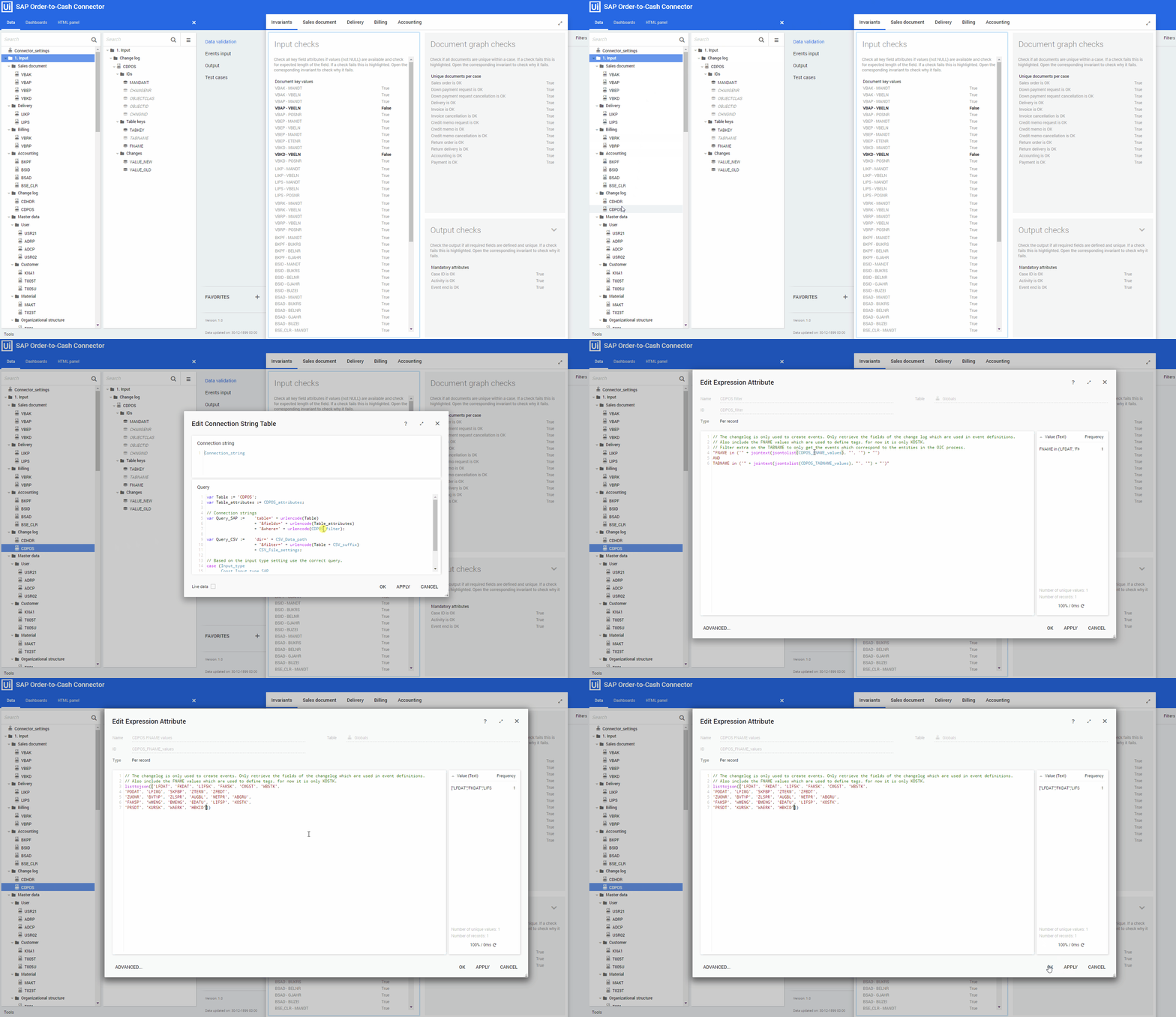
In the Query field locate the following line: + '&where=' + urlencode(CDPOS_filter); and CTRL+click on CDPOS_filter . Note: If the variable Table_filter is used for the CDPOS_filter locate the line: var Table_filter := CDPOS_filter; and CTRL+click on CDPOS_filter .
5
In the CDPOS filter expression CTRL+click on CDPOS_FNAME_values .
6
Add the FNAME to the list to make sure that the field values are retrieved for event creation.
Below is an example recording of adding an activity.
### Step 3: Define the activity in the SAP Connector
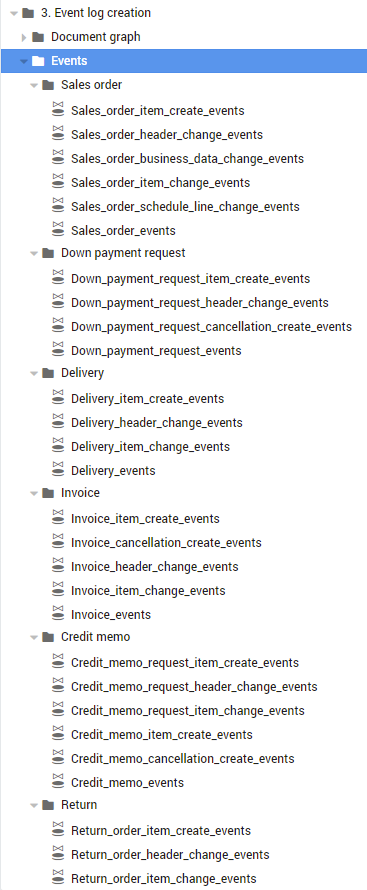
In the SAP Connector the activities are defined in the **Events** tables in the **3. Event log creation** folder. The **Events** folder contains a subfolder with the event log creation tables for each entity defined in the **SAP Connector**. See illustration below for an example.
Follow these steps to add the new activity in the SAP Connector
| Step | Action |
| --- | --- |
| 1 | Go to the **Data** tab and locate the **Events** folder in the **3. Event log creation** folder. |
| 2 | Click on the event log creation table to which to which the activity must added based on what you defined earlier in [Step 1: Define the activity](https://docs.uipath.com/process-mining/standalone/2021.10/user-guide/adding-activities-to-the-sap-connector-for-appone#adding-activities-to-the-sap-connector-for-appone). |
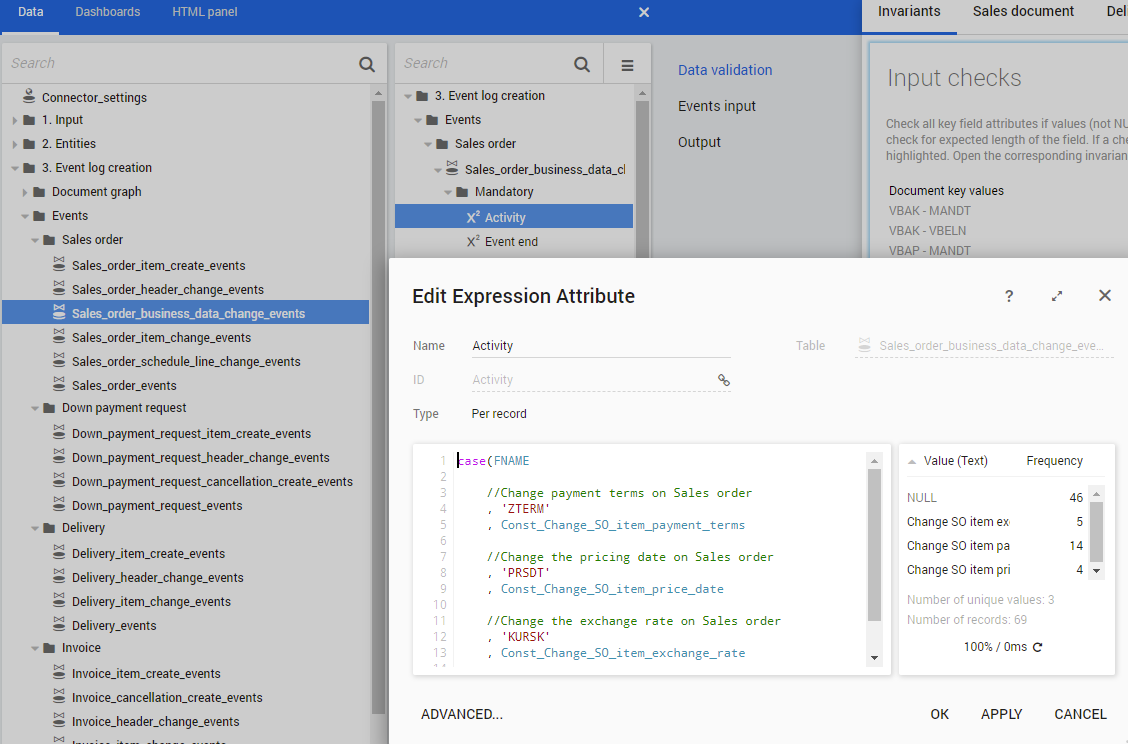
| 3 | Double click on the `Activity` expression in the table item list on the right to and update the expression with the new activity. See illustration below. |
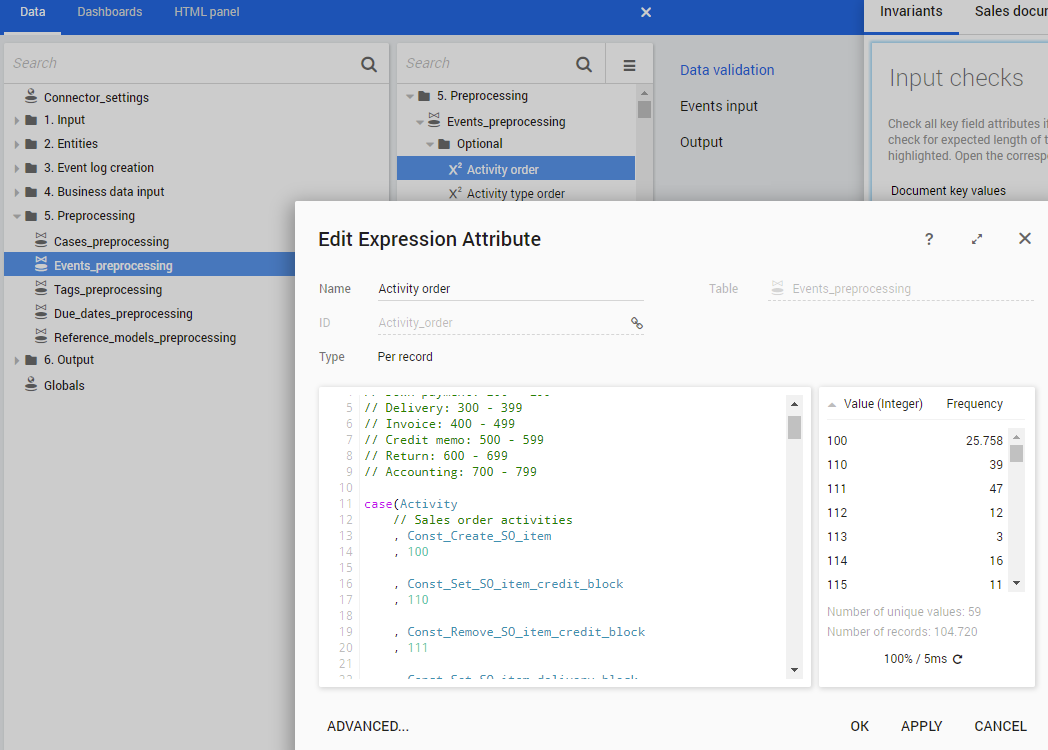
| 4 | Add the activity to the `case` statement in the `Activity order` expression in the `Events preprocessing` table to make sure that the events are put in the correct order in the event log. See the illustrations below for an example. |
:::note
To ensure consistency you can create a constant containing the activity name in the `Globals` table and use this in the `Activity` expression.
:::