# Installation Considerations
> This article identifies the main affected areas you should be aware of in a new Orchestrator deployment. Some of the items addressed in this article must be taken care of prior to an upgrade/installation. Several of them are validated by the installer or by the [Platform Configuration Tool](https://docs.uipath.com/orchestrator/standalone/2025.10/installation-guide/platform-configuration-tool#platform-configuration-tool) if you choose to use it. We highly recommend that you download and use the Platform Configuration Tool to validate your environment prior to an upgrade.
This article identifies the main affected areas you should be aware of in a new Orchestrator deployment. Some of the items addressed in this article must be taken care of prior to an upgrade/installation. Several of them are validated by the installer or by the [Platform Configuration Tool](https://docs.uipath.com/orchestrator/standalone/2025.10/installation-guide/platform-configuration-tool#platform-configuration-tool) if you choose to use it. We highly recommend that you download and use the Platform Configuration Tool to validate your environment prior to an upgrade.
## .NET 8
### Target Framework
To maintain Credential Store Plugins and NLog extensions functionality, the `TargetFramework` must be upgraded from the previous .NET Framework 4.7.2 to a supported target framework. The target framework of both credential stores and NLog extensions is checked by the `UiPathOrchestrator.msi` installer.
This restriction also applies to any references that a plugin or NLog extension might have.
| Supported target frameworks | Supported versions |
| --- | --- |
| .NET Standard | 1.0 - 1.6 |
| .NET Standard | 2.0 (recommended) |
| .NET | 8.0 |
:::tip
You may need to recompile any Credential Store plugins and NLog extensions you developed in-house. You may need to identify and copy to the Orchestrator directory other `.dll` files targeting specified target frameworks. Most [NLog targets](https://nlog-project.org/config/?tab=targets) support the specified target frameworks; however, you must ensure you copy the right `.dll`. For example, if you use [NLog.Targets.Splunk](https://github.com/AlanBarber/NLog.Targets.Splunk), you need to download the `.nupkg` file, open it as a `.zip`, navigate to the folder `lib\) etstandard2.0` and use the `.dll` file from there.
:::
### Credential Store Plugins - CyberArk
In older versions of Orchestrator, the CyberArk credential store plugin used a library that is not compatible with .NET Core. Orchestrator now uses the `CLIPasswordSDK64.exe` tool that comes with CyberArk AIM.
:::tip
The plugin searches for `CLIPasswordSDK64.exe` in the default CyberArk AIM installation path, namely C:\Program Files(x86)\CyberArk\ApplicationPasswordSdk\CLIPasswordSDK64.exe. If CyberArk AIM was not installed at the default path, a configuration entry must be added in [UiPath.Orchestrator.dll.config](https://docs.uipath.com/orchestrator/standalone/2025.10/installation-guide/uipath-orchestrator-dll-config#uipathorchestratordllconfig), pointing to the actual path. The path can be specified in the `appSettings` section in `web.config` prior to the installation or in the `UiPath.Orchestrator.dll.config` after the installation.
:::
Example:
```
```
### Proxy Configuration
In.NET Core there are two mechanisms for specifying the proxy:
#### Using environment variables
Environment variables can be set in `web.config` using the following syntax: ``, for example ``.
| Variable | Description |
| --- | --- |
| `HTTP_PROXY` | The proxy server used on HTTP requests. |
| `HTTPS_PROXY` | The proxy server used on HTTPS requests. |
| `ALL_PROXY` | The proxy server used on HTTP and/or HTTPS requests in case `HTTP_PROXY` or `HTTPS_PROXY` are not defined. |
| `NO_PROXY` | A comma-separated list of host-names that should be excluded from proxying. |
Examples:
* Without authentication: `ALL_PROXY=http://localhost:8888`
* With authentication: `ALL_PROXY=http://user:password@localhost:8888`
#### Using the default proxy system (IE settings or Windows Proxy settings), if the environment variables are not set
See official Microsoft documentation [here](https://docs.microsoft.com/en-us/dotnet/api/system.net.http.httpclient.defaultproxy?view=netcore-3.1).
Proxy configuration is no longer configured in `web.config` using the `` tag. Example of configuration that is no longer supported:
```
```
## Configuration Files
### Web.config
Most of Orchestrator's configuration settings have been moved from `web.config` to `UiPath.Orchestrator.dll.config`. The new file keeps the same structure as the old `web.config` file and is located in the same directory. Please remember that changing the `UiPath.Orchestrator.dll.config` file does not restart IIS. The following sections were moved:
* connection strings
* appSettings
* NLog configuration
* Quartz configuration
* the encryption key
`web.config` has been repurposed to only contain configuration used by IIS. Upon upgrading, the installer will automatically move the sections mentioned above to the new configuration file. It will transform the configuration left in `web.config` to match what is needed for Orchestrator's latest version. Customer customization, including disabled verbs, enabled/disabled modules, custom rewrite rules, are preserved.
Check [web.config](https://docs.uipath.com/orchestrator/standalone/2025.10/installation-guide/webconfig#webconfig) docs.
Check [UiPath.Orchestrator.dll.config](https://docs.uipath.com/orchestrator/standalone/2025.10/installation-guide/uipath-orchestrator-dll-config#uipathorchestratordllconfig) docs.
### IIS Manager
Connection strings and application settings are no longer be visible in IIS Manager. Using IIS Manager to edit Orchestrator connection strings or application settings is not supported.
:::tip
You need to edit the configuration file directly.
:::
### NLog Targets
For NLog targets of type “Database”, the `connectionStringName` property has been replaced by `connectionString`. Its value must use the following syntax: `connectionString="${ui-connection-strings:item=Default}"`, where `Default` is the name of the connection string you want to use from the `` section.
See docs on [Targets of the Orchestrator Execution Logs](https://docs.uipath.com/orchestrator/standalone/2022.10/user-guide/orchestrator-logs).
:::tip
If you are using custom NLog targets of type `Database`, the property `connectionStringName` is automatically changed to `connectionString` during the upgrade. If you are manually inserting the target in the configuration file after installation/upgrade, use the new property with the correct value.
:::
## SignalR Protocol
### SignalR With WebSockets
We have updated the SignalR library to a newer version which is not compatible with older Robot clients. To keep notifying unattended Robots when jobs are available, a compatibility mechanism was implemented, simulating the old SignalR protocol over Long Polling. Robots older than 2020.10 connect to Orchestrator via Long Polling only.
:::tip
We recommend upgrading your Robots to 2020.10 in order to use WebSockets, which makes it especially cost-effective for large Robot deployments.
:::
### SignalR Scaleouts Sticky Sessions
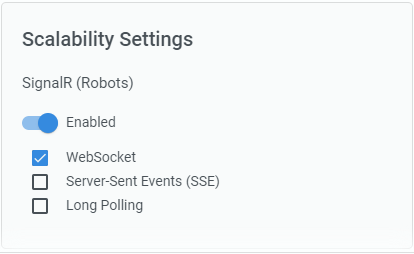
SignalR scaleouts require sticky sessions for all protocols other than WebSocket (i.e., SSE and Long Polling).
By default, only the WebSocket transport is enabled by default, as Orchestrator assumes sticky sessions are not enabled on the customer's load balancer.
Figure 1. Scalability settings
:::tip
Add the `;` key in `UiPath.Orchestrator.dll.config` to enable sticky sessions. If set to `true`, all transports are enabled, and Orchestrator assumes sticky sessions are enabled on the load balancer. Enabling sticky sessions in `UiPath.Orchestrator.dll.config` without enabling them on the load balancer will result in failed SignalR connections.
:::
### SignalR SQL Server Scaleout
The scale-out mechanism is switched from SQL Server to Redis during installation. Disabling SignalR authentication for Robots/activities is no longer supported. To this end, the `Scalability.SignalR.AuthenticationEnabled` parameter has been deprecated.
### Wait Queue Item Activity
You can encounter delays of up to 30 seconds if you use a [Wait Queue Item](https://docs.uipath.com/activities/docs/wait-queue-item) activity older than 2020.10.
:::tip
Upgrade to the latest activity version to avoid such issues.
:::
## NuGet Infrastructure
We updated the internal NuGet feeds' protocol from v2 to v3.
### Legacy Repositories
`Legacy` is no longer a supported NuGet repository type. Upon upgrading, all repositories of type `Legacy` are migrated to `Composite`.
The new package location depends on how you configured the `NuGet.Packages.Path` and `NuGet.Activities.Path` parameters in `web.config` for the previous Orchestrator version.
* If you stored the packages in the default locations (`~/NuGetPackages` and `~/NuGetPackages/Activities`), the new package location becomes `RootPath=.\Storage`.
* If you stored the packages in a custom location, during the installation you are asked for a new storage location. For silent installs, the `STORAGE_TYPE` and `STORAGE_LOCATION` parameters become mandatory, unless you specify them in `web.config` prior to the upgrade.
In v2020.10+, package location is configured using the [Storage.Type](https://docs.uipath.com/orchestrator/standalone/2025.10/installation-guide/uipath-orchestrator-dll-config#uipathorchestratordllconfig) and [Storage.Location](https://docs.uipath.com/orchestrator/standalone/2025.10/installation-guide/uipath-orchestrator-dll-config#uipathorchestratordllconfig) parameters in `UiPath.Orchestrator.dll.config`. After the upgrade, all `Legacy`-related app settings become deprecated and no longer have an effect.
* `NuGet.Packages.Path`
* `NuGet.Activities.Path`
* `Nuget.EnableRedisNodeCoordination`
* `Nuget.EnableNugetServerLogging`
* `NuGet.EnableFileSystemMonitoring`
* `NuGet.Repository.Type`
:::important
The use of copy-paste commands in the packages-dedicated folder is not supported for `Composite` repositories.
:::
## Swagger Library
We have made significant changes to how we generate the `swagger.json` file, which describes the Orchestrator API. If you rely on a client library generator that uses the API description in the Swagger file (e.g., AutoRest, Swagger Codegen), the generated code will be significantly different.
:::tip
You may need to update any other custom tools that use the autogenerated client.
:::
## API Changes
### APIs With Form POST Parameters
Making `POST` requests with parameters in form-data objects no longer works.
:::tip
The only supported mechanism to make `POST` requests to Orchestrator is to include the request parameters in a JSON in the request's body.
:::