# Alerts
> This article provides information about Orchestrator built-in alerts. You can also send custom alerts to Orchestrator using the [Raise Alert](https://activities.uipath.com/docs/raise-alert) activity.
## Overview
This article provides information about Orchestrator built-in alerts. You can also send custom alerts to Orchestrator using the [Raise Alert](https://activities.uipath.com/docs/raise-alert) activity.
Alerts are notifications related to robots, queue items, triggers, and more. You receive alerts for all the folders you can access via four means:
* the alerting banner - a banner that displays alerts as they occur

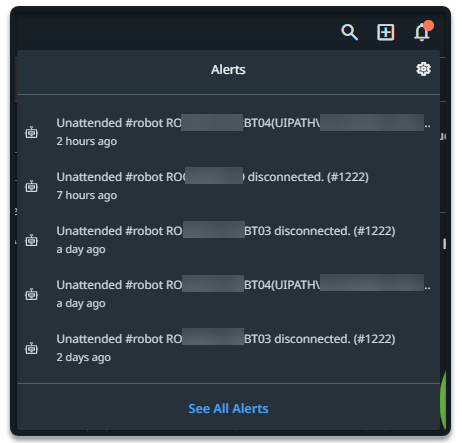
* the **Alerts** panel - accessible from the **Alerts** bell, displays the most severe five alerts
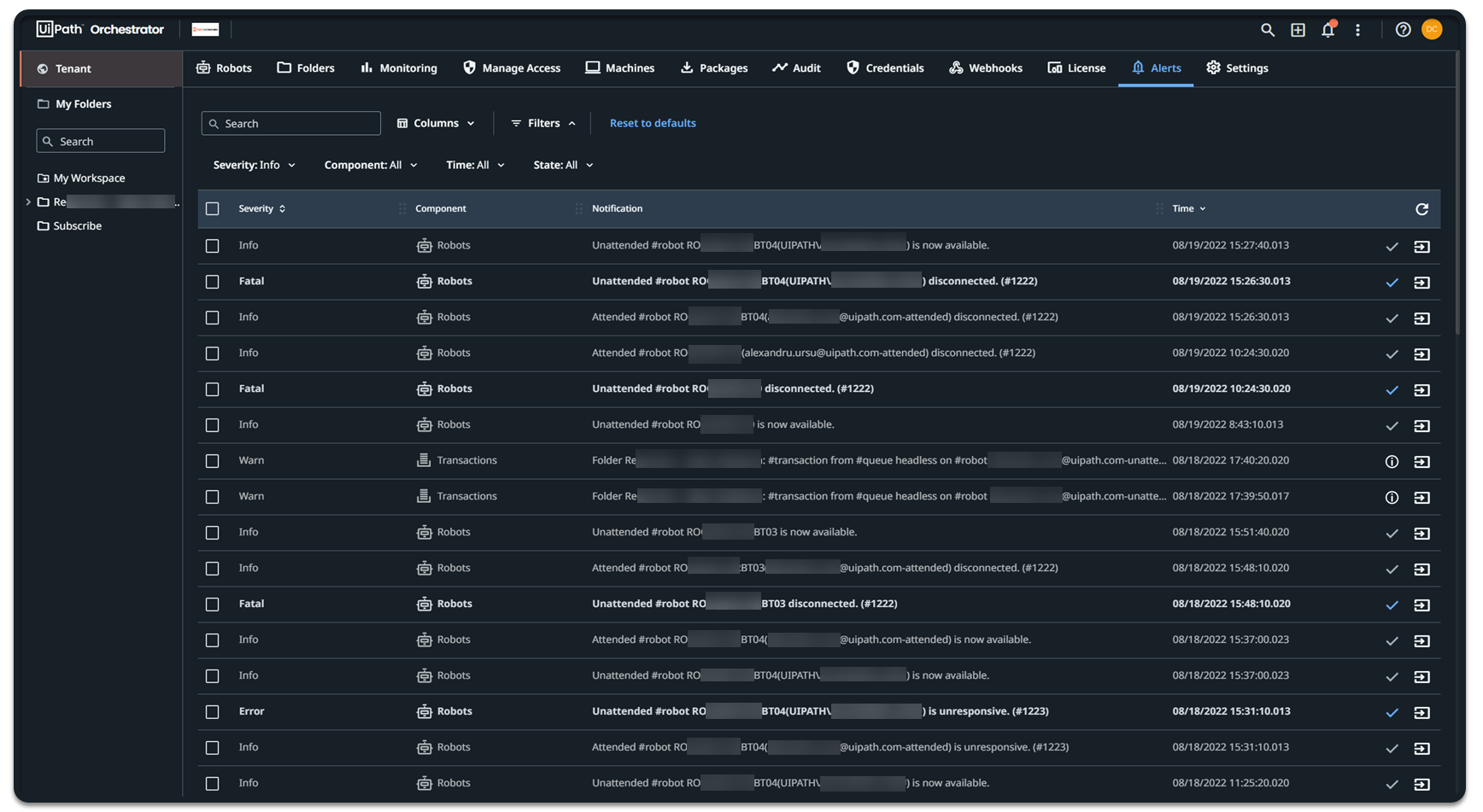
* the **Alerts** page - a more comprehensive list of all alerts
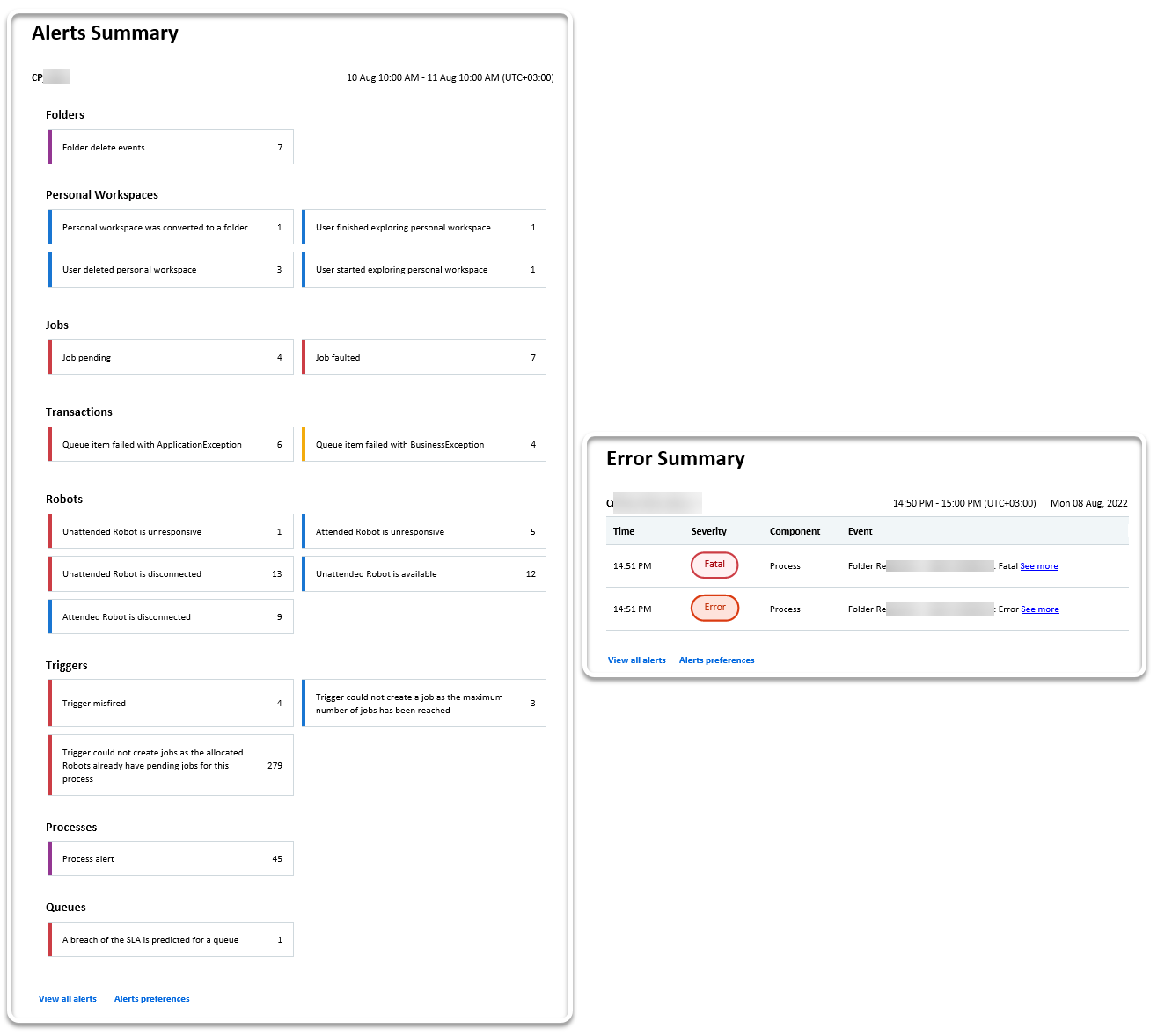
* alert emails - summaries of the alerts you subscribed to, received as error reports every ten minutes, or as daily reports
As an administrator, you can control the alerts each of your users receive:
* by accessing their alert preferences profile and select specific events or
* by restricting the alerts from a specific folder.
As a user, you can set your own alert preferences, which apply to every folder you have access to.
To receive alert emails, you need to [enable the emailing mechanism](https://docs.uipath.com/orchestrator/automation-suite/2024.10/user-guide/setting-up-alert-emails#enabling-alert-emails) and [set up a SMTP server](https://docs.uipath.com/orchestrator/automation-suite/2024.10/user-guide/setting-up-alert-emails#setting-up-alert-emails).
## Alerts Permissions
To view alerts, you need the following permissions:
* **View** permissions on **Alerts** at the tenant level,
* **View** permissions on the specific component in the folder you need to receive alerts from. For example, to receive alerts for triggered automations in the "Finance" folder, your administrator must provide you with:
+ **View** permissions on **Alerts**,
+ access in the "Finance" folder,
+ **View** permissions on **Triggers** in the "Finance" folder
The following table shows the additional folder or tenant permission you need per each alerting component:
| Orchestrator component | Permission context | Permission set |
| --- | --- | --- |
| Unattended robots | Tenant | **Machines** |
| | Folder | **Monitoring** |
| Attended robots | Tenant | **Robots** |
| | Folder | **Monitoring** |
| Transactions | Folder | **Queues** |
| Triggers | Folder | **Triggers** |
| Jobs | Folder | **Jobs** |
| Process | Folder | **Processes** |
| Queues | Folder | **Queues** **Monitoring** |
| Folders | Tenant | **Folders** |
| API rate limits | Tenant | **Audit** |
:::note
**Known issue** If an alert requires two permissions, those permissions must be granted via direct user-level assignment or via the same group. If they are granted via two separate groups, the alert is not sent. If you choose to assign permissions via groups, these are the permission combinations that you need to grant to make sure that users receive alerts:
* For alerts covering
tenant-scoped actions, grant the following permissions to the same group:
+ **View** on **Alerts** at the tenant level
+ **View** on the specific tenant-scoped component at the tenant
level**Example**: The "Machine disconnected" alert requires **View** on **Alerts** and **View** on **Machines** at the tenant level, within the same group.
* For alerts covering
folder-scoped actions, grant the following permissions to the same group:
+ **View** on **Alerts** at the tenant level
+ **View** on the specific folder-scoped component at the folder
level**Example**: The "Job faulted" alert requires **View** on **Alerts** at the tenant level and **View** on **Jobs** at the folder level, within the same group.
:::
## Alert Severity Levels and Subscriptions
Alerts inform you about the component status in the automation flow. The information is split into different types of severity, helping you track an execution or identify the faulty ones.
There are five severity levels, to indicate the state of your process execution:
* Info
- notifies you about low importance events, that do not interrupt the process execution.
* Success
- notifies you about a successful status.
* Warn
- notifies you about possible risky events that may interrupt your process execution, but any interruption can be recovered.
* Error
- notifies you about imminent risky events that prevent the process from executing successfully.
* Fatal
- notifies you about events that force-stops the process execution.
* Various
- the triggering event may have distinct severity levels.
:::note
Orchestrator severity levels are established by UiPath® and cannot be edited.
:::
You can subscribe to specific component events, so your inbox would not get crowded by alerts that do not provide you adequate value. Some components do not allow subscriptions, however you can see their associated alerts on the **Alerts** page.
### Alerts That Allow Subscription
The following table summarizes the events that allow subscription, their corresponding severity level, and the permission required to receive that alert.
Once the permission is set and you are subscribed to any of these events, you start receiving alerts in the **Alerts** panel and via email.
Component
Alert
Severity level
Permission required
Robots
"Unattended Robot is available."
Info
View on Machines
"Attended Robot is unresponsive."
Info
View on Users
"Unattended Robot is unresponsive."
Error
View on Machines
"Attended Robot is disconnected."
Info
View on Users
"Unattended Robot is disconnected."
Fatal
View on Machines
Jobs Learn how to generate alerts for jobs.
"Job faulted."
Error
View on Jobs
"Job stuck in pending or resumed."
Error
"Job not finished."
Error
Triggers
"Trigger misfired." Generated when the trigger fired later than it was configured, or when the firing was skipped.
Error
View on Triggers
"Trigger could not create jobs as the allocated Robots already have pending jobs for this process." Occurs on time triggers.
Error
"Trigger could not create a job as the maximum number of jobs has been reached." Occurs on queue triggers.
Info
"Trigger automatically disabled after job creation failures." Generated when a trigger is automatically disabled, because it failed to create jobs too many times consecutively.
Fatal
Transactions
"Queue item failed with BusinessException."
Warn
View on Transactions
"Queue item failed with ApplicationException."
Error
"User assigned as reviewer for failed/abandoned queue item."
Info
Queues
"A breach of the SLA is predicted for a queue."
Error
View on Queues
"Retention for queue failed."
Error
Export
"Export completed."
Success
N/A
"Export failed. Please retry your export."
Error
Cloud Robots
Cloud Robots pool events.
Various
View on Machines
Cloud Robots virtual machine events.
Various
### Alerts That Do Not Allow Subscription
The following table summarizes the alerts that do not allow subscription and their corresponding severity level. These alerts are displayed on the **Alerts** page and included in the daily summary email.
Component
Alert
Severity level
Permission required
Process
Custom messages, configured using the Raise Alert activity
Custom severity level
N/A
Folders
"Folder was successfully deleted."
Success
N/A
"The folder was restored." Generated in case of a failure.
Error
"Deletion of folder failed. The folder was restored as [automatic_folder_name]." Generated in case of a failure and when a new folder with the same name is created at the same time, which means the original folder is renamed at restore.
Error
Personal Workspaces
"User started exploring your personal workspace." Sent to the owner of a personal workspace when an admin begins exploring their workspace.
Error
N/A
"User finished exploring your personal workspace." Sent to the owner of a personal workspace when an admin stops exploring their workspace.
Info
"Your personal workspace was converted to a folder." Generated when a personal workspace is converted to a folder.
Info
"User deleted your personal workspace. A new empty personal workspace was created for you." Sent to the owner of a personal workspace when their workspace is deleted.
Info
"Enabling personal workspaces successfully completed." Generated when bulk enabling personal workspaces succeeds.
Success
"Enabling personal workspaces failed." Generated when bulk enabling personal workspaces fails.
Error
Test Automation
Distinct messages about bulk operations with queue items.
Info
N/A
Triggers
"Trigger automatically disabled after job execution failures." Generated when a trigger is automatically disabled because its associated job failed to execute 5 times consecutively.
Fatal
View on Triggers
Event Triggers
"Failed to create an event trigger for process [process_name] because [connector_name] was not found."
Error
View on Processes
"Failed to create an event trigger for process [process_name]."
Error
"Failed to delete a previously created connected event trigger for process [process_name]."
Error
#### Permissions for group alerts - Known issue
All necessary permissions must be either inherited from the same group or directly assigned to the user. This option will not work if permissions are inherited from different groups.
### Subscribing to Alerts
The **Alerts preferences** page allows you to subscribe to the events you want to receive alerts about.
The preferences configured on this page apply to all folders you have access to in the tenant.
However, an administrator can activate or deactivate the alerts for any user in a folder. See [Enabling/Disabling user alerts per folder](https://docs.uipath.com/orchestrator/automation-suite/2024.10/user-guide/configuring-alerts#configuring-alerts) for more information.
:::important
The choices you make on the **Alerts preferences** page can be overwritten by your organization administrator. See [Setting Alert preferences per user](https://docs.uipath.com/orchestrator/automation-suite/2024.10/user-guide/configuring-alerts#configuring-alerts) for more details.
:::
#### To subscribe to the specific events:
1. Navigate to the **Alerts preferences** page:
* Click the **Alerts** icon . The **Alerts** panel opens.
* Click the cog icon . The **Alerts preferences** page opens in the tenant context. That is, the options made here apply to all the folders you have access to.
2. Select the events, based on the associated component or on the severity level.
Selecting or deselecting the parent component checkbox automatically selects/deselects all associated events.
## Alert Notifications
There are two ways Orchestrator notifies you of new alerts, and they do not mutually exclude each other:
* email - alerts received via email, every ten minutes and daily
* in Orchestrator - alerts received in the **Alerts** panel
### Email
If you want to always be up to date with the changes happening to your automations, you can activate [alert emails](https://docs.uipath.com/orchestrator/automation-suite/2024.10/user-guide/setting-up-alert-emails#setting-up-alert-emails).
Alert emails provide ten-minute or daily summaries for the subscribed events:
* the ten-minute summary reports only the **Fatal** and **Error** alerts that occurred in a ten-minute time frame, across all folders you have access to.
* the daily summary reports all subscribed alerts that occurred in your tenant, across all folders you have access to. Reports start collecting alerts every day at 10 a.m of your tenant time zone.
Read more details about [alert emails](https://docs.uipath.com/orchestrator/automation-suite/2024.10/user-guide/alert-emails#alert-emails).
### In the Alerts Panel
Once subscribed, you start receiving alerts in Orchestrator via the **Alerts** panel. When a new alert is logged, the alert icon displays a red dot. This means you have unread alerts.
The **Alerts** panel displays the most severe five alerts.
Clicking an alert in the panel redirects you to the custom filtered page of the associated component. For example, if you receive the "Job faulted" alert and you click it, the **Jobs* opens, filtered to display the faulted job.
Click **See all alerts** to navigate to the **Alerts** page of your tenant.
## Alerts Page
The **Alerts** page is a centralized location displaying all the alerts in your tenant, across all folders you have access to. It provides information that allow you to identify and track down the faulted components.
To narrow down the list of alerts, you can use the following filters:
* **Severity** - when filtering by a certain severity, Orchestrator displays all alerts with a severity that is equal or higher than the selected one. The severity level hierarchy is as follows, from most severe to least severe:
+ **Fatal > Error >Warn > Success > Info**. For example, if you filter by **Warn**, Orchestrator displays **Warn**,**Error**, and **Fatal** alerts, excluding **Success** and **Info**, which are lower than **Warn**.
* **Component** - filtering by a component displays the alerts on that certain component.
* **Time** - filtering by time intervals displays the alerts that occurred during the selected interval. The available filter options are **Last hour**,**Last day**,**Last week**,**Last 30 days**, and **All**.
* **State** - filtering by state displays either **Unread**,**Read**, or **All** alerts.
At the end of each alert row, there are two actionable buttons, of the following types:
* **Mark As Read** - marks the corresponding alerts as read. By default, all alerts with **Info**,**Success**, and **Warn** severity levels are marked as read on the **Alerts** page.
* **Show Details** - opens the details panel for the associated component.
* **See alert source** - redirects you to a custom filtered page of the component that generated the alert.
## Alert Sources
The following actions redirect you to the alert source, so you can see details about the specific component that triggered the alert:
* Clicking **See alert source** on the **Alerts** page
* Clicking **See more** in the **Error summary** email
* Clicking the alert in the **Alerts** panel
:::note
Alerts generated while debugging Studio processes do not provide redirect links.
:::