# Configuring an ExpressRoute connection
> To create an ExpressRoute VPN gateway:
## Creating the ExpressRoute VPN gateway
To create an ExpressRoute VPN gateway:
1. Go to **Admin**.
2. From the **Tenants** panel on the left side, select the tenant for which you want to create an ExpressRoute VPN gateway.
3. Select the **Gateway** tile, then select **Create gateway**. The **Create gateway** panel opens.
4. Provide values for the following fields:
Option
Description
Gateway type *
Choose the method for establishing a secure and private connection to your cloud network. You have two options:
VPN
—Select this option to create an encrypted connection over the public internet.
ExpressRoute
—Select this option to establish an Azure network connection that bypasses the public internet entirely.
Name *
Provide a name for your gateway.
Address space for gateway vnet *
Specify a unique private IP range for the cloud gateway network. This range must be different from your current on-premises
network and any future IP ranges you plan to use for cloud robots.
5. If your automations rely on internal DNS names, you need to specify the IP addresses of your on-premises DNS servers. Select **Add DNS Address (Optional)**, then provide the IP address of your on-premises DNS servers.
You can enter multiple DNS server IPs for redundancy, but **each must resolve all** DNS names your automations use. These servers are not used sequentially. If a server fails to resolve a necessary name, the automation fails.
6. Select **Create**. The setup may take up to one hour.
## Creating the ExpressRoute connection to the on-premises device
With the ExpressRoute gateway deployed, you can now connect your on-premises networks to it. Creating this connection differs from a standard setup because you are configuring how to use your pre-existing ExpressRoute circuit**—**the dedicated, private connection you have already established with Microsoft Azure. This process involves integrating your UiPath Gateway, or another Microsoft Azure resource, into that existing ExpressRoute infrastructure.
The gateway card displays the public IP address, which is an essential information for the tunnel connection.
1. To start the connection creation, select **Add connection**.
2. Provide values for the following fields:
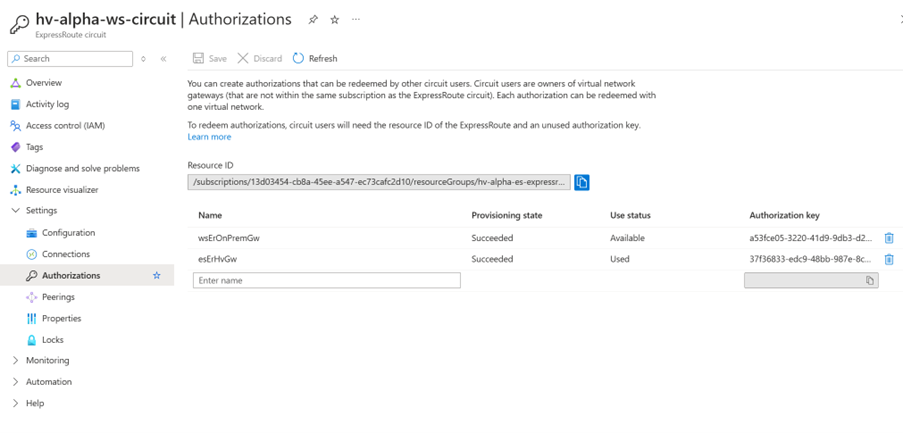
Figure 1. ExpressRoute circuit in Azure
Option
Description
Connection name *
Provide a name for your connection.
Authorization key *
To connect to the circuit, first generate an authorization key within your ExpressRoute circuit object in the Azure portal. Then, write that key in this field. To authorize the connection:
Go to your ExpressRoute circuit in the Azure portal.
Create an authorization key.
Paste the generated key into this field.
Resource ID *
Locate the Resource ID of your ExpressRoute circuit within the Azure portal. Copy and paste this ID into the field below.
3. Select **Add connection**. Once the configuration is complete, it may take some time for the connection status to update to **Connected**.
On the **Connections** list, the **Address Space** and **Public IP Address** fields are empty and do not apply to the ExpressRoute connection. Unlike VPNs, ExpressRoute uses Border Gateway Protocol (BGP) for routing by default.