# Get message
> The **Get Message** activity calls the Microsoft Graph [GetChannelMessage](https://docs.microsoft.com/en-us/graph/api/channel-get-message?view=graph-rest-beta&tabs=http) or [GetChatMessage](https://docs.microsoft.com/en-us/graph/api/chatmessage-get?view=graph-rest-beta&tabs=http) API to retrieve a specified message (**MessageId**) from a chat (**ChatId**) or channel (**ChannelId**) and team (**TeamID**).
## Overview
The **Get Message** activity calls the Microsoft Graph [GetChannelMessage](https://docs.microsoft.com/en-us/graph/api/channel-get-message?view=graph-rest-beta&tabs=http) or [GetChatMessage](https://docs.microsoft.com/en-us/graph/api/chatmessage-get?view=graph-rest-beta&tabs=http) API to retrieve a specified message (**MessageId**) from a chat (**ChatId**) or channel (**ChannelId**) and team (**TeamID**).
After performing the search, the activity outputs its properties in a `ChatMessage` object (**Message**) that you can use as input variables in subsequent activities (for example, `ChatMessage.Id` in [Get Message Replies](https://docs.uipath.com/marketplace/automation-cloud/latest/user-guide/microsoft-teams-get-message-replies#get-message-replies), [Reply To Message](https://docs.uipath.com/marketplace/automation-cloud/latest/user-guide/microsoft-teams-reply-to-message#reply-to-message), and so on).
The difference between this activity and the [Get Messages](https://docs.uipath.com/marketplace/automation-cloud/latest/user-guide/microsoft-teams-get-messages#get-messages) activity is the requirement to input of a specific message (**MessageId**). Inputting the **MessageId** enables you to retrieve a specific `ChatMessage` object instead of an array of objects that gets returned in the **Get Messages** activity.
## How it works
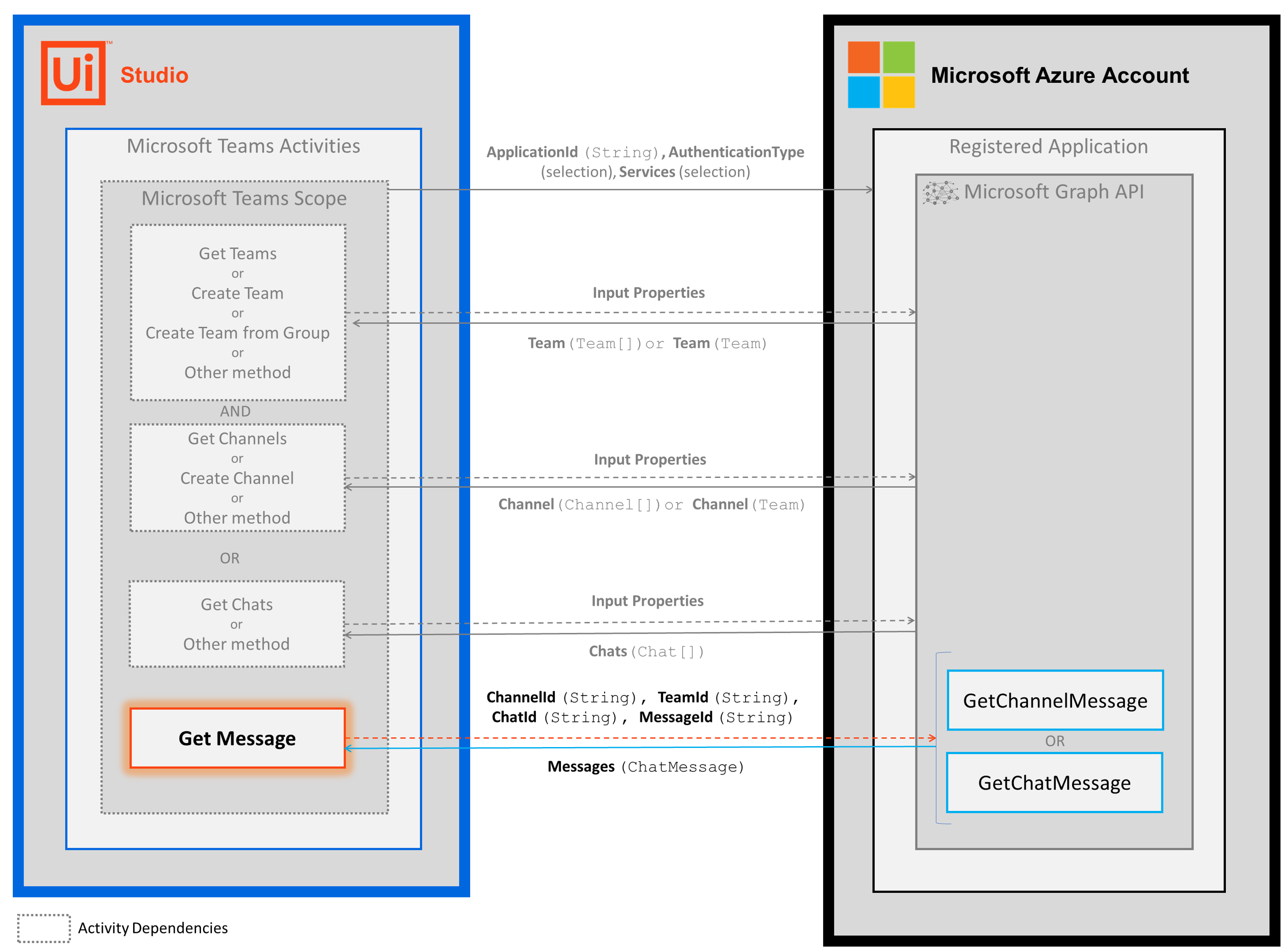
The following steps and message sequence diagram is an example of how the activity works from design time (i.e., the activity dependencies and input/output properties) to run time.
1. Complete the [Setup](https://docs.uipath.com/marketplace/automation-cloud/latest/user-guide/microsoft-teams-setup#setup) steps.
2. Add the [Microsoft Teams Scope](https://docs.uipath.com/marketplace/automation-cloud/latest/user-guide/microsoft-teams-scope#microsoft-teams-scope) activity to your project.
3. Complete one of the following two options (**A** or **B**):
**A.** Add an activity or run an external process that outputs a `Chat.Id` value (e.g., [Get Chats](https://docs.uipath.com/marketplace/automation-cloud/latest/user-guide/microsoft-teams-get-chats#get-chats)).
**B.** Add an activity or run an external process that outputs a `Team.Id` value (for example, [Get Teams](https://docs.uipath.com/marketplace/automation-cloud/latest/user-guide/microsoft-teams-get-teams#get-teams)) AND an activity or external process that outputs a `Channel.Id` value (for example, [Get Channels](https://docs.uipath.com/marketplace/automation-cloud/latest/user-guide/microsoft-teams-get-channels#get-channels)).
1. Add the **Get Message** activity inside the **Microsoft Teams Scope** activity.
2. Enter values for the [Channel](https://docs.uipath.com/marketplace/automation-cloud/latest/user-guide/microsoft-teams-get-message#channel) OR [Chat](https://docs.uipath.com/marketplace/automation-cloud/latest/user-guide/microsoft-teams-get-message#chat) and [Input](https://docs.uipath.com/marketplace/automation-cloud/latest/user-guide/microsoft-teams-get-message#input) properties.
3. Create and enter a `ChatMessage` variable for your [Output](https://docs.uipath.com/marketplace/automation-cloud/latest/user-guide/microsoft-teams-get-message#output) property.
4. Run the activity.
* Your input property values are sent to the [GetChannelMessage](https://docs.microsoft.com/en-us/graph/api/channel-get-message?view=graph-rest-beta&tabs=http) or [GetChatMessage](https://docs.microsoft.com/en-us/graph/api/chatmessage-get?view=graph-rest-beta&tabs=http) API.
* The API returns the `ChatMessage` value to your output property variable.
## Properties
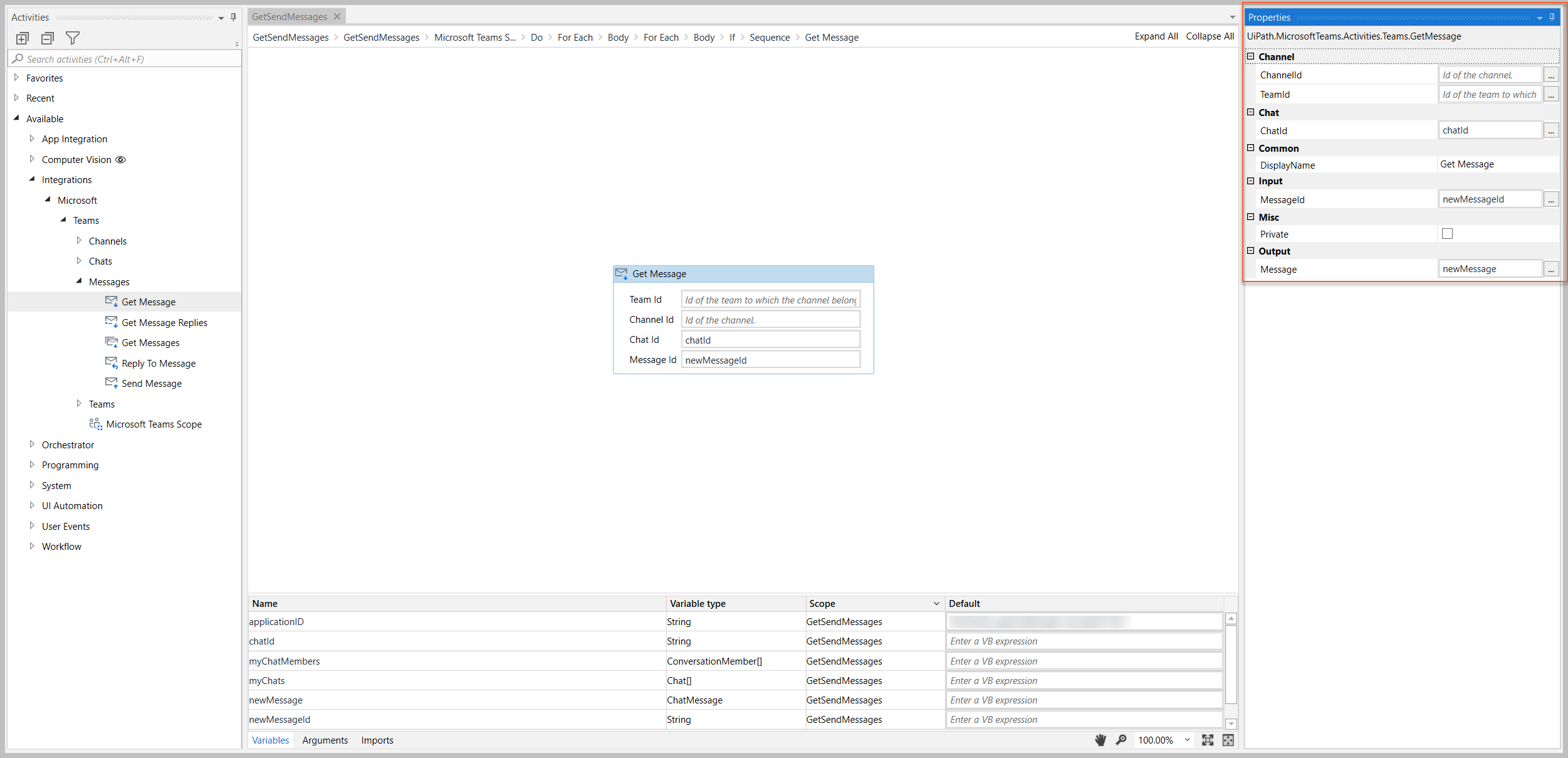
The values for the following properties are specified when adding this activity to your project in UiPath Studio.
### Common
#### DisplayName
The display name of the activity.
| Attributes | Details |
| --- | --- |
| **Type** | `String` |
| **Required** | Yes |
| **Default value** | *Get Messages* |
| **Allowed values** | Enter a `String` or `String` variable. |
| **Notes** | N/A |
### Channel
#### TeamId
The Id of the `Team` object that contains the channel you want to get messages from.
| Attributes | Details |
| --- | --- |
| **Type** | `String` |
| **Required** | Yes (if **ChatId** is empty) |
| **Default value** | Empty |
| **Allowed values** | Enter a `String` or `String` variable. |
| **Notes** | To get the `Team.Id` value, use an external process or activity that includes the `Team.Id` value in its output (for example, [Get Teams](https://docs.uipath.com/marketplace/automation-cloud/latest/user-guide/microsoft-teams-get-teams#get-teams) or external API call) Either (**ChatId**) or (**TeamId and ChannelId**) are required. |
#### ChannelId
The Id of the `Channel` object that you want to get the message from.
| Attributes | Details |
| --- | --- |
| **Type** | `String` |
| **Required** | Yes (if **TeamId** has a value) |
| **Default value** | Empty |
| **Allowed values** | Enter a `String` or `String` variable. |
| **Notes** | To get the `Channel.Id` value, use an external process or activity that includes the `Channel.Id` value in its output (for example, [Get Channels](https://docs.uipath.com/marketplace/automation-cloud/latest/user-guide/microsoft-teams-get-channels#get-channels) or external API call) Either (**ChatId**) or (**TeamId and ChannelId**) are required. |
### Chat
#### ChatId
The Id of the `Chat` object that you want to send the message to.
| Attributes | Details |
| --- | --- |
| **Type** | `String` |
| **Required** | Yes (if **TeamId** and **ChannelId** are empty) |
| **Default value** | Empty |
| **Allowed values** | Enter a `String` or `String` variable. |
| **Notes** | To get the `Chat.Id` value, use an external process or activity that includes the `Chat.Id` value in its output (for example, [Get Chats](https://docs.uipath.com/marketplace/automation-cloud/latest/user-guide/microsoft-teams-get-chats#get-chats) or external API call) Either (**ChatId**) or (**TeamId and ChannelId**) are required. |
### Input
#### MessageId
The Id of the message that you want to retrieve.
| Attributes | Details |
| --- | --- |
| **Type** | `String` |
| **Required** | Yes |
| **Default value** | Empty |
| **Allowed values** | Enter a `String` or `String` variable. |
| **Notes** | To get the `Message.Id` value, use an external process or activity that includes the `Message.Id` value in its output (for example, [Get Messages](https://docs.uipath.com/marketplace/automation-cloud/latest/user-guide/microsoft-teams-get-messages#get-messages) or external API call). |
### Misc
#### Private
If selected, the values of variables and arguments are no longer logged at Verbose level.
| Attributes | Details |
| --- | --- |
| **Type** | Checkbox |
| **Required** | No |
| **Default value** | Not Selected |
| **Allowed values** | Selected or Not Selected |
| **Notes** | N/A |
### Output
#### Message
The `ChatMessage` object that represents the message specified in the **MessageId** property.
Attributes
Details
Type
ChatMessage
Required
No (required if you plan to use the output data in subsequent activities)
Default value
Empty
Allowed values
Enter a ChatMessage variable.
Notes
The variable you create for this property can be used as an input variable in subsequent activities (e.g., Get Message Replies , Reply To Message , etc.).
The ChatMessage object includes multiple properties that you can use in other activities.The example image below shows some of the properties that you can return.
Note - some properties listed in the designer are not applicable to the ChatMessage object (e.g., ODatatType ). For a list of the applicable Team properties, visit the links above.
## Example
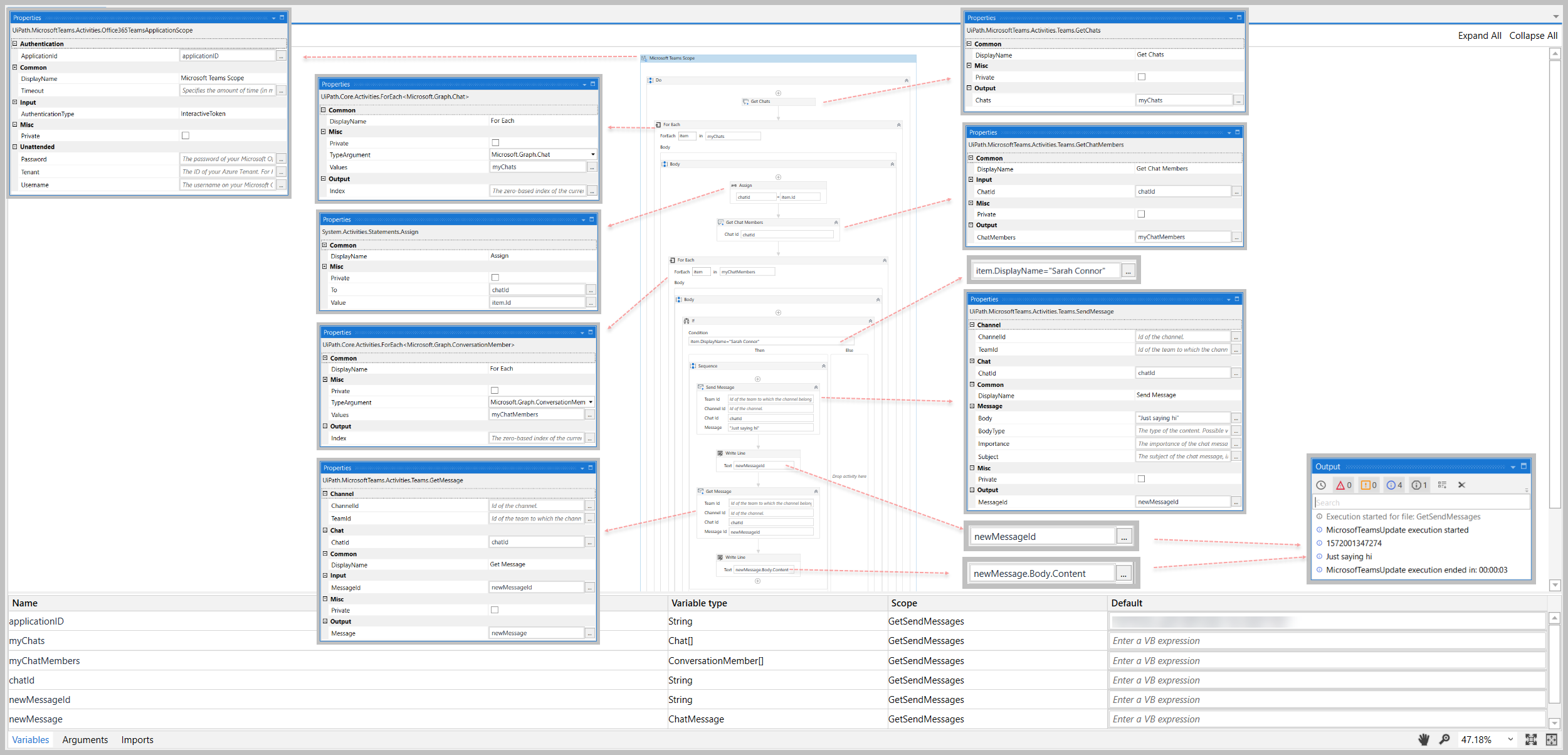
The following image shows an example of the activity dependency relationship and input/output property values.
For step-by-step instructions and examples, see the [Quickstart](https://docs.uipath.com/marketplace/automation-cloud/latest/user-guide/microsoft-teams-quickstarts) guides.