# Quickstarts
> Build working samples of Amazon Textract activities to verify your AWS connection and explore input and output data types.
## Overview
The following are links to step-by-step instructions on how to use the Amazon Textract activities. These guides help you create a working sample of the different activities so that you can verify the connection to your AWS resources and get familiar with the input/output datatypes.
Quickstart
Description
Analyze Single Page Document
After completing the steps in this guide, you'll have an automation sequence that does the following:
Establishes a connection to your AWS resources ( Amazon Scope ).
Analyzes a single JPEG or PNG file ( Analyze Single Page Document ).
Outputs the results of the analysis depending on the type of data found ( If ).
If the file includes form data ( FormField[] ), the PageDetail.FormFields.Items().Key and PageDetail.FormFields.Items().Value values are written to the output window ( For Each and Write Line ). If the file includes table data ( DataTable ), the PageDetail.Tables values are written to the output window ( Output Data Table and Write Line ).
Start and Get Analysis
After completing the steps in this guide, you'll have an automation sequence that does the following:
Establishes a connection to your AWS resources ( Amazon Scope ).
Starts an Amazon Textract analysis job ( Start Document Analysis ).
Retrieves and outputs the status of the started analysis job ( Do While , Get Document Analysis Status , Write Line , and Delay ).
Retrieves and outputs the results of the analysis if/when the analysis job is successful ( If , Get Document Analysis , For Each , and Write Line ).
## Quickstart - Analyze Single Page Documents
### Overview
The purpose of this guide is to help you create a working sample that uses the Amazon Textract [Analyze Single Page Document](https://docs.uipath.com/activities/other/latest/legacy-integrations/amazon-textract-analyze-single-page-document#analyze-single-page-document) activity.
This working sample enables you to quickly verify the connection to your AWS resources and get familiar with the activity's input/output datatypes.
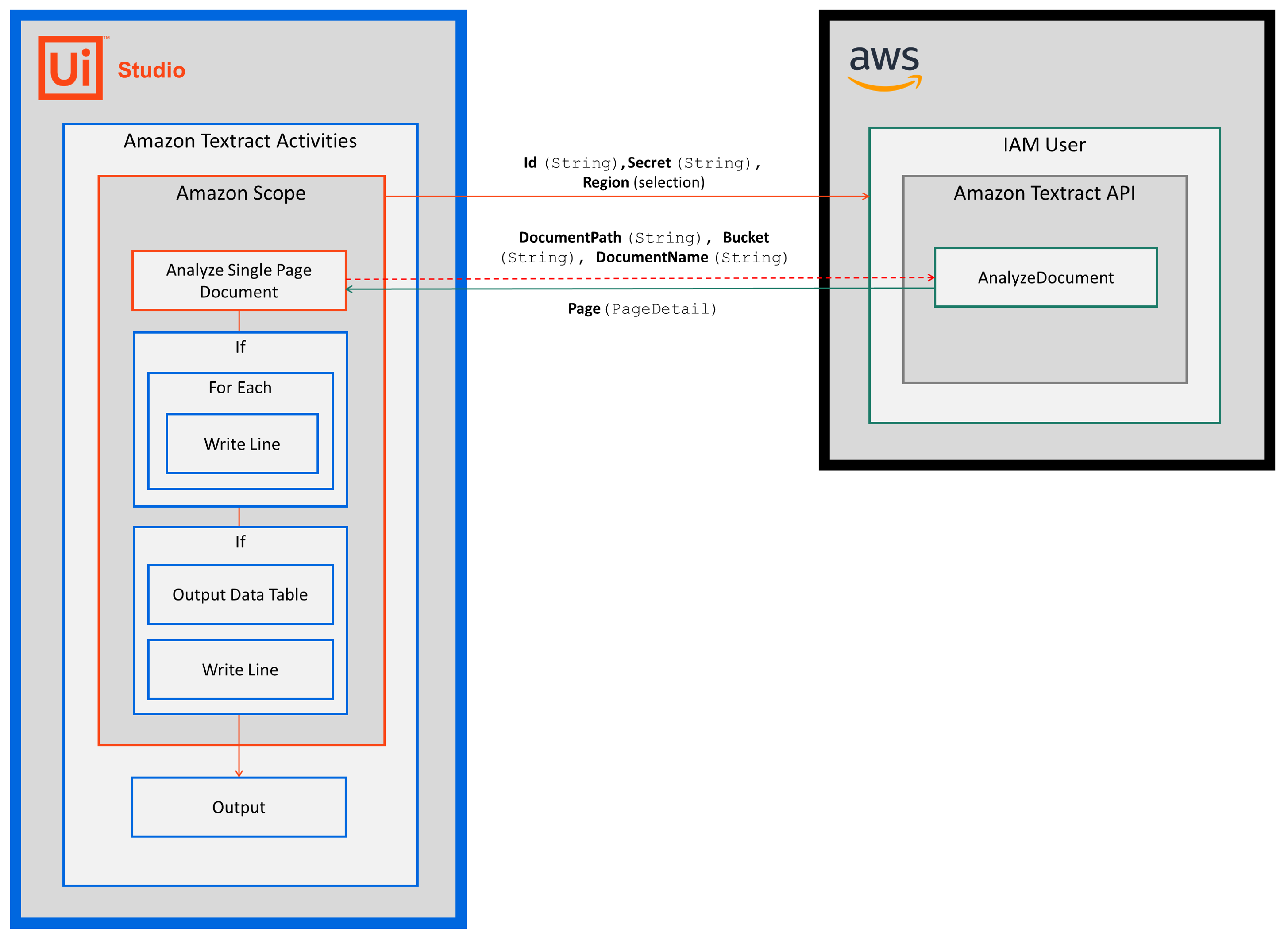
After completing the steps in this guide, you'll have an automation sequence that does the following:
1. Establishes a connection to your AWS resources ([Amazon Scope](https://docs.uipath.com/activities/other/latest/legacy-integrations/amazon-scope#amazon-scope)).
2. Analyzes a single JPEG or PNG file ([Analyze Single Page Document](https://docs.uipath.com/activities/other/latest/legacy-integrations/amazon-textract-analyze-single-page-document#analyze-single-page-document)).
3. Outputs the results of the analysis depending on the type of data found ([If](https://docs.uipath.com/activities/docs/if)).
* If the file includes form data (`FormFields`), the `PageDetail.FormFields.Items().Name` and `PageDetail.FormFields.Items().Value` values are written to the output window ([For Each](https://docs.uipath.com/activities/docs/for-each) and [Write Line](https://docs.uipath.com/activities/docs/write-line)).
* If the file includes table data (`DataTable`), the `PageDetail.Tables` values are written to the output window ([Output Data Table](https://docs.uipath.com/activities/docs/output-data-table) and [Write Line](https://docs.uipath.com/activities/docs/write-line)).
### Prerequisites
Before you begin:
1. Complete the Amazon Textract [Setup](https://docs.uipath.com/activities/other/latest/legacy-integrations/amazon-textract-setup#setup) steps.
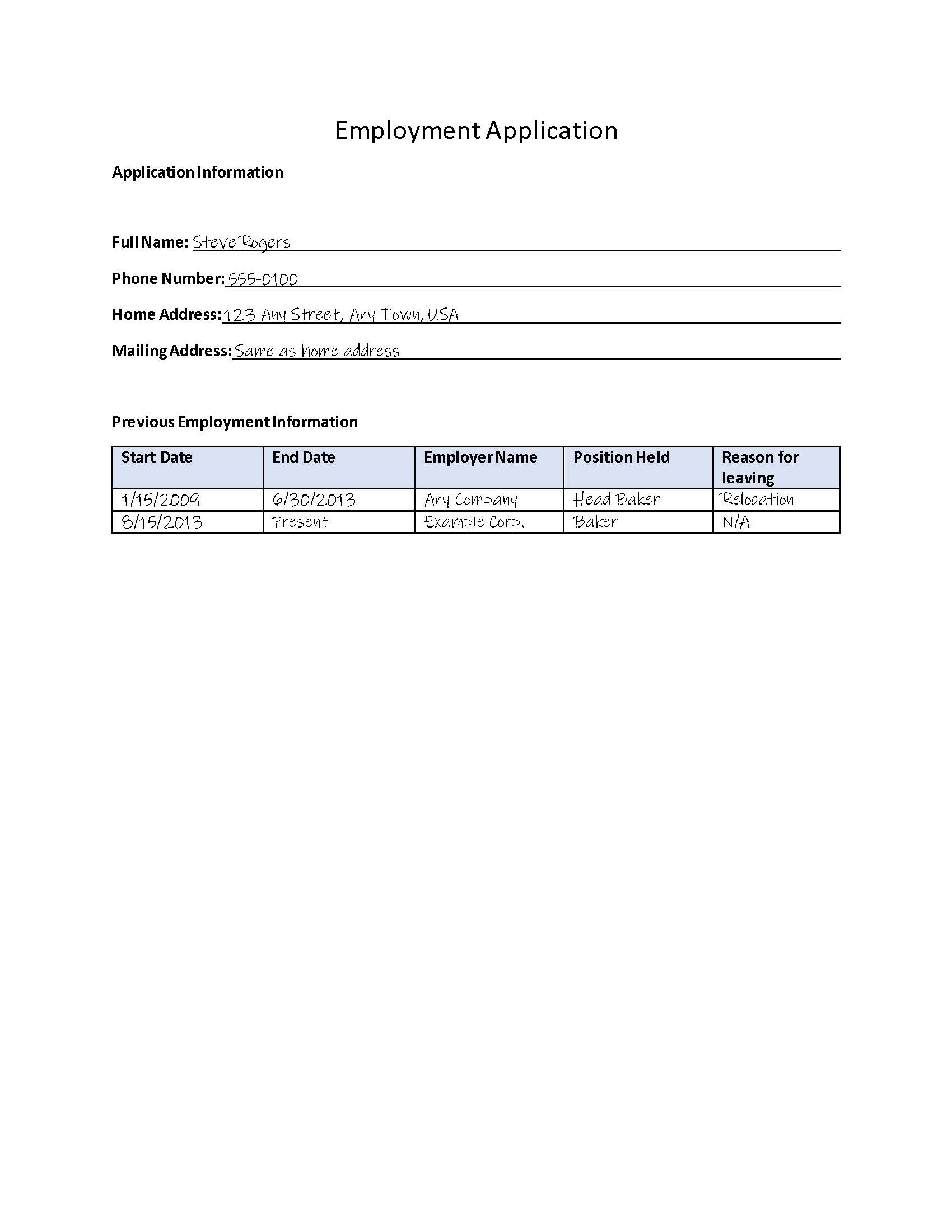
2. Make a JPEG or PNG file available by uploading it to an S3 bucket or saving it locally.
### Steps
#### Build your project
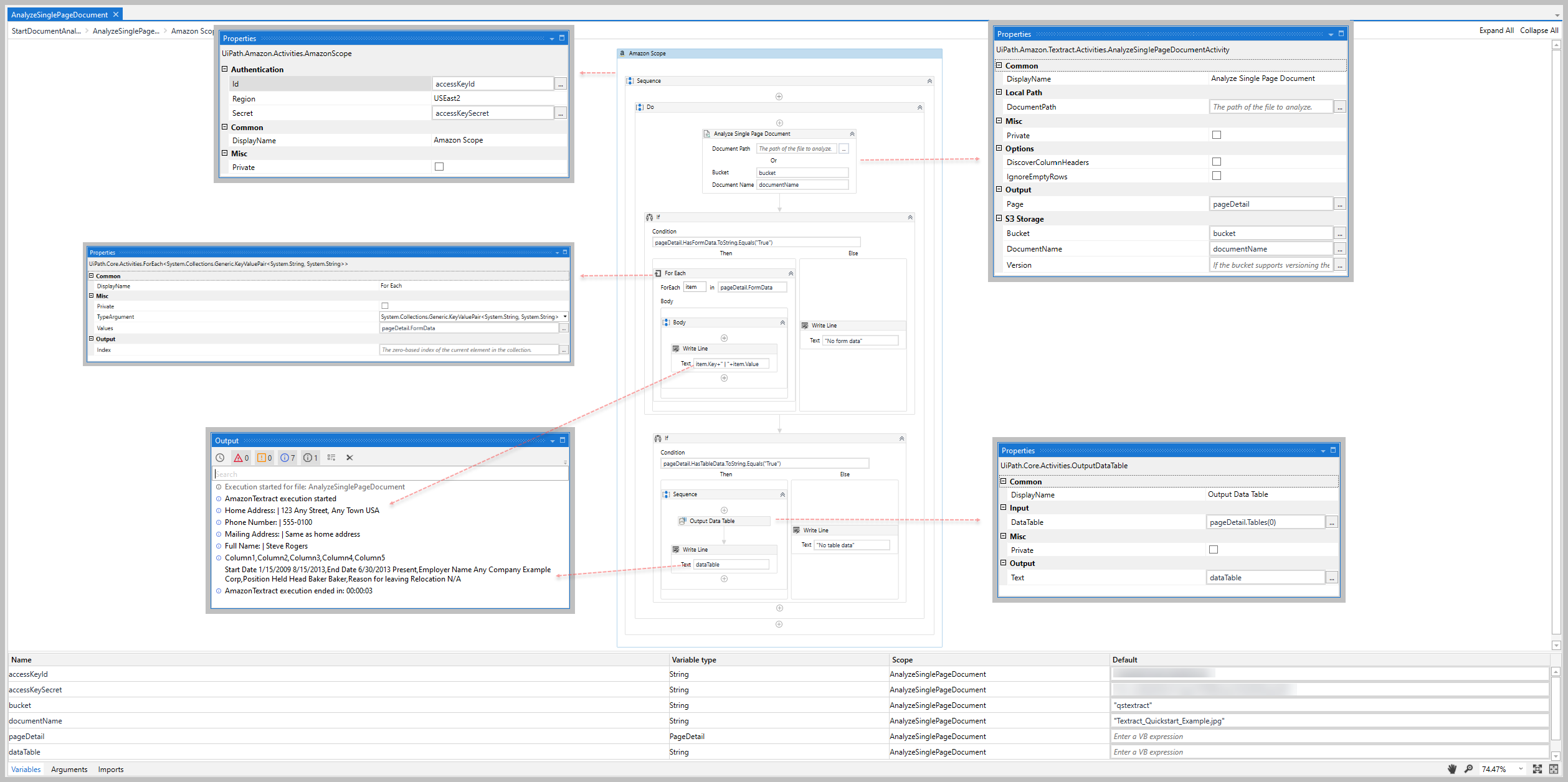
1. Add the [Amazon Scope](https://docs.uipath.com/activities/other/latest/legacy-integrations/amazon-scope#amazon-scope) activity to your project.
2. Enter the **Id**, **Secret**, and **Region** for the IAM user that you want to use for the Amazon Textract activities.
* For more information, see the [Create IAM user](https://docs.uipath.com/activities/other/latest/legacy-integrations/amazon-textract-setup#setup) section in **Setup** guide.
3. Add the [Analyze Single Page Document](https://docs.uipath.com/activities/other/latest/legacy-integrations/amazon-textract-analyze-single-page-document#analyze-single-page-document) activity inside the **Amazon Scope** activity.
4. Enter the **DocumentPath** to, or the **Bucket** and **DocumentName** of, the JPEG or PNG file that you want to analyze.
5. Create and enter a `PageDetail` variable for your **Page** value (e.g., *pageDetail*).
* When creating your variable, select *UiPath.Amazon.Textract.Client.Models.PageDetail
* as the variable type.
6. Add an [If](https://docs.uipath.com/activities/docs/if) activity after the **Analyze Single Page Document** activity.
7. In the **Condition** property, enter the `PageDetail` *variable* you created in the step above and *.HasFormData.ToString.Equals("True")* to determine if the file contains `FormField` objects (e.g., *pageDetail.HasFormData.ToString.Equals("True")*)
8. In the **Then** statement box, add a [For Each](https://docs.uipath.com/activities/docs/for-each) activity.
1. In the **TypeArgument** property, select _UiPath.Amazon.Textract.Client.Models.FormFields
2. In the **Values** property, enter the `FormFields.Items` property of the variable you created for the Get Messages activity (e.g., *pageDetail.FormFields.Items*).
3. In the **For Each** activity, add a [Write Line](https://docs.uipath.com/activities/docs/write-line) activity.
1. In the **Text** property, enter *item.Name+" | "+item.Value+" | "+item.Confidence* to output the form data's `KeyValuePair` values.
4. In the **Else** statement box, add a **Write Line** activity.
5. In the **Text** property, enter *"No form data found."*
9. Add another **If** activity after the first **If** activity.,
10. In the **Condition** property, enter the `PageDetail` *variable* you created in the step above and *.HasTableData.ToString.Equals("True")* to determine if the file contains `DataTable` objects (e.g., *pageDetail.HasTableData.ToString.Equals("True")*)
11. In the **Then** statement box, add an [Output Data Table](https://docs.uipath.com/activities/docs/output-data-table) activity.
1. In the **DataTable** property, enter the `PageDetail` *variable* you created for the **Analyze Single Page Document** activity and *.Tables(0)* to specify the 'DataTable` object in the file (e.g., *pageDetail.Tables(0)*)
2. For the **Text** property, create and enter a `String` variable for the `DataTable` content (e.g. *dataTable*).
3. Add a **Write Line** activity after the **Output Data Table** activity.
1. In the **Text** property, enter the `String` variable you created in the step above to output the `DataTable` content.
4. In the **Else** statement box, add a **Write Line** activity.
5. In the **Text** property, enter *"No table data found."*
12. Click **Run** and verify the **Output** window includes the expected form data and table data.
You're done!
When you're ready, try the other [Quickstart](https://docs.uipath.com/activities/other/latest/legacy-integrations/amazon-textract-quickstarts#quickstarts) guides to get more familiar with the different Amazon Textract activities.
To learn more about the Amazon Textract activities (including example property inputs/outputs), see the [Activities](https://docs.uipath.com/activities/other/latest/legacy-integrations/amazon-textract-activities) page for a complete activity list and links to the activity detail pages.
## Quickstart - Start and Get Analysis
### Overview
The purpose of this guide is to help you create a working sample that uses the Amazon Textract [Start Document Analysis](https://docs.uipath.com/activities/other/latest/legacy-integrations/amazon-textract-start-document-analysis#start-document-analysis), [Get Document Analysis Status](https://docs.uipath.com/activities/other/latest/legacy-integrations/amazon-textract-get-document-analysis-status#get-document-analysis-status), and [Get Document Analysis](https://docs.uipath.com/activities/other/latest/legacy-integrations/amazon-textract-get-document-analysis#get-document-analysis) activities.
This working sample enables you to quickly verify the connection to your AWS resources and get familiar with the activity's input/output datatypes.
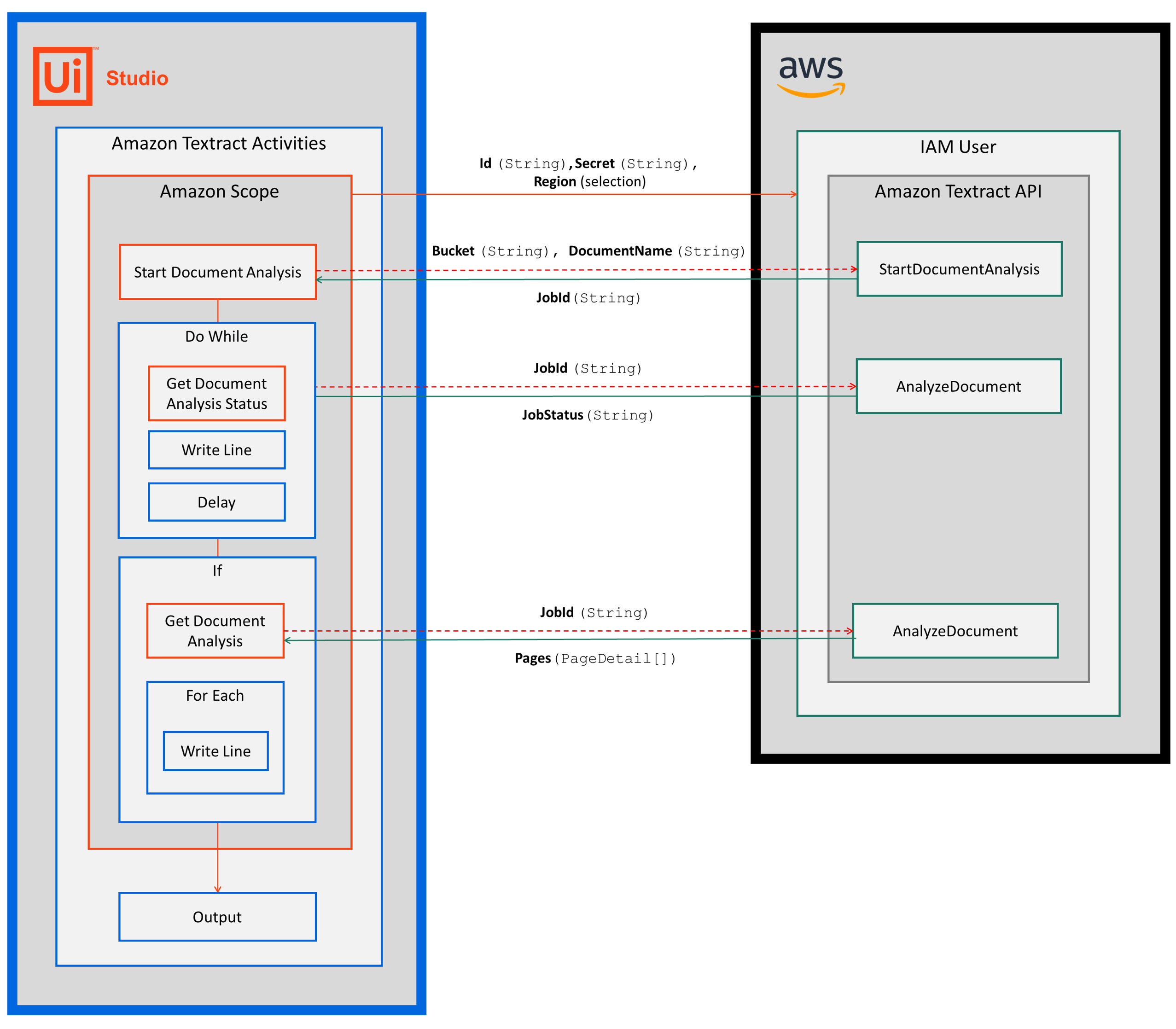
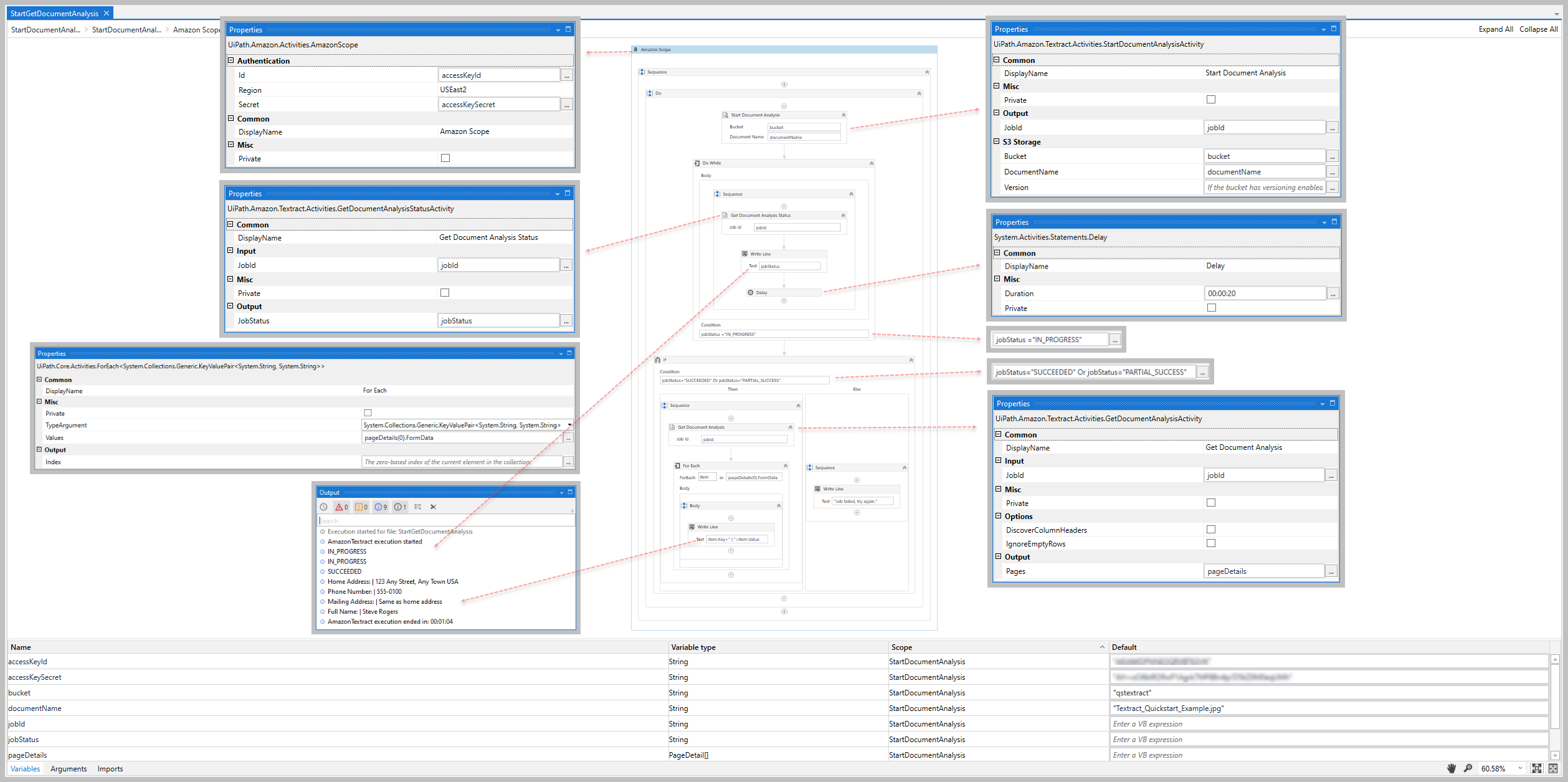
After completing the steps in this guide, you'll have an automation sequence that does the following:
1. Establishes a connection to your AWS resources ([Amazon Scope](https://docs.uipath.com/activities/other/latest/legacy-integrations/amazon-scope#amazon-scope)).
2. Starts an Amazon Textract analysis job ([Start Document Analysis](https://docs.uipath.com/activities/other/latest/legacy-integrations/amazon-textract-start-document-analysis#start-document-analysis)).
3. Retrieves and outputs the status of the started analysis job ([Do While](https://docs.uipath.com/studio/docs/the-do-while-activity), [Get Document Analysis Status](https://docs.uipath.com/activities/other/latest/legacy-integrations/amazon-textract-get-document-analysis-status#get-document-analysis-status), [Write Line](https://docs.uipath.com/activities/docs/write-line), and [Delay](https://docs.uipath.com/studio/docs/the-delay-activity)).
4. Retrieves and outputs the results of the analysis if/when the analysis job is successful ([If](https://docs.uipath.com/activities/docs/if), [Get Document Analysis](https://docs.uipath.com/activities/other/latest/legacy-integrations/amazon-textract-get-document-analysis#get-document-analysis), [For Each](https://docs.uipath.com/activities/docs/for-each), [For Each](https://docs.uipath.com/studio/docs/the-for-each-activity) and [Write Line](https://docs.uipath.com/activities/docs/write-line)).
### Prerequisites
Before you begin:
1. Complete the Amazon Textract [Setup](https://docs.uipath.com/activities/other/latest/legacy-integrations/amazon-textract-setup#setup) steps.
2. Make a JPEG or PNG file available by uploading it to an S3 bucket or saving it locally.
### Steps
### Build your project
1. Add the [Amazon Scope](https://docs.uipath.com/activities/other/latest/legacy-integrations/amazon-scope#amazon-scope) activity to your project.
2. Enter the **Id**, **Secret**, and **Region** for the IAM user that you want to use for the Amazon Textract activities.
* For more information, see the [Create IAM user](https://docs.uipath.com/activities/other/latest/legacy-integrations/amazon-textract-setup#setup) section in **Setup** guide.
3. Add the [Start Document Analysis](https://docs.uipath.com/activities/other/latest/legacy-integrations/amazon-textract-start-document-analysis#start-document-analysis) activity inside the **Amazon Scope** activity.
4. Enter the **Bucket** and **DocumentName** of, the JPEG or PNG file that you want to analyze.
5. Create and enter a `String` variable for the **JobId** value (e.g., *jobId*).
6. Add a [Do While](https://docs.uipath.com/studio/docs/the-do-while-activity) activity after the **Start Document Analysis** activity.
7. Inside the **Do While** activity, add the [Get Document Analysis Status](https://docs.uipath.com/activities/other/latest/legacy-integrations/amazon-textract-get-document-analysis-status#get-document-analysis-status) activity.
8. In the **Job Id** property, enter the `String` variable you created for the **JobId** above (e.g., *jobId*).
9. Create and enter a `String` variable for the **JobStatus** value (e.g., *jobStatus*).
10. In the **Condition** property of the **Do While** activity, enter the **JobStatus** variable along with a condition value (e.g., *jobStatus = "IN_PROGRESS"*)
* For a list of the possible job status values, see the [JobStatus](https://docs.uipath.com/activities/other/latest/legacy-integrations/amazon-textract-get-document-analysis-status#get-document-analysis-status) property section of the **Get Document Analysis Status** details page.
11. Add a [Write Line](https://docs.uipath.com/activities/docs/write-line) activity after the **Get Document Analysis Status** activity.
12. In the **Text** property, enter the `String` variable you created for the **JobStatus** value above (e.g., *jobStatus*).
13. Add a [Delay](https://learn.microsoft.com/en-us/dotnet/api/system.activities.statements.delay?redirectedfrom=MSDN&view=netframework-4.8.1) activity after the **Write Line** activity.
14. In the **Duration** property, enter the estimated amount of time it will take to process your document. In our example, we enter *00:00:20* to demonstrate the **Job Status** output value changes (for non-demo scenarios, we enter *00:00:55* for a single form document).
:::note
In the scenario outlined above, your Robot retrieves and outputs the status of the analysis job every 20 seconds while the status equals *IN_PROGRESS*. This condition enables the Robot to retrieve and output the status until it changes.
:::
15. Add an [If](https://docs.uipath.com/activities/docs/if) activity after the **Do While** activity.
16. In the **Condition** property, enter the **JobStatus** variable along with a condition value (e.g., *jobStatus = "SUCCEEDED" or jobStatus="PARTIAL_SUCCESS"*)
17. In the **Then** statement box, add the [Get Document Analysis](https://docs.uipath.com/activities/other/latest/legacy-integrations/amazon-textract-get-document-analysis#get-document-analysis) activity.
1. In the **Job Id** property, enter the `String` variable you created for the **JobId** property in the **Start Document Analysis** activity. (e.g., *jobId*).
2. Create and enter a `PageDetail[]` variable for your **Pages** value (e.g., *pageDetails*).
* When creating your variable, select *UiPath.Amazon.Textract.Client.Models.PageDetail[]
* as the variable type.
18. For our example below, we will only evaluate the first document in the `PageDetail[]` array of the **Pages** property.
1. Create and enter a `PageDetail` variable to store the first item in the array, and use a [Assign](https://docs.uipath.com/activities/other/latest/user-guide/assign) activity after the **Get Document Analysis** activity (e.g., *pageDetail*).
2. Assign the PageDetail(0) as the value to the variable you just created (*pageDetail*)
19. Add a [For Each](https://docs.uipath.com/activities/docs/for-each) activity after the **Assign** activity.
1. In the **TypeArgument** property, select *UiPath.Amazon.Textract.Client.Models.FormFields*
2. In the **Values** property, enter the `FormFields.Items` property of the variable you created for the **Assign** activity (e.g., *pageDetail.FormFields.Items*).
3. In the **For Each** activity, add a [Write Line](https://docs.uipath.com/activities/docs/write-line) activity.
1. In the **Text** property, enter *item.Name+" | "+item.Value+" | "+item.Confidence* to output the form values.
4. In the **Else** statement box, add a **Write Line** activity.
5. In the **Text** property, enter a message for a failed job (e.g., _"Job failed, try again.")
20. Run the sequence and verify the **Output** window includes the job status and expected form data values.

You're done!
When you're ready, try the other [Quickstart](https://docs.uipath.com/activities/other/latest/legacy-integrations/amazon-textract-quickstarts#quickstarts) guides to get more familiar with the different Amazon Textract activities.
To learn more about the Amazon Textract activities (including example property inputs/outputs), see the [Activities](https://docs.uipath.com/activities/other/latest/legacy-integrations/amazon-textract-activities) page for a complete activity list and links to the activity detail pages.