# AI units consumption dashboards
> Access and interpret AI units consumption dashboards for Document Understanding, with feature availability varying by cloud platform and integration type.
:::note
Feature availability depends on the cloud platform that you use. For details, refer to the [Choosing the deployment type page](https://docs.uipath.com/document-understanding/automation-cloud/latest/user-guide/choosing-the-deployment-type#choosing-the-deployment-type).
:::
The integrations available for AI units consumption monitoring within Insights improve visibility into license consumption and availability. Users gain the ability to:
* Observe how the AI units within their tenant or organization are distributed and consumed.
* Check the consumption of the AI units at the tenant level driven by actions performed in Document Understanding™, IXP or AI Center.
## Enabling Insights in Automation CloudTM
Access to Insights is granted at the tenant level. A user with administrator permissions on Automation CloudTM can enable Insights for a tenant using the following steps:
1. Navigate to your respective Automation CloudTM URL and log in with your UiPath® account.
2. From the left navigation pane, select the **Admin** option.
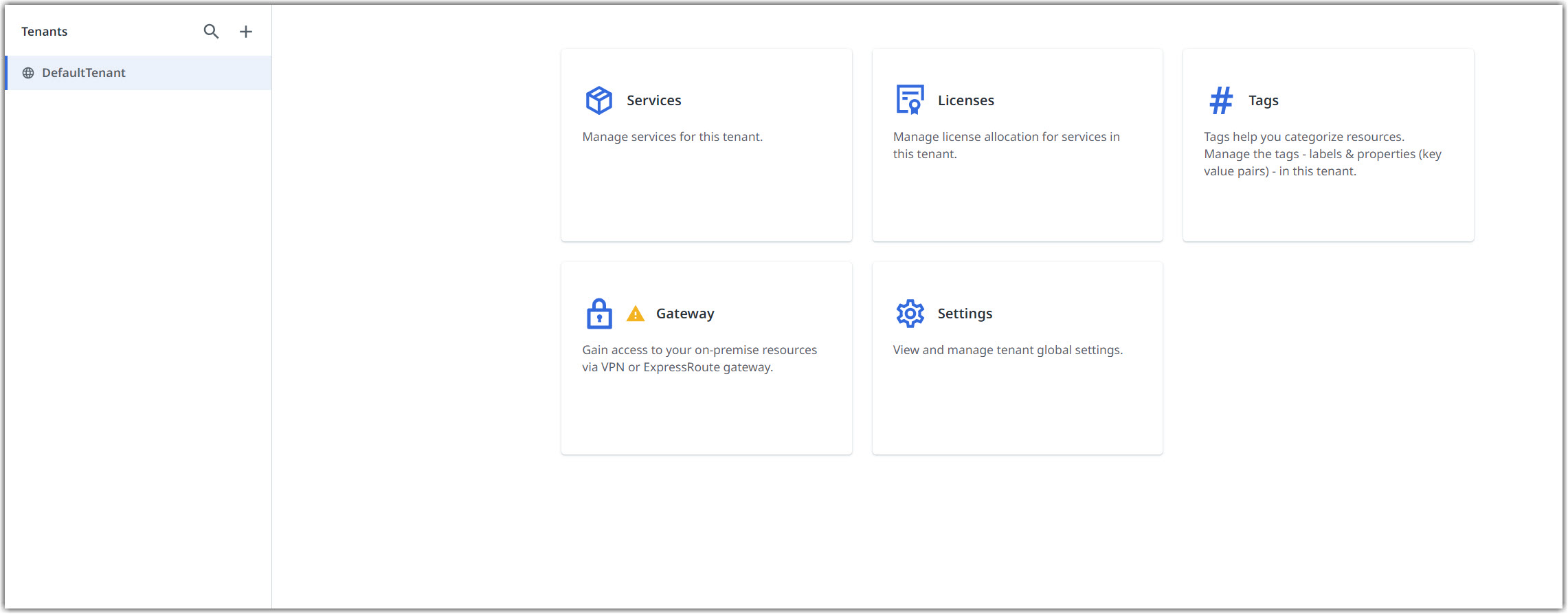
3. Under the **Tenants** context menu, find the tenant you want to enable Insights for, and select **Services**.
4. Select the three-dot **⋮** menu from Insights, and select **Enable**.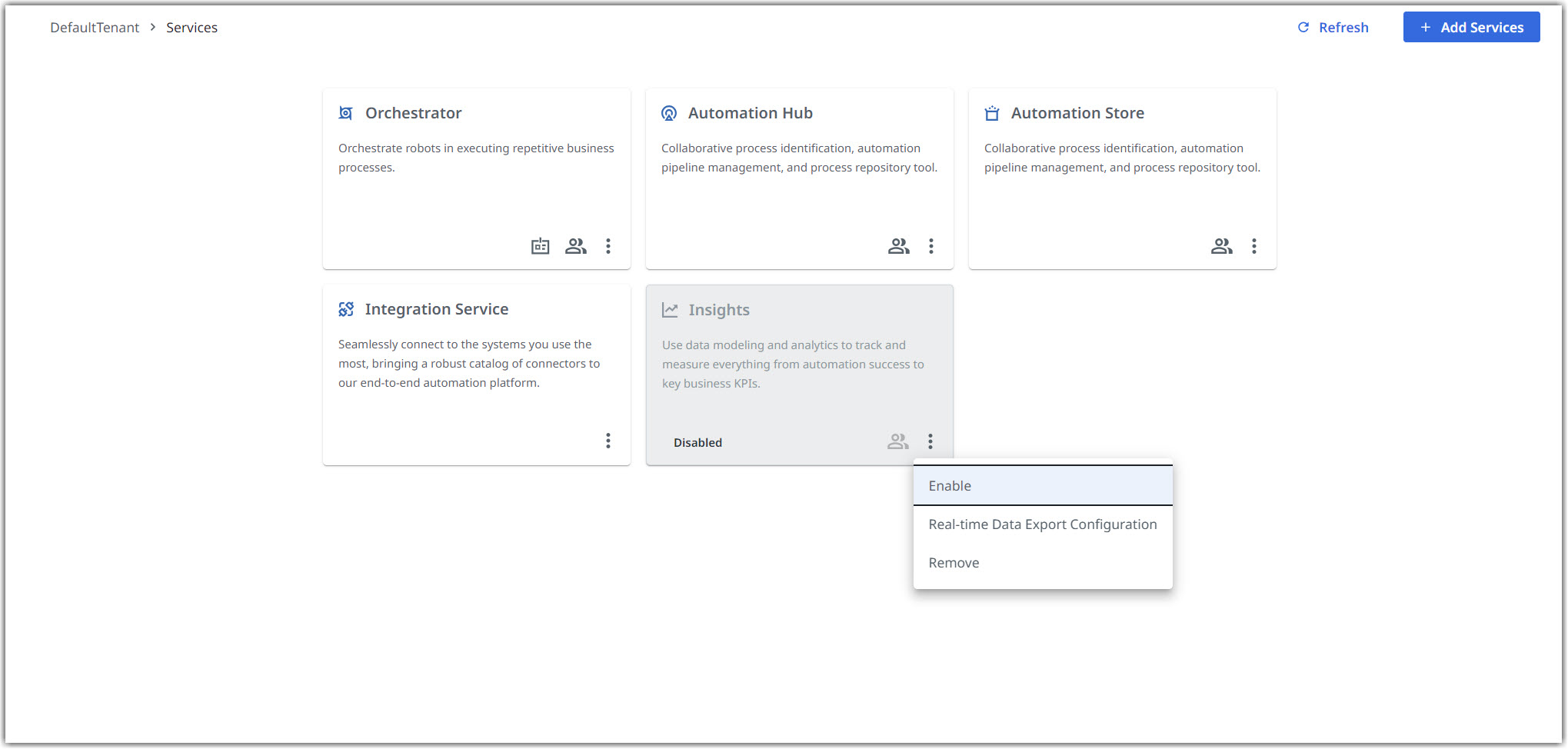
5. A confirmation message is displayed and from the left navigation menu, you should be able to select **Insights** within 1-2 minutes.
## Enabling the dashboards
In order to use the dashboard, you need to enable **Insights** on your tenant:
1. Go to the three-dot menu **⋮** on the top right corner of the screen and select **Tenant Profile**.
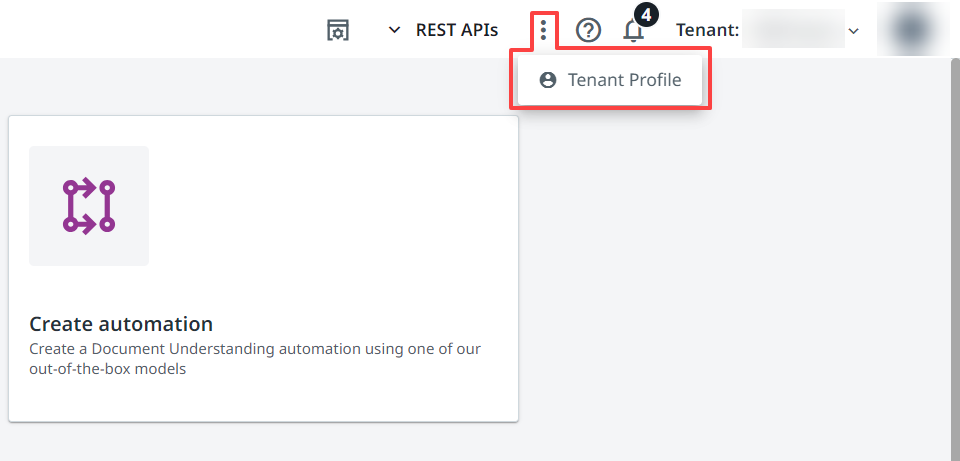
2. Select the **Insights Dashboard URL** toggle button to enable **Insights**.
## Accessing the dashboards
To access the dashboards, open **Insights** and navigate to the **UiPath Templates** tab.