# Create a project
> Follow the instructions from this page to create your first Document UnderstandingTM project.
Follow the instructions from this page to create your first Document UnderstandingTM project.
1. Open **Document Understanding**.
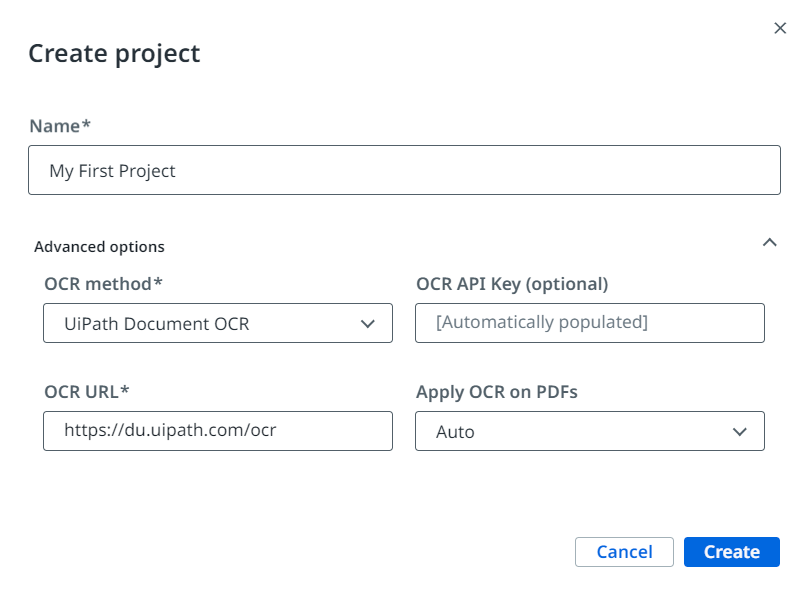
2. Select **Create project**.
3. Fill in the desired project name.
4. Configure **Advanced options** if needed.
1. Select the OCR you want to use for your new project from the **OCR method** drop-down list.
2. Fill in the **OCR API Key**.
:::note
This field is filled in automatically if you select a UiPath® OCR.
:::
3. Choose if you want to **Apply OCR on PDFs**. This is set to **Auto** by default.
5. Select **Create**.
Figure 1. Creating your first project
After you create your new project, you can open it by selecting it from the **Projects** list.

## Configure project settings
You can edit or configure additional project settings after you created the project.
To do this, open your project and select **Project settings** on the bottom-left corner of the screen.
Figure 2. Additional project settings
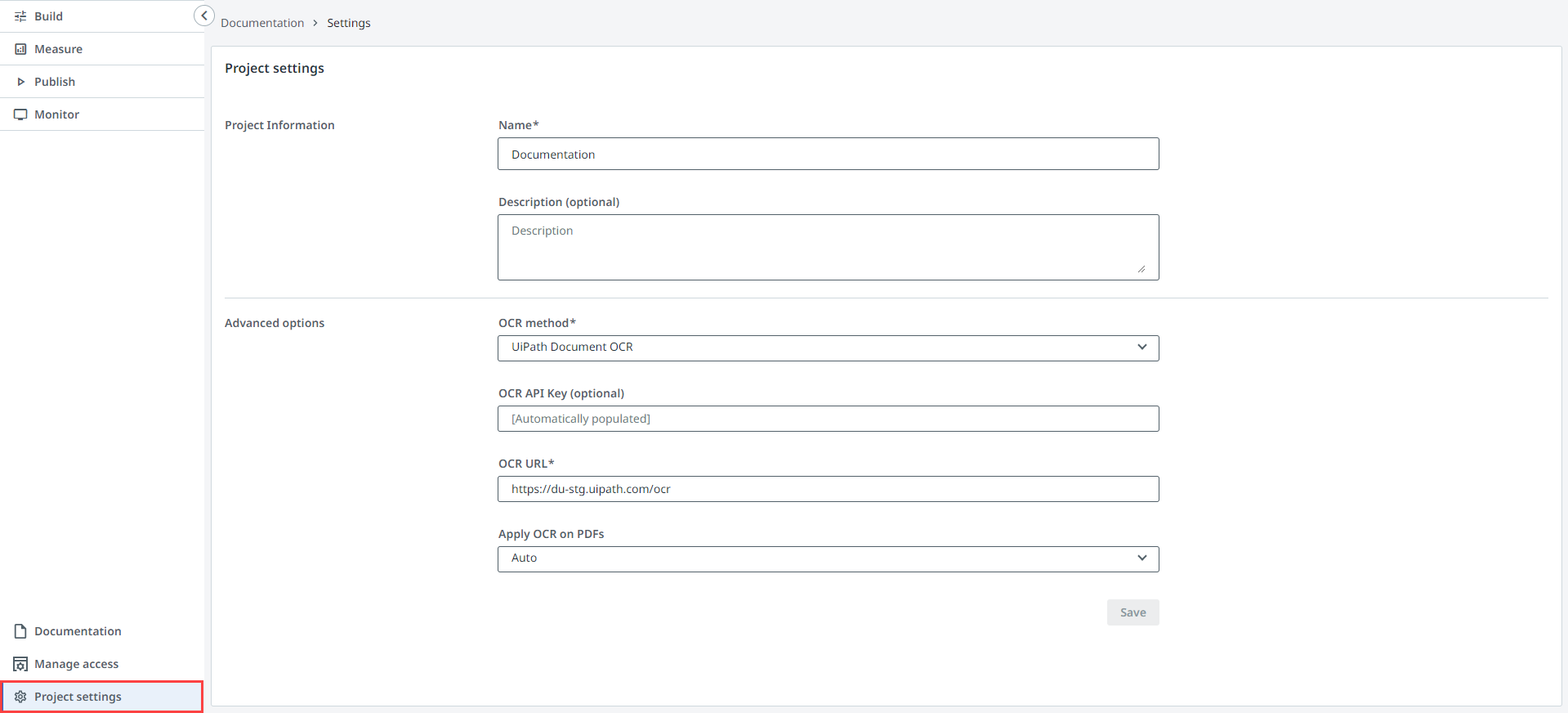
You can configure the following additional project settings:
* **Name**: The name of the project.
* **Description**: Optionally, you can provide more details about the project.
* **OCR method**: Select the OCR method for the project from the drop-down list.
* **OCR API Key**: Provide the API key for the chosen API. This field is populated automatically if you selected a UiPath OCR.
* **OCR URL**: Provide the OCR URL corresponding to the chosen OCR method. For the full list of URLs for UiPath OCRs, check the [Public Endpoints](https://docs.uipath.com/document-understanding/automation-suite/2024.10/user-guide/public-endpoints#public-endpoints) page.
* **Apply OCR on PDFs**: Establishes if the OCR process should be applied or not to PDF documents. If set to **Yes**, the OCR is applied to all PDF pages of the document. If set to **No**, the OCR is not applied to any pages and returns only the text embedded in the PDF. When set to **Auto** OCR applies only to the scanned pages of the document. The default value is **Auto**.