# Monitor
> :::note
Feature availability depends on the cloud platform that you use. For details, refer to the [Choosing the deployment type page](https://docs.uipath.com/document-understanding/automation-cloud/latest/user-guide/choosing-the-deployment-type#choosing-the-deployment-type).
:::
:::note
Feature availability depends on the cloud platform that you use. For details, refer to the [Choosing the deployment type page](https://docs.uipath.com/document-understanding/automation-cloud/latest/user-guide/choosing-the-deployment-type#choosing-the-deployment-type).
:::
You can check the performance metrics for your Document UnderstandingTM automations from the **Monitor** section in the following main areas:
* [Project performance (Preview)](https://docs.uipath.com/document-understanding/automation-cloud/latest/user-guide/monitor#project-performance-(preview))
* [Processed documents](https://docs.uipath.com/document-understanding/automation-cloud/latest/user-guide/monitor#processed-documents) and the corresponding [Document Details](https://docs.uipath.com/document-understanding/automation-cloud/latest/user-guide/monitor#document-details)
:::tip
Check the [Role-based access control](https://docs.uipath.com/document-understanding/automation-cloud/latest/user-guide/role-based-access-control#role-based-access-control "This section is primarily intended to guide administrators in configuring and managing access control based on user roles for Document UnderstandingTM.") page for detailed information on user permissions for the **Monitor** section.
:::
:::note
Before using the Monitor feature, take into consideration the following:
* Only
**UiPath.DocumentUnderstanding.Activities** v 2.7.0 or newer versions support Monitor;
* Only
**IntelligentOCR.Activities** v6.20 or newer versions include the activity which supports Monitor
:::
## Project performance (Preview)
:::note
The **Project performance** dashboard does not currently include validation data from the IntelligentOCR activity package.
:::
The **Project performance** tab provides useful performance metrics for your project, such as the number of processed documents, the time saved processing documents, or the time spent extracting data from documents.
Figure 1. Project performance (Preview) dashboard

### Enabling the dashboard
In order to use the dashboard, you need to enable **Insights** on your tenant:
1. Go to the three-dot menu **⋮** on the top right corner of the screen and select **Tenant Profile**.
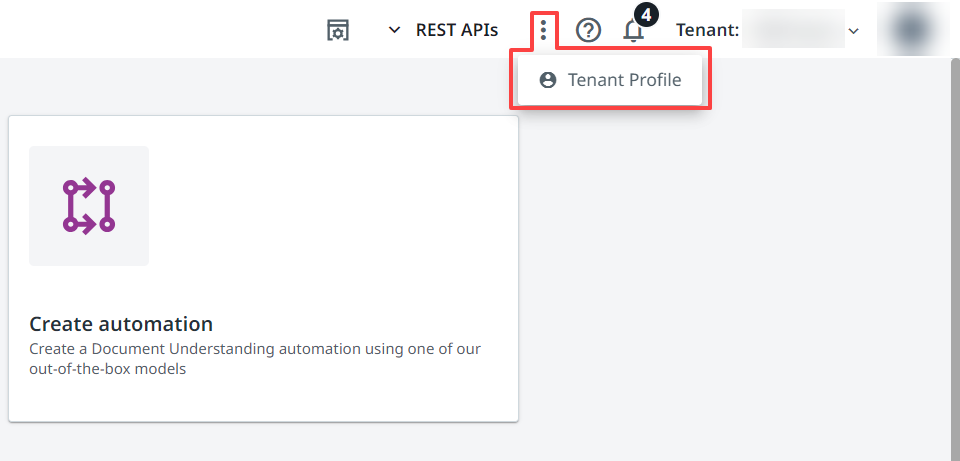
2. Select the **Insights Dashboard URL** toggle button to enable **Insights**.

### Metrics
After a project is published, you can check the performance of the automations and important business metrics.
Table 1. Project success metrics
Metric
Description
Estimated time saved
The time saved is calculated as the number of hours saved having the Document Understanding process in place, considering a human processes one document page in the configured time. The metric uses the following formula: { Estimated time saved } = { number of document processed } * { x } (minutes) - { validation time }
Number of documents processed : the total number of documents processed using the automation.
x : the time a user would need to process one document without automation.
validation time : the time the user spent in Validation Station.
Estimated cost
The estimated cost paid for the consumed AI Units depending on the Cost of AI Unit input provided as a setting on the dashboard.
Number of processed documents monthly trend, by consumer
The total number of documents processed by a consumer during a month. The consumer can be anything from:
APIs
Using DocumentUnderstanding.Activities
Validation time, per validator
The total time spent, in hours, validating the classification and extraction results, per validator.
Time a document has spent waiting validation
The time a document has spent waiting on user action:
Minimum time
Maximum time
Average time
Average handling time
The average time required for validating a document. Specifically, how much time on average a user spent validating classification and extraction results. You can check this metric as:
Total: the total average handling time.
Per validator: the average handling time per validator.
Straight-through-processed vs. Total processed documents
The number of straight-through processed documents is the number of documents processed automatically, for which no validation or classification action was created. The total number of processed documents is the number of straight-through processed documents and the number of manually validated documents combined.
Table 2. Consumption metrics
Metric
Description
AI Units consumption overview
The number of available AI Units compared to the number of consumed AI Units, grouped by projects. The timeframe they are valid for and the total consumption rate is available as well.
AI Units consumption details
The total number of consumed AI Units by month, split by consumers.
The total number of AI Units consumed for model hosting, split by project version and month.
AI Units consumed for each deployment event for the hosted model.
Runtime consumers
The top consumers by the number of processed pages:
API consumer: consumer which has digitized at least one page using the selected project.
RPA consumer Studio, Studio X, or Studio Web projects, containing at least one Document Understanding activity referencing the current project.
Table 3. Runtime metrics
Metric
Description
Top document types requiring validation
The top document types for which validation or classification actions were created, with the following information:
Document type name
Number of processed pages
Average classification confidence
Average extraction confidence
Number of requested vs. extracted fields
Total time spent validating documents
Average time per page
Field corrections trend
The number of corrected fields, grouped by modification (edited value, edited box, marked as missing, etc.), per month.
Field corrects details, by document type
The top field modifications brought to a document type, with the following information:
Document type
Field name
Field value (case-sensitive)
Average confidence
Average accuracy
Modification
Number of occurences
Extraction accuracy metrics
Average output accuracy: the number of fields not modified, or the number of fields requested.
Validator output accuracy: the number of fields not modified, or the number of fields requested per validator.
Classification accuracy metrics
The average classification output accuracy, specifically the number of classification results marked as corrected, or the number of classified documents.
Classification confusion matrix
Check what document type was confused with other type.
Validation actions overview
Validation tasks, created either using RPA or APIs, grouped by status:
Assigned
Unassigned
Submitted
Rejected
Top exceptions encountered
The top exceptions encountered while running workflows or consuming the models using APIs. The number of exception occurences and the consumer they occur in is also displayed.
### Filtering the dashboard
There are multiple ways to filter through the dashboard. For an accurate and better understanding of the available options, let's go through all the options.
Several options are available for filtering the data displayed in the dashboard:
* Manual processing time of a document in minutes
* Period
* Group by
* AI unit cost in cents
Option
Description
Manual processing time of a document in minutes
Select how many minutes it takes to process a document manually.
Period
Select the time period for which the information is displayed.
Is in the last
Is on the day
Is in range
Is before
Is on or after
Is in the year
Is in the month
Is this
Is next
Is previous
Is
Is null
Is any time
Is not null
Matches a user attribute
Matches (advanced)
Group by
Select how to group the information.
Day
Week
Month
Quarter
Year
AI unit cost in cents
Select the cost of one AI units in USD cents
Reload the information
Refresh the available information.
Hide/Show filters
Choose if the filters are visible or not in the dashboard.
Download
Download the information presented in the dashboard as PDF or CSV.
Schedule delivery
Schedule a dashboard export recurrence (daily, monthly, weekly, or on a specific day). Available formats are PDF, CSV zip file, or PNG visualization.
Reset filters
Reset all customized filters.
Viewer timezone
Select the viewer timezone.
#### Schedule delivery
You can schedule the delivery of an email with your dashboard data. Select the three-dot menu **⋮**, choose the Schedule Delivery option, and customize it as needed.
Tab
Option
Description
Settings
Schedule Name
Name your scheduled delivery.
Recurrence
Set the recurrence period of your email delivery.
Time
Set the time of the scheduled delivery.
Destination
Set the destination of your scheduled delivery.
Email addresses
Set the email address to which your dashboard information needs to be send.
Format
Set the format of your scheduled delivery.
Test now
Test the schedule delivery option.
Filters
Manual processing time of a document in minutes
Select how many minutes it takes to process a document manually.
Period
Set the time period for the information displayed in the dashboard.
Group by
Select how to group the information.
AI unit cost in cents
Select the cost of one AI units in USD cents
Test now
Test the schedule delivery option.
Advanced options
Custom Message
Add a custom message to your scheduled delivery.
Include links
Include accessible links to your scheduled delivery.
Expand tables to show all rows
Choose if all rows should appear or not in the export. Large tables may render as plain text or limit displayed rows.
Arrange dashboard tiles in a single column
Choose if information should be displayed one on top of the other.
Paper size
Select the desired paper size: Fit page to dashboard, Letter, Legal, Tabloid, A0, A1, A2, A3, A4, A5.
Delivery timezone
Choose the timezone to be used for your scheduled delivery.
Test now
Test the settings for your scheduled delivery.
## Processed documents
The **Processed Documents** tab provides a list of documents which have been processed with the selected project, either via APIs or the activities part of the **UiPath.DocumentUnderstanding.Activities** package. If the document has at least been digitized via APIs or in any way processed via the activities referencing the project, it will appear here. The following metrics are available:
* **File name:** the name of the processed document. Select the document name to go to the Document Details view.
* **Document type:** the document type of the processed document.
* **Consumer:**
+ **API:** consumer which has digitized at least one page using the selected project. Hover your mouse over the field to view the AppId, configured when setting up the external application, to uniquely identify the consumer.
+ **RPA:** **Studio Desktop** or **Studio Web** projects containing at least one Document Understanding activity referencing the current project. Hover your mouse over the field to view the process name.
* **Modified Date:** date when the last operation on the document occurred.
* **Validator:** username of the user who validated the task. If there is no validation task created for the respective document, **N/A** will be displayed in the field.
* **AI Units:** number of AI Units consumed.
Use the search bar to search for a processed document by file name.
:::note
Documents are available in the **Processed Documents** tab for six months.
:::

## Document Details
Select a file name from the **Processed Documents** tab to get to the Document Details view. This view provides the following information:
* Metrics:
+ **Total consumption:** the number of AI Units consumed by the document.
+ **Creation date:** the date when the document was created.
+ **Last updated date:** the date the last operation on the document occurred.
+ **Consumer:** the name of the workflow created in an RPA project.
* Classification:
+ **Version:** version of the classification model used.
+ **Pre-validation document type:** the document type determined automatically by the classifier.
+ **Post-validation document type:** if changed manually, the document type after validation. If the document type was not changed after validation, the value will be **N/A**.
+ **Confidence:** the confidence score determined by the classifier.
* Extraction:
+ **Model:** the extraction model used.
+ **Version:** version of the extraction model used.
+ **Extracted fields:** information related to each field of the document type:
- **Predicted value:** the value predicted by the model.
- **Extraction confidence:** the confidence score determined by the extractor.
- **OCR Confidence:** the confidence score determined by the OCR engine.
- **Post-validation value:** if changed manually, the value after validation. If the document type was not changed after validation, the value will be **N/A**.
* Validation:
+ **Task name:** the name of the validation task.
+ **Task type:** the type of the validation task. Possible values: Classification or Extraction.
+ **Task catalog name:** the name of the validation task catalog.
+ **Assignee:** the assignee of the validation task (Unassigned if there is no user assigned yet).
+ **Criticality:** the priority level of the validation task.
+ **Task creation date:** the date when the validation task was created.
+ **Task completion date:** the date when the validation task was completed.
+ **Valid fields:** the number of validated fields after human-in-the-loop (marked as valid).
+ **Modified fields:** the number of modified fields after human-in-the-loop.
+ **Task outcome:** the result of the task.
