# Enabling Document Understanding™ and creating a project
> Document UnderstandingTM is a service within Automation CloudTM. All Document Understanding users need to have an account in Automation Cloud.
## Enabling Document Understanding™
Document UnderstandingTM is a service within Automation CloudTM. All Document Understanding users need to have an account in Automation Cloud.
Check the [About Automation Cloud™](https://docs.uipath.com/automation-cloud/automation-cloud/latest/admin-guide/introduction) page from the **Automation CloudTM Admin Guide** for more information.
To start using Document Understanding, you need to enable it on a specific cloud tenant.
:::note
If you are using classic projects or projects based on AI Center, you need to enable AI Center on your tenant as well.
:::
Check the [About Tenants](https://docs.uipath.com/automation-cloud/automation-cloud/latest/admin-guide/about-tenants) for more information about Automation Cloud tenants.
To enable Document Understanding on your tenant, follow the steps below:
1. Open Automation Cloud.
2. Go to the **Admin** menu.
3. Select the tenant on which you want to enable Document Understanding.
4. Go to **Services**.
5. Select the three-dot ⋮ icon from the Document Understanding and AI Center cards and choose **Enable** to enable both services.
:::note
To gain access to AI Center, you need to change your licensing plan to [Enterprise Trial or Enterprise](https://docs.uipath.com/automation-cloud/automation-cloud/latest/admin-guide/about-licensing). For more information, check the [AI Center](https://docs.uipath.com/ai-center/automation-cloud/latest/user-guide/about-ai-center) user guide.
:::
## Create a new project
Before creating a new project, familiarize yourself with Document Understanding by going through [this](https://docs.uipath.com/document-understanding/automation-cloud/latest/classic-user-guide/du-app#introduction) short tutorial.
### Create a new project using Document Understanding
1. Open Document Understanding
2. Click on the **New project** button.
3. Fill in all the required fields and click **Create**. You now have a new project that is available only in Document Understanding.
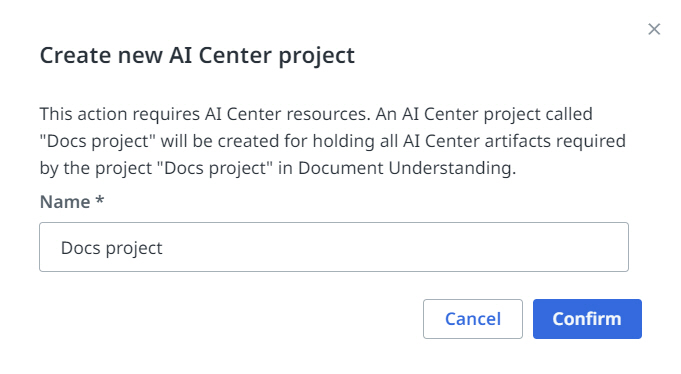
4. Open the newly created project, click on the **New** button, and select **Using Semi-Structured AI**. A popup opens requiring you to link the project to AI Center.
5. Click the **Confirm** button to create the same project in AI Center. Once confirmed, your project from Document Understanding receives a **Linked to AI Center project** icon next to its name.
## Create a new document type
Once you have created your project, you can start [creating new document types](https://docs.uipath.com/document-understanding/automation-cloud/latest/classic-user-guide/document-manager#document-types-(document-manager)), according to your project needs. Here are the steps you need to follow for creating a new document type:
1. Open your project and click on the **New project** button.
2. Choose the document type, [Using Forms AI (fixed layout forms)](https://docs.uipath.com/document-understanding/automation-cloud/latest/classic-user-guide/forms-ai#forms-ai) or [Using Semi-Structured AI](https://docs.uipath.com/document-understanding/automation-cloud/latest/classic-user-guide/document-manager#document-types-(document-manager)). For this example we are using the Semi-Structured AI document type.
3. Import your data by following [these](https://docs.uipath.com/document-understanding/automation-cloud/latest/classic-user-guide/document-manager-import-documents#import-documents) instructions.