# Managing Package Requirements
> An RPA journey starts in Studio, the realm of workflows and activities. In designing workflows developers can use various objects, which are typically managed centrally from Orchestrator using folders, which enable you to maintain fine-grained control over your automations and the associated objects.
## Overview
An RPA journey starts in Studio, the realm of workflows and activities. In designing workflows developers can use various objects, which are typically managed centrally from Orchestrator using folders, which enable you to maintain fine-grained control over your automations and the associated objects.
These objects are essential for a successful process execution. Lacking any of the indicated objects prevents the process from executing successfully.
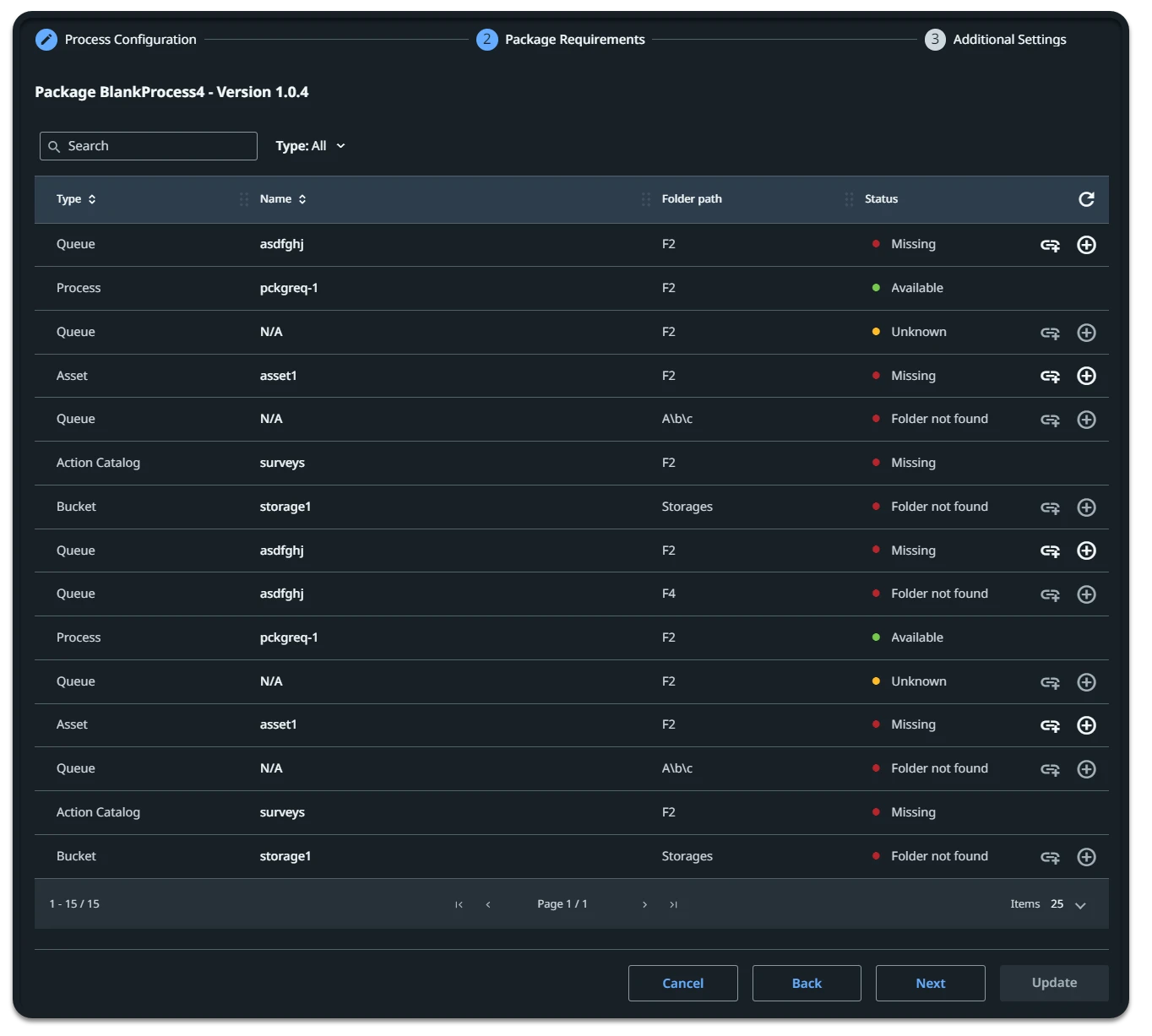
The **Package Requirements** tab allows you to identify missing objects and manually add them at the process level. This helps with:
* educating users about process dependencies,
* reducing manual workflow debugging,
* identifying missing objects without the need to switch between Studio and Orchestrator UI.
:::note
* This feature is compatible with processes that have been created using Studio version 2021.10 and later, in conjunction with activity packs version 2021.10 and later.
* For objects such as connections where the workflow developer specified the purpose of the connection, this information appears in the **Description** field of the dependencies grid. For example, a workflow may use two Outlook 365 connections to download emails and send an email auto-reply, respectively. In this case, the developer may use the **Description** field to label the connections as **Download emails** and **Send email**.
:::
## How Package Requirements Work
When you create a process, Orchestrator inspects the underlying package with all its component `.xaml` files and aggregates their intrinsic objects, such as:
* [storage buckets](about-storage-buckets.md),
* [assets](about-assets.md),
* [queues](about-queues-and-transactions.md),
* [queue and time triggers](about-triggers.md),
* other [processes](about-processes.md),
* [action catalogs](https://docs.uipath.com/action-center/standalone/2022.10/user-guide/action-catalogs),
* or [connections](https://docs.uipath.com/integration-service/automation-cloud/latest/user-guide/connections).
Depending on whether the respective objects are detected or not, there are two **Package Requirements** tab behaviors:
* Tab turns red - the workflow has some dependencies that are not present in Orchestrator, therefore you need to add them.
* Tab is empty, displaying that "This package version contains no requirements." - the uploaded package does not have any requirements.
:::note
* Orchestrator does not automatically detect the requirements for the packages that stored in external feeds.
* Queue and time triggers are the triggers defined by an RPA developer at design time in Studio, using the corresponding UiPath.System activity. Only one trigger activity can be used in a workflow. However, you can manually add as many triggers as you need from Orchestrator, but they will not show up in the package requirements tab.
:::
## Package Requirements Statuses
There are four types of statuses for package requirements:
* **Available** - the object is present in Orchestrator. No further action needed.
* **Missing** - the object is not present in the current folder in Orchestrator. You can either import it or add it into the corresponding Orchestrator folder, provided you have the proper permissions.
* **Folder not found** - the object supposedly exists in an Orchestrator folder that was referenced in the **Folder path** field of an activity, but:
* the folder does not exist in Orchestrator. You should add the folder in Orchestrator, use the same name as indicated in the **Folder path** column, and assign users to it.
* you do not have access to that folder. You should ask for access to the Orchestrator folder indicated in the **Folder Path** column.
* **Unknown** - the object name could not be determined. No available actions to perform. There are several scenarios which may result in an **Unknown** status:
The unknown status of an object does not prevent the process from executing successfully.
* the object name is set as an expression which is evaluated at runtime;
* you do not have the correct permissions set for that type of object;
* a workflow activity references a queue item, for example, which cannot be linked to its queue.
* **Pending creation** - only in case of triggers. Creating a trigger requires associating it to an existing process. While the process gets created, the trigger resides in Orchestrator memory and it becomes active after the process creation. You can edit triggers from the package requirements tab while they have this status. Later on, you have the option to edit them from the **Triggers** page.
## Permissions
To manage package requirements, you need the following permissions:
I want to ...
I need ...
The folder access I need ...
... see the available packages
View permissions on Packages (tenant level)
Not applicable, as Packages permissions are set at tenant level.
... upload a package
Create permissions on Packages (tenant level)
Not applicable, as Packages permissions are set at tenant level.
... see the available objects
View permissions on the specified object
Get access to the folder(s) that contains the object.
... add an object
Create permissions on the specific type of object
Get access to the folder(s) you want to add the object to.
... import an object from a different folder
Create and View permissions on the specific type of object
Get access to:
the folder(s) you are importing from, and
the folder(s) you are importing the object to.
## Managing Missing Objects
For each missing object, except action catalogs and connections, you have the option to add it or to import it in the current folder, provided you have the necessary permissions.
:::note
You cannot add action catalogs and connections from the **Package Requirements** tab in Orchestrator, but from Action Center and Integration Service, respectively.
:::
### Adding a Missing Object
**Prerequisites:** Make sure you have **Create** permissions on the specific object and access to the folder you want to add the object to.
1. To add a missing object, click the corresponding **Add** button. The **Create [object]** page opens.
2. Configure the object as needed.
:::note
The name field is prefilled with the missing object name and cannot be edited. This restriction applies to respect the object name used in the workflow.
:::
### Importing a Missing Object
If you suspect the missing object exists in the current tenant, but in a different folder, you can import it into the current folder.
**Prerequisites:** Make sure your have **View** and **Create** permissions on the specific object, and access to both the folder you are importing from, and the folder you are importing the object to.
1. To import an object from a different folder, click the corresponding **Import** button. The **Link [objects] from other folders** page opens, displaying two tabs:
2. If the object exists in other folder(s), it appears on the **Select [object]** tab. Select it.
3. Click **Continue** to navigate to the **Folder validation** tab.
After selecting the object, the **Folder validation** tab displays the source folder(s) you can import from.
4. If the object exists in multiple folders and you have selected all copies in the previous step, you are now prompted to keep only one source folder.
5. **Remove** the object copies associated to the folders that you do not need to import from.
6. Click **Link** to import the object into the folder indicated in the **Folder Path** column.
7. After adding or importing an object, you are redirected to the **Package Requirements** tab to continue adding or importing the missing ones. Notice the statuses changed for the objects that have been added or imported.
:::important
In the case of multi-layered process dependencies, Orchestrator detects and shows only the first level dependency for a given process.
For example, process A needs process B to start, and process B needs process C to start. The dependency hierarchy is A > B > C. In this case, when checking package requirements for process A, Orchestrator detects and displays the first level of dependency for it, that is process B. If process B is missing, you can add it from the **Package Requirements** tab, but if process C is missing, you need to identify it as missing yourself and add it manually.
:::
### Adding Action Catalogs
Orchestrator detects the action catalogs required to execute the process, but you cannot add the missing ones from the **Package Requirements** tab, as action catalogs are objects configurable via Action Center.
**Prerequisites:** Make sure you have **Create** permissions on the specific object and access to the folder you want to add the object to.
Proceed with the following steps:
1. Head over to the corresponding Action Center instance.
2. Access the **Admin Settings** page.
3. Select the process folder .
4. Click **Add new catalog**. Make sure to use the name detected as missing in the **Package Requirements** tab.
5. Click **Create**.
### Adding Triggers
Adding a trigger prepopulates the fields on the **Create Trigger** page with the values set by the RPA developer in the associated trigger activity, during design time. You can edit these values while the trigger has the **Pending creation** status or later from the **Edit trigger** page. The **Pending creation** status means the connected trigger is stored in a temporary memory until the process it needs is created.
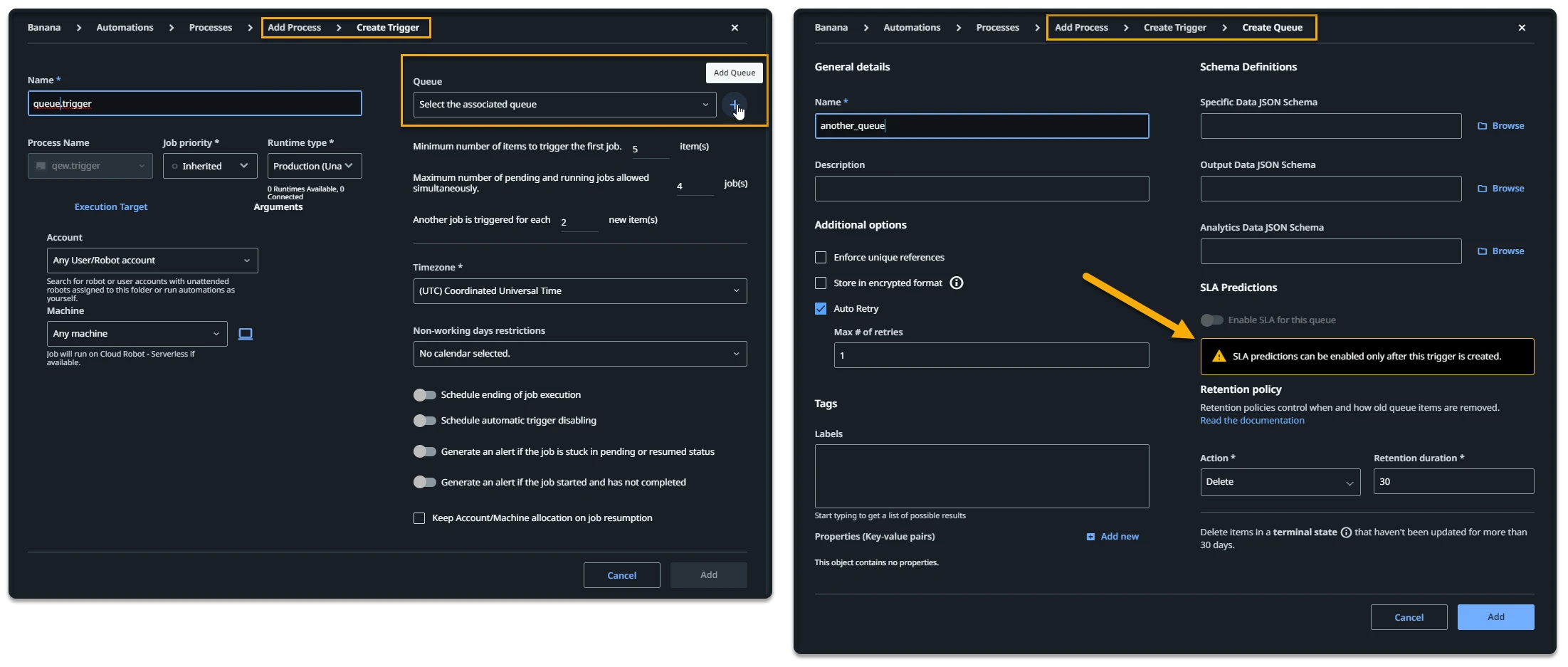
#### Adding queues from the queue trigger creation page
You have the option to add a queue during the creation of a missing queue trigger. Be aware that doing so restricts you from adding SLAs to the queue until the trigger is created.
## Configuring Connection Accounts
:::note
This functionality is available only in personal workspaces.
:::
Orchestrator allows specifying the account used in a connection when creating a new process or editing an existing one.
1. Go to **Automations** > **Processes** in your personal workspace. The **Processes** page is displayed.
2. Click **More Actions** > **Edit** next to a process to edit it. The **Edit Process** window is displayed.
3. On the **Process Configuration** tab, configure the general details of the process as needed.
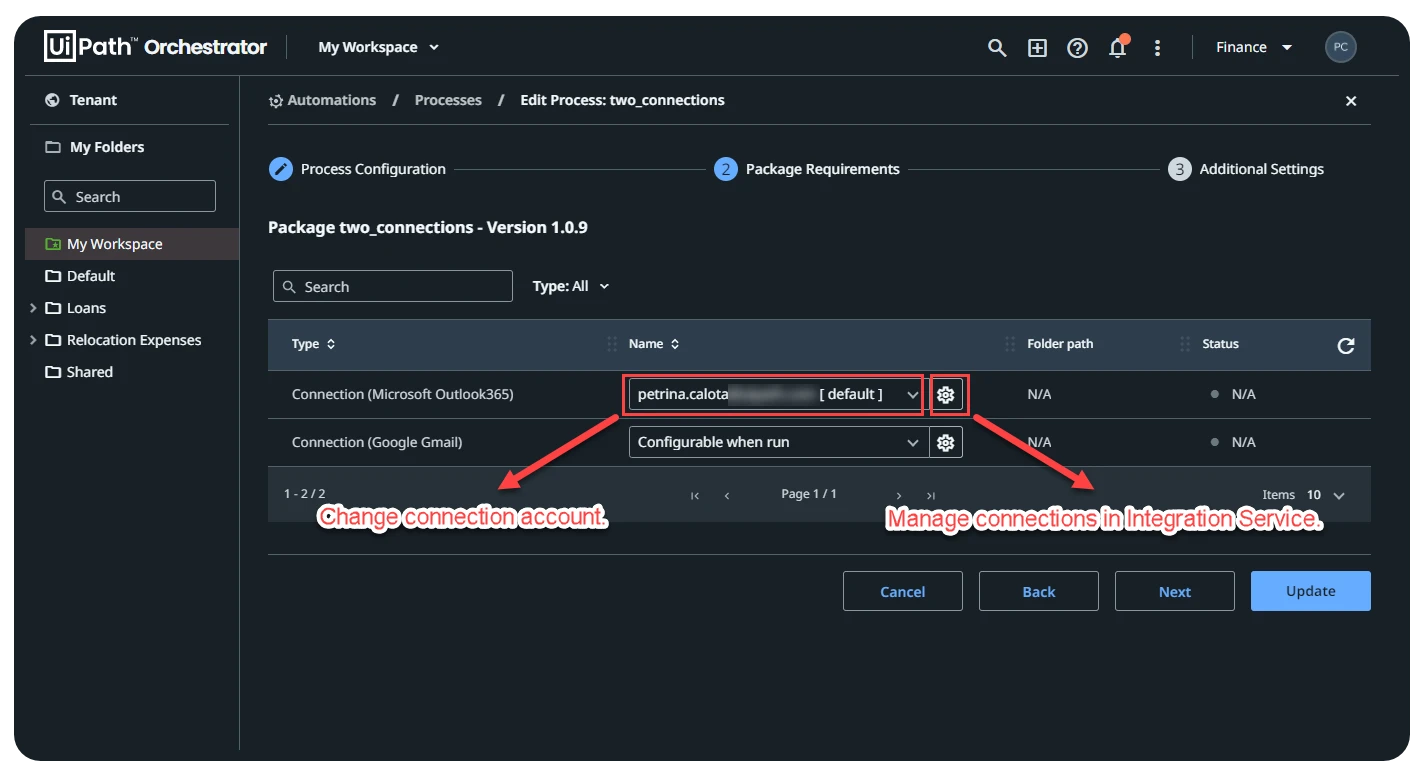
4. Go to the **Packages Requirements** tab to see the objects used by the underlying automation project. Here you should see all the connections that have been added in the automation project at design time. On the **Name** column, you can change the account used in the connection if multiple are available.
5. Click the drop-down to see the list of accounts and select the account to be used when executing the process.
:::note
Account selection can be overwritten in the Assistant.
:::
6. Click the cog button  to manage your connections or add new ones via Integration Service.