# Common Formulas
> Add custom formulas to Insights dashboard widgets using the formula editor in the Insights portal designer.
## Prerequisites
### Accessing Formulas in Insights <2021.10
1. A user needs designer permissions and will need to navigate to the Insights Portal.
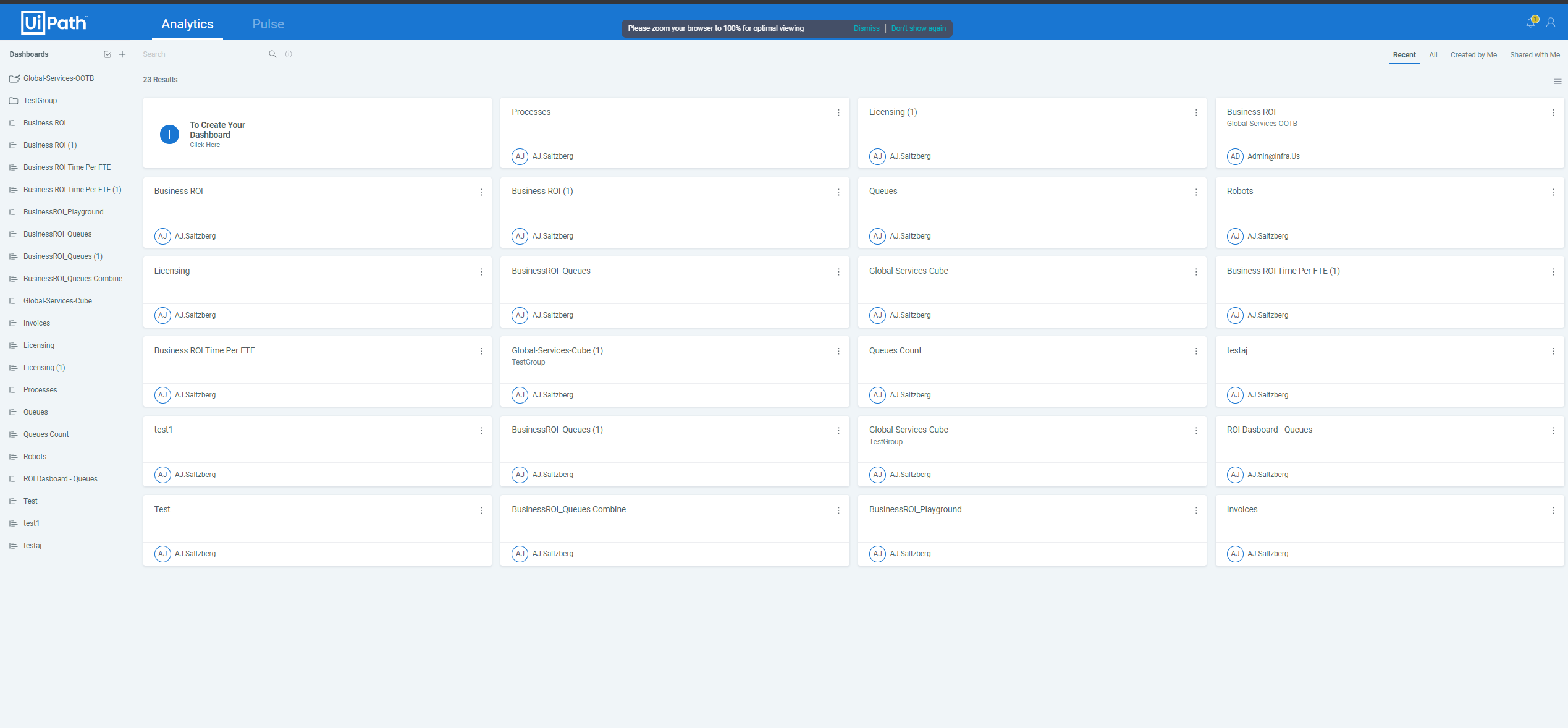
2. Then navigate to an existing dashboard or create a new dashboard.
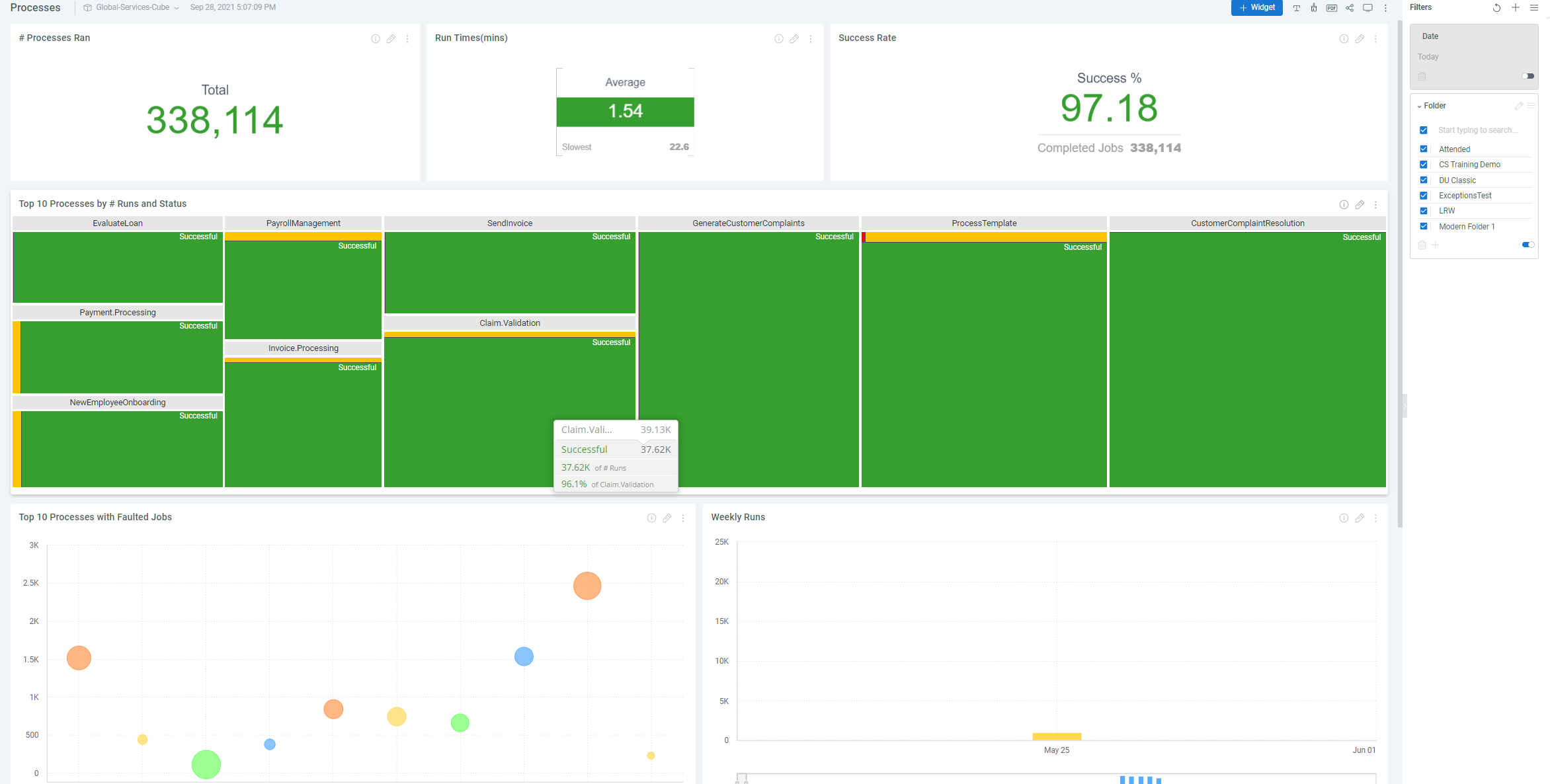
3. Then edit a widget or create a new widget.
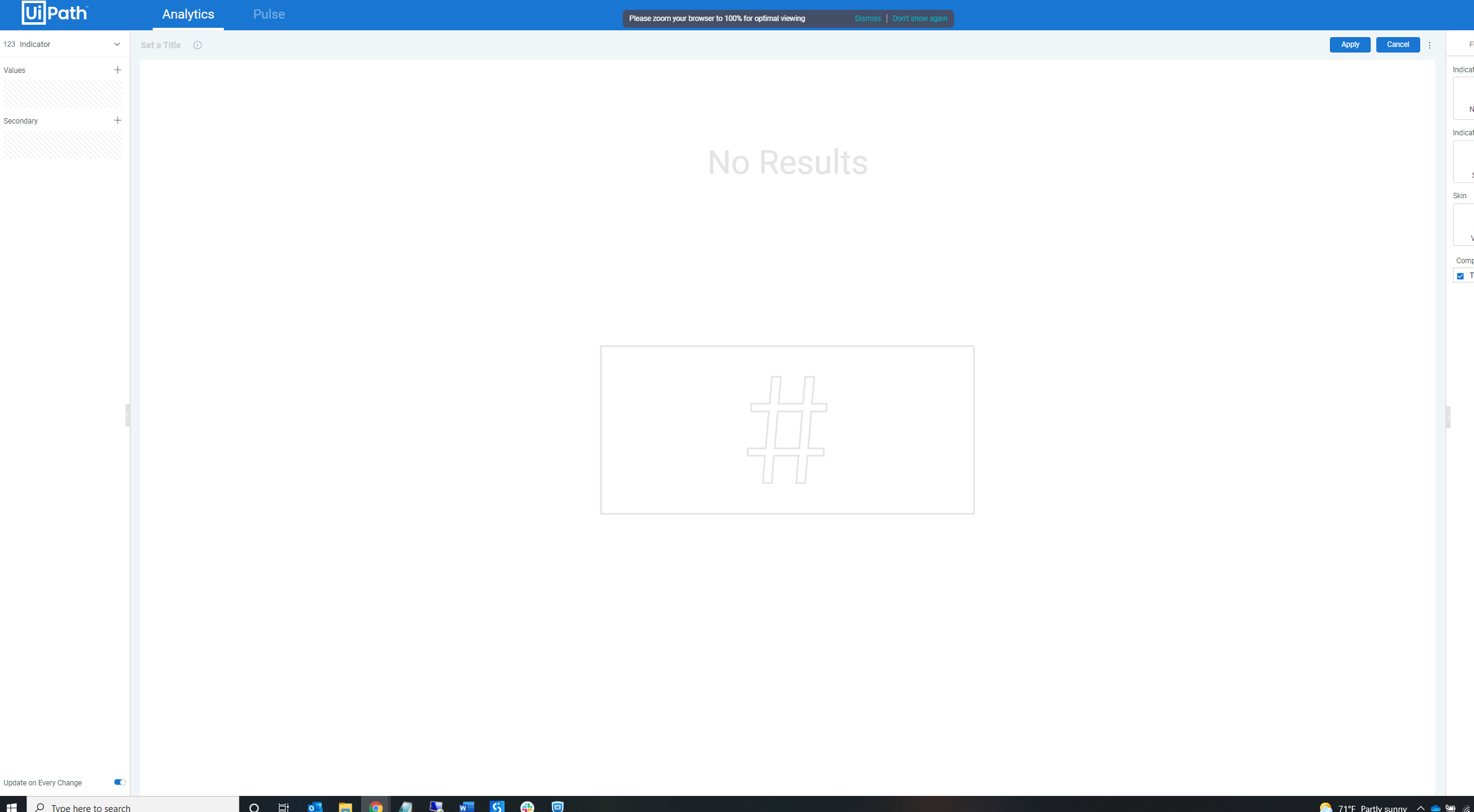
4. Then, the designer will have to click on the plus next to the values
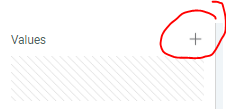
5. Click the fx button to create a new formula
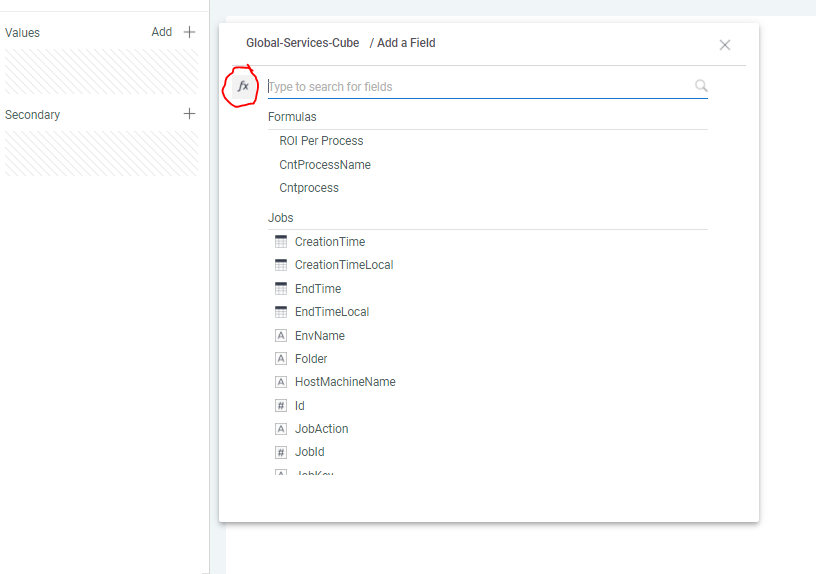
6. Here, you will see the functions tab
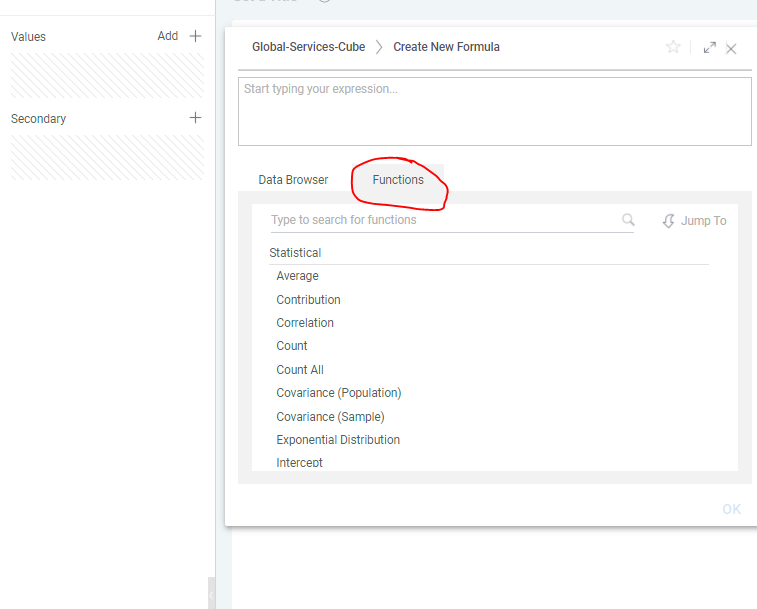
7. Commonly used functions are highlighted for comparison in the table below.
### Accessing Formulas in Insights 2022.10
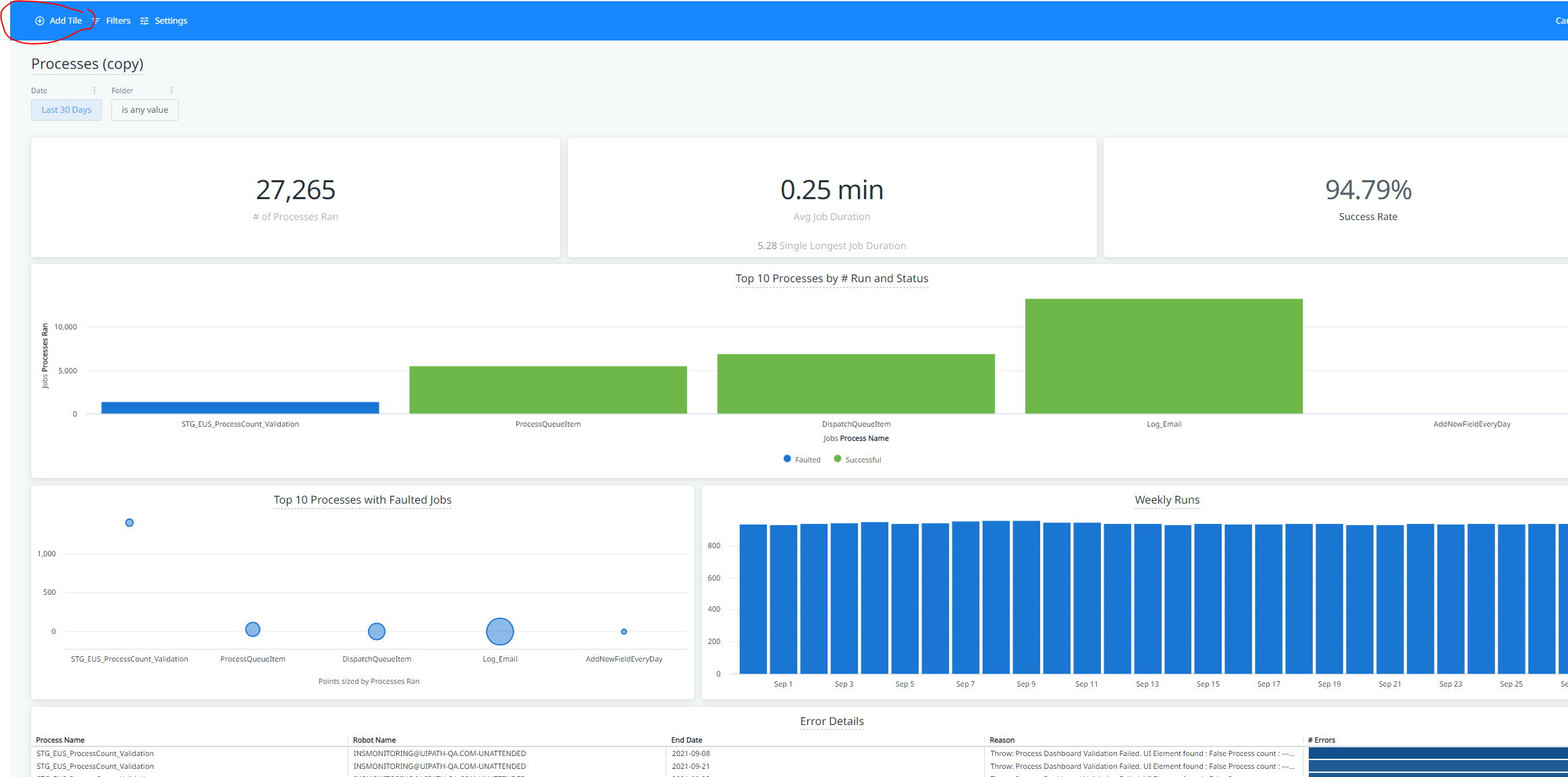
1. A user needs designer permissions and can navigate to an existing dashboard or create one from scratch.
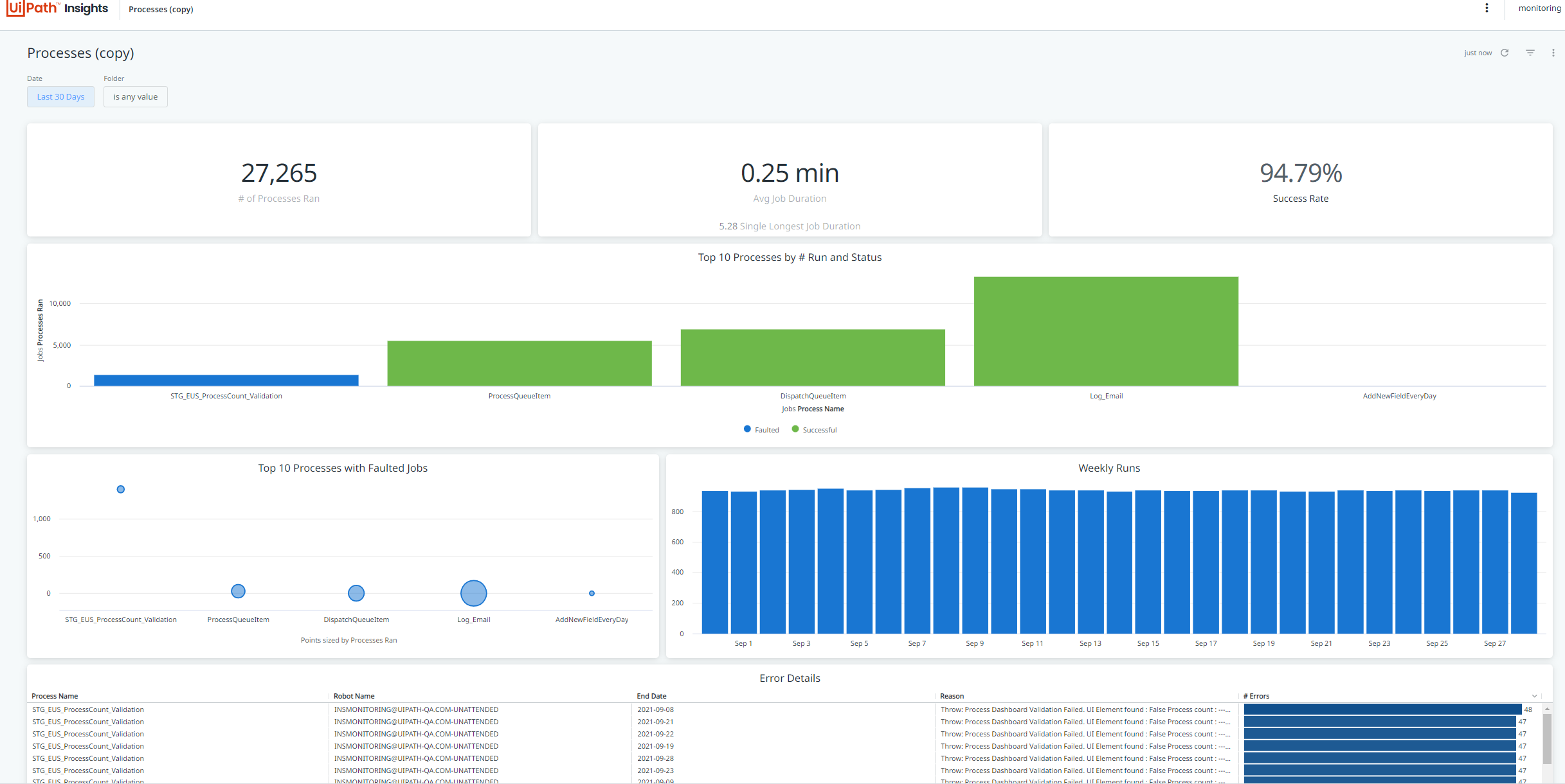
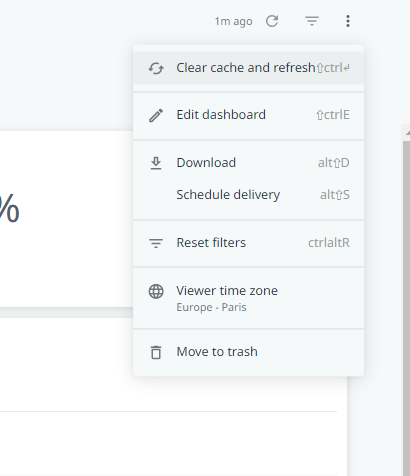
2. Then, the user must edit the dashboard.
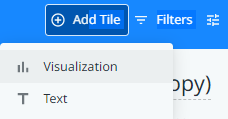
3. Then select add tile and then choose visualization.
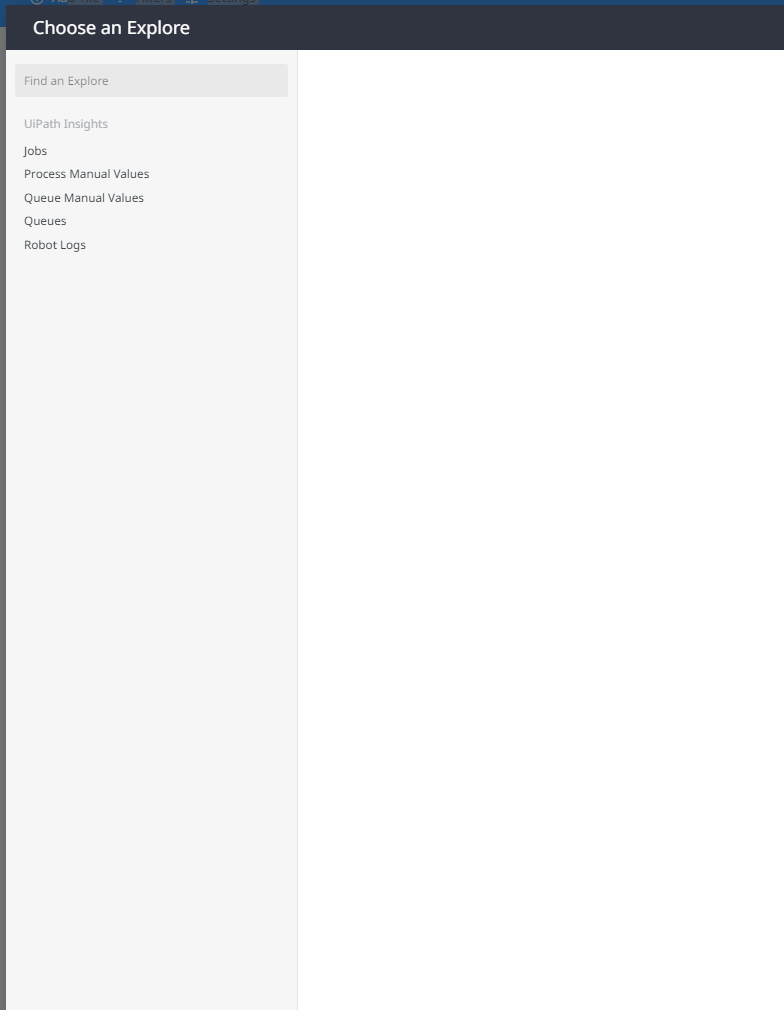
4. Then select an explore.
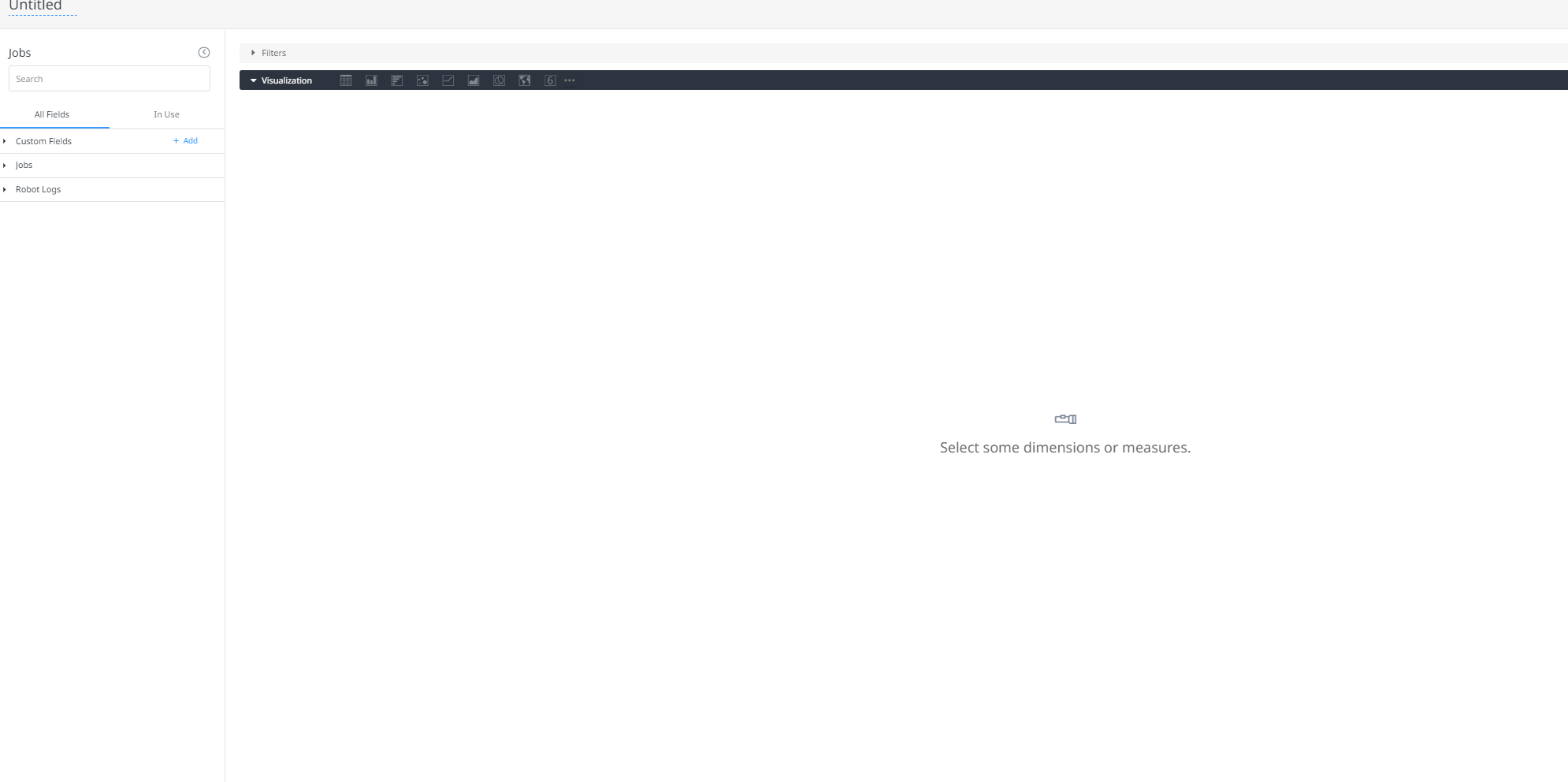
5. Create a new custom formula using the Add New Measure, Add New Dimension, or Table Calculation option.
## Comparison
Common Formulas
Insights <2021.10
Insights 2022.10
Sum- Adds the numbers in a list
In the functions tab, search for the Sum function and then select the function.
First click the Add button next to the custom fields.
Select Table Calculation .
Then type Sum and enter the necessary parameters.
Choose a name for the table calculation and click Save .
Note: See more details here
Round- Returns the rounded number
Search for the round function then select it from the tab.
First, click the Add button next to the custom fields.
Select Table Calculation .
Type Round and enter the necessary parameters.
Choose a name for the table calculation and click Save .
Note: See more details here
Now - Returns the current time period
Search for the Now function and then select it from the Functions tab.
First, click the Add button next to the custom fields.
Select Table Calculation .
Then type Now .
Choose a name for the table calculation and click Save .
Note: See more details here
Median - calculates the median
Search for the Median function in the Functions tab. Then click the function to bring the median function into the formula editor.
First, click the Add button next to the custom fields.
Select Table Calculation .
Then type Median and enter the necessary parameters.
Choose a name for the table calculation and click Save .
Note: See more details here
Max
Search for the Max function and click it to add it to the formula editor.
First, click the Add button next to the custom fields.
Select Table Calculation .
Then type Max and enter the necessary parameters.
Choose a name for the table calculation and click Save .
Note: See more details here
If - Executes a numeric expression based on a condition
In the Functions tab, search for if and then select the function.
First, click the Add button next to the custom fields.
Select Table Calculation .
Then type IF and enter the necessary parameters.
Choose a name for the table calculation and click Save .
Note: See more details here
Floor- Returns the number rounded down to the nearest multiple of “1”
Search for the Floor function and then click it to bring into the formula.
First, click the Add button next to the custom fields.
Select Table Calculation .
Then type Floor and enter the necessary parameters.
Choose a name for the table calculation and click Save .
Note: See more details here
Filter field in formula
(Field, filtered field)
to filter a field inside a formula, add the field next to the original field, click it, select Rename , and then choose the filter.
To add a filter, click on the Filter button next to the field name.
Then you will see the filter at the top of the visualization.
Day Difference- Returns difference between start and end time
Search for day difference in the Functions tab then select the day difference function.
First, click the Add button next to the custom fields.
Select Table Calculation .
Then type diff_days and enter the necessary parameters.
Choose a name for the table calculation and click Save .
Note: See more details here
Count- counts number of unique values
Example: Count(ProcessName)
In the Functions tab type Count and select the function. Then navigate to the Data Browser tab, and click processname inside of the function.
First, click the Add button next to the custom fields.
Select Table Calculation .
Type Count_Distinct and enter the necessary parameters.
Choose a name for the table calculation and click Save .
Optionally, select the three dots next to a field and click Count .
Note: See more details here
Count All - returns actual item count of list of items, including duplicates
Example: DUPCount(ProcessName)
In the Functions tab, search for Count All, and then select the statistical function.
First, click the Add button next to the custom fields.
Select Table Calculation .
Then click Type Count and enter the necessary parameters.
Choose a name for the table calculation and click Save .
Optionally, select the three dots next to a field and click Count .
Note: See more details here
Case- Executes the result expression based on the condition. If no condition is met, the else condition is returned
Search for the Case function and then select it from the Functions tab.
First, click the Add button next to the custom fields.
Select Table Calculation .
Then type Case and enter the necessary parameters.
Choose a name for the table calculation and click Save .
Note: See more details here
Average- Calculates the mean
Search for Average in the Functions tab, then select it.
First, click the Add button next to the custom fields.
Select Table Calculation .
Type mean and enter the necessary parameters.
Choose a name for the table calculation and click Save .
Note: See more details here
ALL
Not available
Ceiling- Rounds up to 1’s digit
In the Functions tab, search for Ceiling, and then choose that function to bring into the formula editor.
First, click the Add button next to the custom fields.
Select Table Calculation .
Then type Ceiling and enter the necessary parameters.
Choose a name for the table calculation and click Save .
Note: See more details here