# Legacy versus VB expressions
> This section lists the common use cases for binding app elements, and how you can achieve the binding using legacy and VB expressions.
This section lists the common use cases for binding app elements, and how you can achieve the binding using legacy and VB expressions.
## Using static string URLs in Image controls
Legacy
VB
Add the Image control.
Set the URL/Value binding property to https://path/to/the/image_file.jpg
Base64 images are also supported.
Add the Image control.
Set the Source property to new AppsFile("https://path/to/the/image_file.jpg")
Base64 images are also supported.
## Using the File field of an entity in Image controls
Legacy
VB
In your app, reference the entity that holds the desired file.
Bind the entity to a Table control.
Add the Image control.
Set the URL/Value binding property to the file.
In your app, reference the entity that holds the desired file.
Bind the entity to a Table control.
Add the Image control.
Set the Source property to MainPage.Table.SelectedItem.FileColumn
## Using files from a Storage Bucket in Image controls
Legacy
VB
In your app, reference the storage bucket that holds the desired file.
Create an app variable of type AppsFile. For example fileVar .
Add the Download file from Storage Bucket rule.
Assign the downloaded file to the previously created app variable ( fileVar ).
Add the Image control.
Set the URL/Value binding property to fileVar .
In your app, reference the storage bucket that holds the desired file.
Create an app variable of type AppsFile. For example fileVar .
Add the Download file from Storage Bucket rule.
Assign the downloaded file to the previously created app variable ( fileVar ).
Add the Image control.
Set the Source property to fileVar .
## Using choice sets to populate List controls
Legacy
VB
Leverage entities in your app by using choice sets
In your app, reference the entity with the choice set.
Add the List control.
Set the List source property to GetChoiceSet("entity_name") .
Set the Column property to the choice set name.
Read this procedure for more information.
## Referencing a choice set bound to List controls
| Legacy | VB |
| --- | --- |
| Steps 4 and 5 in [Leverage entities in your app by using choice sets](https://docs.uipath.com/apps/automation-cloud/latest/legacy-user-guide/using-choice-set#procedure) | ``` ..SelectedItem. ``` |
## Setting a single select choice set as the default value for controls
**Dropdown**, **Radio Button** and **List** controls support single select choice sets.
| Legacy | VB |
| --- | --- |
| 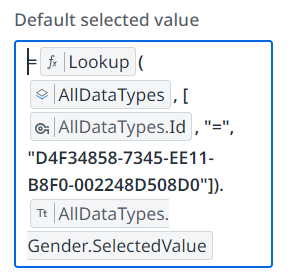 | ``` ..DataSource.data.Select(Function(x) x.NumberId).ToList(0) ``` |
## Setting a multiselect choice sets as the default value for controls
**Multiselect Dropdown** controls support multiselect choice sets.
To use this expression, ensure the entity variable is set to selectedItem using a Set Value rule.
## Using static strings to populate List controls
| Legacy | VB |
| --- | --- |
| ``` =["Value1", "Value2", "Value3"] ``` | ``` AppsDataSource.from({"Value1", "Value2", "Value3"}) ``` |
## Bind a date to Date Picker controls
| Legacy | VB |
| --- | --- |
| To bind todays date, set the **Default Date** property to `=Now()` | To bind todays date, set the **Default Date** property to `DateOnly.FromDateTime(Now)` |
| To bind a specific date, for example 5th May 2021, set the **Default Date** property to `2021-01-05` | To bind a specific date, for example 5th May 2021, set the **Default Date** property to `new DateOnly(2021,1,25)` |
## Using an entity Date-Time field in Date Picker controls
| Legacy | VB |
| --- | --- |
| Bind the required entity field to the **Date Picker** control. | ``` DateOnly.FromDateTime(customerEntityVar.DOB.Value.Date) ``` |
## Computing the difference between two Date Picker values
| Legacy | VB |
| --- | --- |
| N/A | ``` MainPage.Datepicker1.Value.Value.DayNumber - MainPage.Datepicker.Value.Value.DayNumber ``` |
## Referencing errors
You can reference the errors from the following rules:
* Start Process
* Entity rules
* Queue rules
* Trigger Workflow rule
| Legacy | VB |
| --- | --- |
| [Start Process rule: Handling Errors](https://docs.uipath.com/apps/automation-cloud/latest/legacy-user-guide/rule-start-process#handling-errors) | In VB expressions, errors are exposed in the rule output. Reference an error as follows: ``` ..Error.Message ``` ``` ...Error.Message ``` 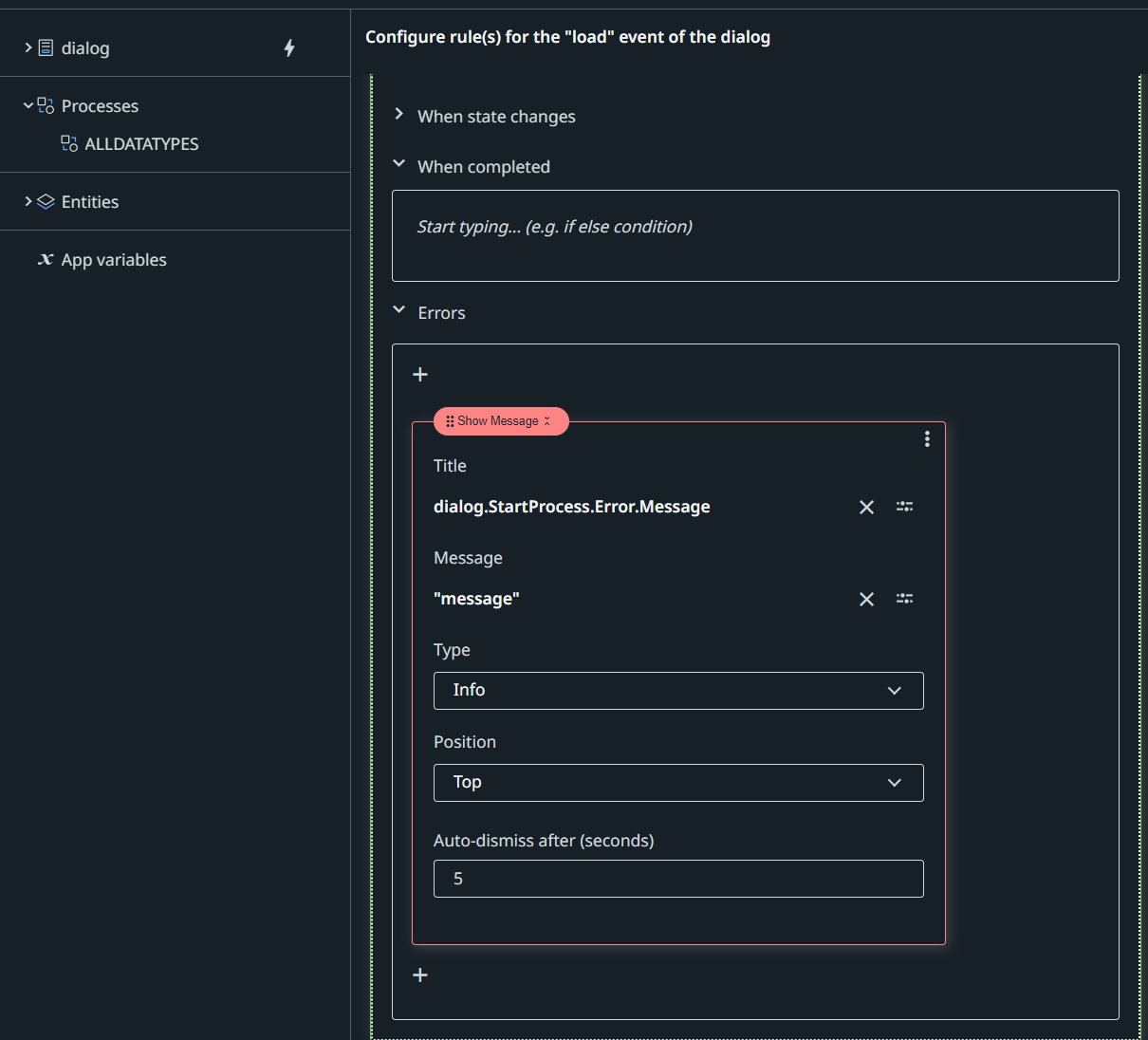 |