# Embed Maps
> You can embed maps from multiple providers in your app to provide users with an easy way to reach your location. You can also configure a **Navigate** button to offer users directions on how to get from their location to a destination of your choice. For the purpose of this example, we will use **Google Maps** to embed maps into an app.
## Overview
You can embed maps from multiple providers in your app to provide users with an easy way to reach your location. You can also configure a **Navigate** button to offer users directions on how to get from their location to a destination of your choice. For the purpose of this example, we will use **Google Maps** to embed maps into an app.
:::tip
For more information on how to use **Google Maps** search APIs, check the [official documentation](https://developers.google.com/maps/documentation/urls/get-started#forming-the-url).
:::
## Embed map
1. On Google Maps, search the address you want to share.
2. Click **Share** and go to the **Embed a map** tab.
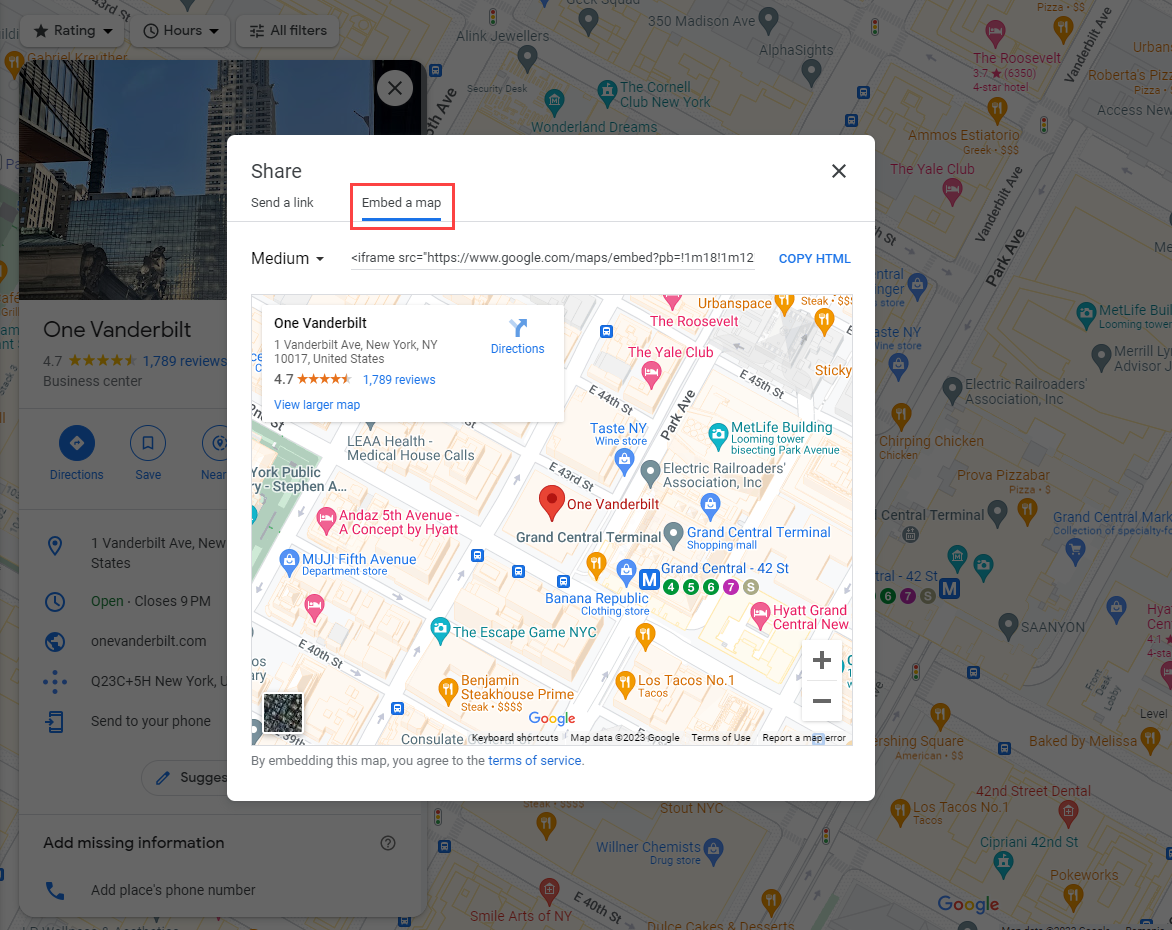
3. Select the desired size and copy the link by selecting **COPY HTML.**
4. Go to your desired app in **UiPath® Apps**.
5. Add an **IFrame** control.
6. Add the link copied at **Step 3** in the **Source** field of the control. Remove the <iframe> tags and add quotation marks. For example, a link should look as follows:
```
"https://www.google.com/maps/embed?pb=!1m18!1m12!1m3!1d1511.2061413255587!2d-73.9796223417571!3d40.75295602669006!2m3!1f0!2f0!3f0!3m2!1i1024!2i768!4f13.1!3m3!1m2!1s0x89c2590199a4c12d%3A0x35c4d69dd805cc5e!2sOne%20Vanderbilt!5e0!3m2!1sen!2sro!4v1674472555170!5m2!1sen!2sro"
```
:::note
To dynamically embed apps, we recommend using the **Google Maps** API to embed maps. For more information, check the [official documentation](https://developers.google.com/maps/documentation/urls/get-started#forming-the-url).
:::
## Add Navigate button
1. Go to your desired app in **UiPath® Apps**.
2. Add a **Button** control.
3. Rename the button to **Navigate**. You can also add an appropriate icon to the button, such as a car.
4. Go to the **Events** tab and edit the **Clicked on** rule for the button.
5. Add an **Open Url** rule.
6. Add the **Directions API** from **Google Maps** using the following format: `https://www.google.com/maps/dir/?api=1&destination=UiPath+New+York+USA`.
## Result
When previewing the app, the embedded interactive map and button are displayed. If you click **Navigate**, a new **Google Maps** page is opened. You can select your desired means of transportation and add your starting point, for instructions on how to get to the configured destination.