# Public apps
> You can use **UiPath Apps** to create apps that are available to users outside of **Automation CloudTM**.
## Overview
You can use **UiPath Apps** to create apps that are available to users outside of **Automation CloudTM**.
This opens up new opportunities for your app, such as:
* Creating a timesheet for external vendors.
* Creating a form where users can submit their taxes reports and process them using **Document Understanding**.
* Creating a form to reset a passwords or change the address.
* Retrieve data from a legacy system.
* Creating a form where users can submit feedback.
:::warning
* Public apps operate anonymously, without an authentication flow. As such, public
apps do not support functionalities related to the status or data of the current user.
* In case of entities, it is recommended that you [remove the Everyone Group](https://docs.uipath.com/data-service/automation-cloud/latest/user-guide/managing-access) to eliminate
unintentional data access for public apps.
:::
The following rate limits apply for public apps:
* Number of `GET` requests allowed in a 5 minute period per IP: `1000`
* Number of `POST` requests allowed in a 5 minute period per IP: `1000`
* Number of `GET` requests allowed in a 5 minute period per Organization: `1000`
* Number of `POST` requests allowed in a 5 minute period per Organization: `15000`
All other HTTP methods have lower limits but with minimal impact as they are used occasionally.
:::note
Because public apps are accessible to anyone with the URL, make sure that your app never collects or retrieves sensitive data such as Social Security Number, billing information, and so on.
:::
## Prerequisites
You need the **Organization Admin** role to create a public facing app.
:::note
* Users on Enterprise license plans need Apps Units to create public apps.
* For any licensing changes to take effect, users must log out and log back
in.
:::
## Steps
### Building the app
Use the following steps in **UiPath Apps** to create and publish your external app:
1. Go to the **UiPath Apps** homepage and create a new app.
2. In the app creation dialog, mark the **Public App** checkbox.

:::note
You can also make an existing app public from the **Manage access** tab.
:::
3. Build your desired app.
4. Publish the app.
5. Deploy the app to an Orchestrator folder:
1. Go to **Automations** > **Apps**.
2. From the **App** dropdown, select the app to deploy.
3. From the **Version** dropdown, select the specific app version you want to deploy.
4. Optionally, enter a **Display name** or a **Description** for your app.
5. Click Deploy. More details [here](https://docs.uipath.com/orchestrator/automation-cloud/latest/user-guide/managing-apps)
:::note
A published public app contains `public` in the **Production URL**.
:::

:::note
Public apps created using **UiPath Apps** are displayed as external applications in the **Admin** > **External Applications** > **OAuth Apps** page. Identify these apps by the `UiPath-Apps` prefix.
:::
### Setting up the external app
To configure the public app as an external app:
1. Assign the proper roles for your external app at both tenant and folder levels. To identify the desired app, look for the `UiPath-Apps` prefix, and create new roles with the following permissions:
| Resource | Permissions to set at **tenant** level | Permissions to set at **folder** level (*) |
| --- | --- | --- |
| Webhooks | View, Create | x |
| Jobs | x | Create |
| Storage files | x | View, Create |
| Storage buckets | x | View |
| Queues | x | View |
| Transactions | x | Create |
(*) Folder roles must be assigned in the folder where the public app was deployed.

2. If you have `Read` rights for the Data Service component, public apps works by default with Data Service.
:::note
For more granular access control, including roles and permissions, see the [Managing access](https://docs.uipath.com/data-service/docs/managing-access) page from the **Data Service** guide.
When using entities with public apps, make sure to provide only the relevant permissions in Data Service. A good way to do that is to create a specific role and provide specific permissions that are needed. Avoid using `Read` permissions for entities that have information that should not be exposed externally.
Grant `View` and `Edit` permissions for an entity only if you are comfortable with all users of that app accessing the data in that entity.
:::
3. Add your external app to both a tenant and a folder.
:::note
If you want to configure the scope for the external app, check the [Accessing UiPath resources using external applications](https://docs.uipath.com/automation-cloud/docs/setting-up-the-external-application) page from the **Automation CloudTM** guide.
:::
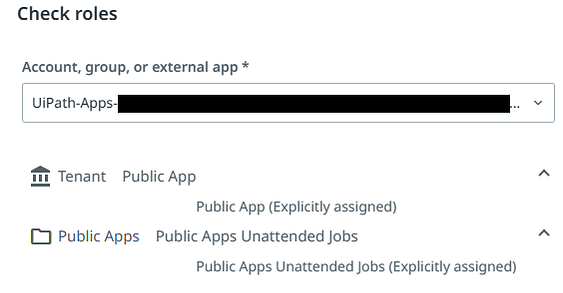
To validate that your external app has the proper roles:
1. Go to **Orchestrator** > **Tenant** > **Manage Access**.
2. Identify your app in the list by searching after the `UiPath-Apps` prefix.
3. For the desired app, click **More Actions**, then select **Check roles & permissions.**
4. Unfold the roles to see and validate the assigned permissions.
## Public apps in solutions
You can package and deploy public apps as part of the Unified Build solutions.
### Enabling public apps
To enable public apps, proceed as follows:
1. Open the solution in Studio Web.
2. In the solution explorer, right-click the app node that you want to make public.
3. Select **Properties** from the context menu.
4. In the **Properties** panel, select the **Public app** checkbox to mark the app as public.
5. Publish and deploy the solution.

### Assigning public app permissions after solution deployment
To assign permissions to a public app after you deployed your solution, proceed as follows:
1. Navigate to the solution folder.
2. Assign the necessary permissions to the public app based on the resources it uses. For example, if the app uses a storage bucket, you must grant the **Storage Bucket** and **Storage File** permissions.
For more details on how to assign permissions to a public app, check [Public apps](https://docs.uipath.com/apps/automation-cloud/latest/user-guide/use-public-apps).
You can access the external app credentials from the ellipsis menu `â‹®` of the deployed public app. These credentials are required when you assign permissions to the external app. Use the Client IDs of external apps to search and identify them.

### Verifying the public app
To verify the public app, run the app after you assign the permissions. The app should run as expected.
The production URL will include `/public/`, indicating that the app is publicly accessible.
:::note
If you encounter errors while running the app, make sure that the public app has the **Jobs.Create** permission configured. Although this permission is auto-assigned by default, the assignment may occasionally fail.
:::
## Best practices for using public apps
Public Apps is a powerful feature in UiPath that allows customers to expose their automations to users outside their organization. To ensure the security, privacy, and optimal performance of these applications, it is essential to follow the best practices described below:
### Dos
* **Review permissions and access controls**: Take the time to carefully inspect the permissions and access controls for all the dependencies your Public App relies on.
* **Follow the Principle of Least Privilege (PoLP)**: Grant the minimum set of permissions required for your Public App to function correctly. This reduces the risk of unauthorized access and data breaches.
* **Validate user input:** Implement proper input validation to safeguard your app from malicious data and ensure it processes information safely.
* **Perform security audits regularly**: Periodically audit and update the access controls and permissions of your Public App to keep them in line with the security and privacy policies of your organization.
* **Provide clear instructions:** Make user experience a priority by offering clear, concise, and helpful instructions on how to use your Public App effectively.
* **Implement error handling:** Design your Public App to gracefully handle errors and protect sensitive data in case of unexpected issues.
* **Monitor activity:** Regularly review anonymous user activity and performance of the app to identify potential security threats and facilitate incident response.
* **Follow secure coding practices:** Adhere to established coding standards and best practices to minimize the risk of security vulnerabilities in your Public App.
### Don'ts
* **Don't store sensitive data**: Refrain from storing user sensitive information, such as social security numbers, billing details, or any other confidential data in Data Service.
* **Don't grant excessive access**: Do not provide a Public App **Read** permission to an entity unless you want all app users to access all the data within it.
* **Don't solely rely on query filters**: Using query filters with Data Service does not guarantee record-level security or privacy.
:::note
For more granular access control, including roles and permissions, see the [Managing access](https://docs.uipath.com/data-service/docs/managing-access) page from the **Data Service** guide.
:::
* **Don't expose sensitive information in error messages**: Ensure that error messages never reveal sensitive data or provide hints that could be exploited by potential attackers. Keep error messages safe and generic.
* **Don't use hard-coded credentials**: Avoid embedding sensitive credentials or API keys directly in the app code. Instead, opt for secure methods of storing and retrieving these values.
* **Don't neglect testing**: Prior to deployment, thoroughly test your Public App for security vulnerabilities, functionality, and performance. Ensure that it meets the highest security standards to protect both your users and your application.
## Bypassing IP restrictions for public apps
Administrators can add specific public apps to the **Trusted public apps** list in Automation Cloud to bypass IP restrictions.
When administrators add a public app to the trusted list, users can access it even if they are outside the trusted IP ranges.
For more details on how to whitelist public apps, check [Trusted public apps](https://docs.uipath.com/automation-cloud/automation-cloud/latest/admin-guide/trusted-public-apps).
:::note
Bypassing IP restriction for public apps with custom URL is not yet supported.
:::