# Configuration
> After downloading and installing the UiPath Add-in, use the following instructions to make it available for use inside a Mule application.
## Overview
After downloading and installing the UiPath Add-in, use the following instructions to make it available for use inside a Mule application.
### Creating a new project
The first step is to create a new Mule project:
1. In Anypoint Studio, click **File**, select **New**, then select **Mule Project**.
2. Enter the project name and specify **Runtime**, **API implementation**, and **Project Location** if needed.
3. Click **Finish** to create the project.
### Configuring the UiPath Global Element
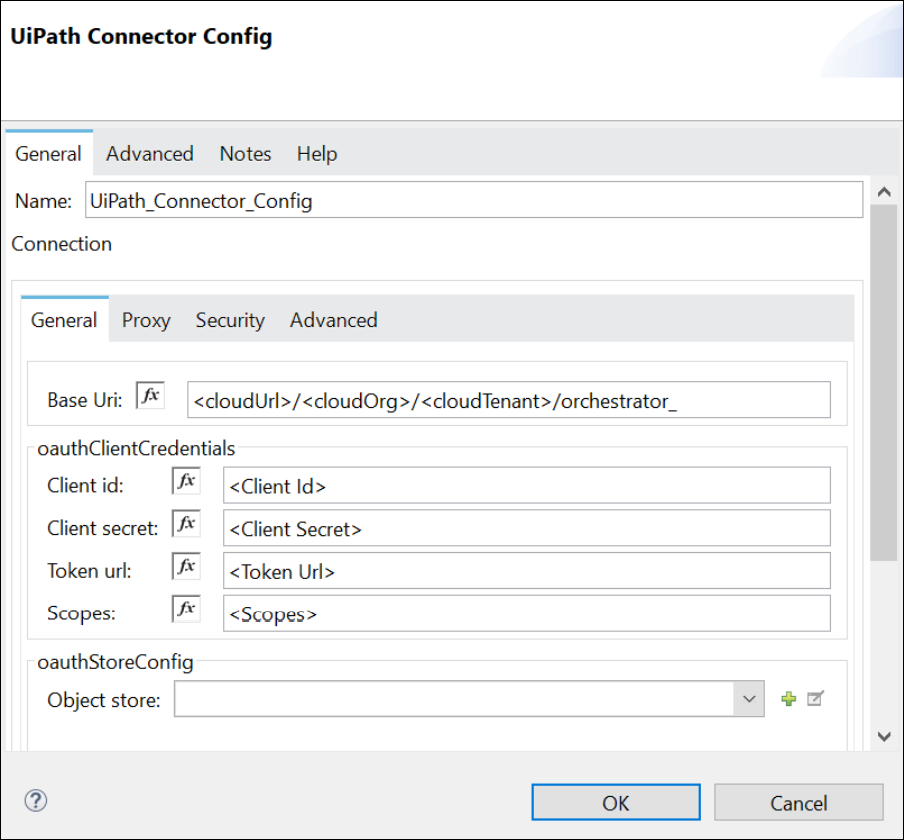
Now you must configure a **Global UiPath Element**. This is used by the UiPath Add-in to authenticate. The Add-in supports **Client Credentials Authentication**.
The following parameters are required for the **Client Credentials** configuration:
Parameter
Description
Base Url
The UiPath base URL. Depending on your connection, use one of the following:
for Cloud Connections - Type in the following: https://cloud.uipath.com/<cloudOrg>/<cloudTenant>/orchestrator_
for On-Premises Connections - Specify your On-Premises URL.
Client Id
The OAuth Client ID registered with UiPath. You can find it in the API Access page of your Cloud Platform account. Navigate to Admin > Tenants . The Tenants page lists all existing tenants. Click the arrow on the left of the desired tenant to display its available services. Click API Access for the Orchestrator service.
Client Secret
The Client secret generated when you registered your External Application. For more information, visit the Setup page.
Token Url
The UiPath token endpoint URL. Depending on your connection, use one of the following:
for Cloud Connections - Specify the following URL: https://cloud.uipath.com/identity_/connect/token
for On-Premises Connections - Specify your Token URL with the following format: {{OnPremURL}}/identity/connect/token .
Scopes
The OAuth scopes to be requested during the dance. Values entered here are separated by a space. The following are the scopes required for all operations to work: OR.Tasks OR.Folders OR.Folders.Read OR.Robots OR.Machines OR.Execution OR.Assets OR.Jobs OR.Queues .