# Quickstarts
> The following are links to step-by-step instructions on how to use the Amazon Textract activities. These guides help you create a working sample of the different activities so that you can verify the connection to your AWS resources and get familiar with the input/output datatypes.
## Overview
The following are links to step-by-step instructions on how to use the Amazon Textract activities. These guides help you create a working sample of the different activities so that you can verify the connection to your AWS resources and get familiar with the input/output datatypes.
Quickstart
Description
Analyze Single Page Document
After completing the steps in this guide, you'll have an automation sequence that does the following:
Establishes a connection to your AWS resources (Amazon Scope).
Analyzes a single JPEG or PNG file (Analyze Single Page Document).
Outputs the results of the analysis depending on the type of data found (If).
If the file includes form data (FormField[]), the PageDetail.FormFields.Items().Key and PageDetail.FormFields.Items().Value values are written to the output window (For Each and Write Line). If the file includes table data (DataTable), the PageDetail.Tables values are written to the output window (Output Data Table and Write Line).
Start and Get Analysis
After completing the steps in this guide, you'll have an automation sequence that does the following:
Establishes a connection to your AWS resources (Amazon Scope).
Starts an Amazon Textract analysis job (Start Document Analysis).
Retrieves and outputs the status of the started analysis job (Do While, Get Document Analysis Status, Write Line, and Delay).
Retrieves and outputs the results of the analysis if/when the analysis job is successful (If, Get Document Analysis, For Each, and Write Line).
## Quickstart - Analyze Single Page Documents
### Overview
The purpose of this guide is to help you create a working sample that uses the Amazon Textract [Analyze Single Page Document](https://docs.uipath.com/activities/other/latest/legacy-integrations/amazon-textract-analyze-single-page-document#analyze-single-page-document) activity.
This working sample enables you to quickly verify the connection to your AWS resources and get familiar with the activity's input/output datatypes.
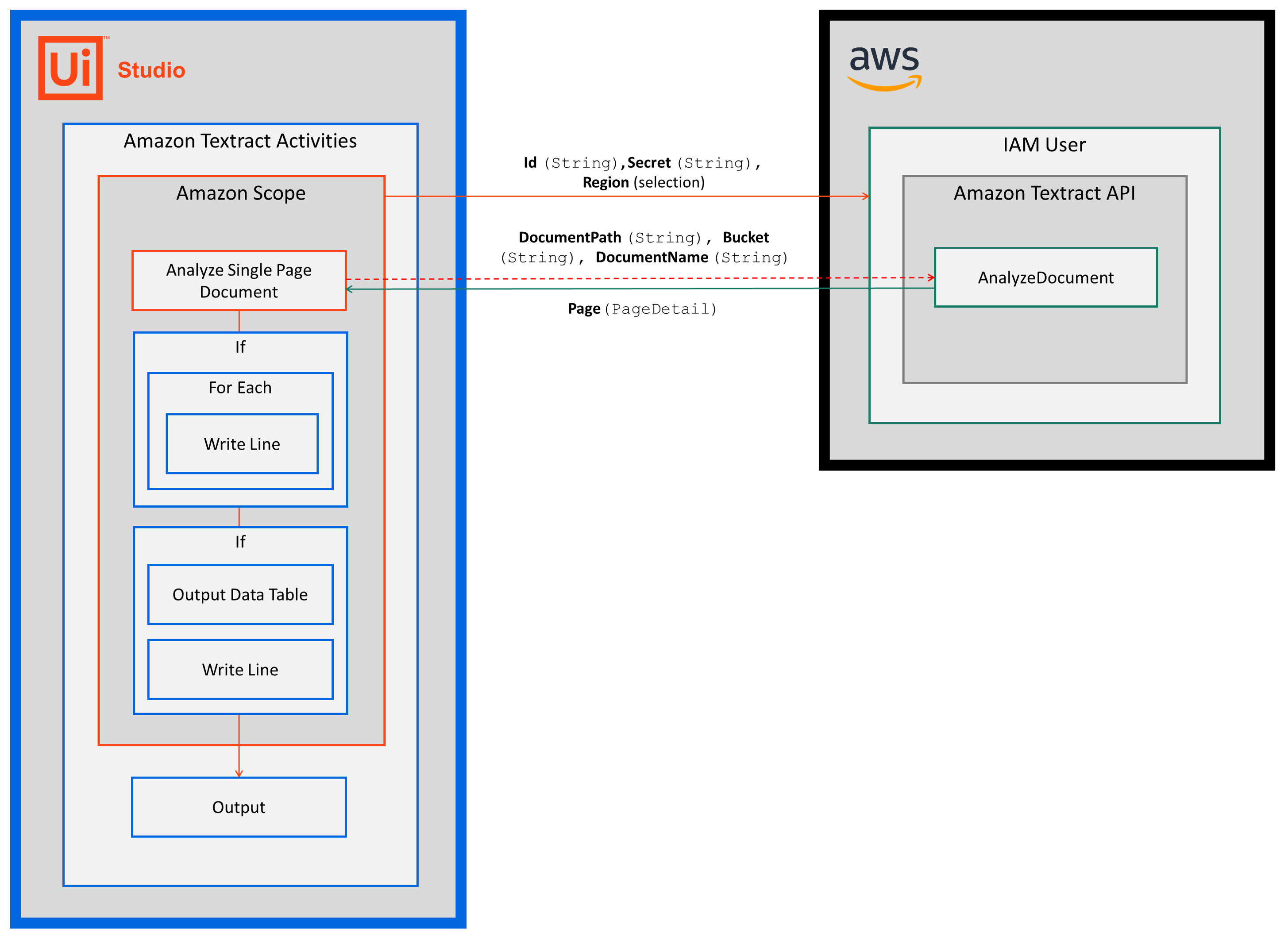
After completing the steps in this guide, you'll have an automation sequence that does the following:
1. Establishes a connection to your AWS resources ([Amazon Scope](https://docs.uipath.com/activities/other/latest/legacy-integrations/amazon-scope#amazon-scope)).
2. Analyzes a single JPEG or PNG file ([Analyze Single Page Document](https://docs.uipath.com/activities/other/latest/legacy-integrations/amazon-textract-analyze-single-page-document#analyze-single-page-document)).
3. Outputs the results of the analysis depending on the type of data found ([If](https://docs.uipath.com/activities/docs/if)).
* If the file includes form data (`FormFields`), the `PageDetail.FormFields.Items().Name` and `PageDetail.FormFields.Items().Value` values are written to the output window ([For Each](https://docs.uipath.com/activities/docs/for-each) and [Write Line](https://docs.uipath.com/activities/docs/write-line)).
* If the file includes table data (`DataTable`), the `PageDetail.Tables` values are written to the output window ([Output Data Table](https://docs.uipath.com/activities/docs/output-data-table) and [Write Line](https://docs.uipath.com/activities/docs/write-line)).
### Prerequisites
Before you begin:
1. Complete the Amazon Textract [Setup](https://docs.uipath.com/activities/other/latest/legacy-integrations/amazon-textract-setup#setup) steps.
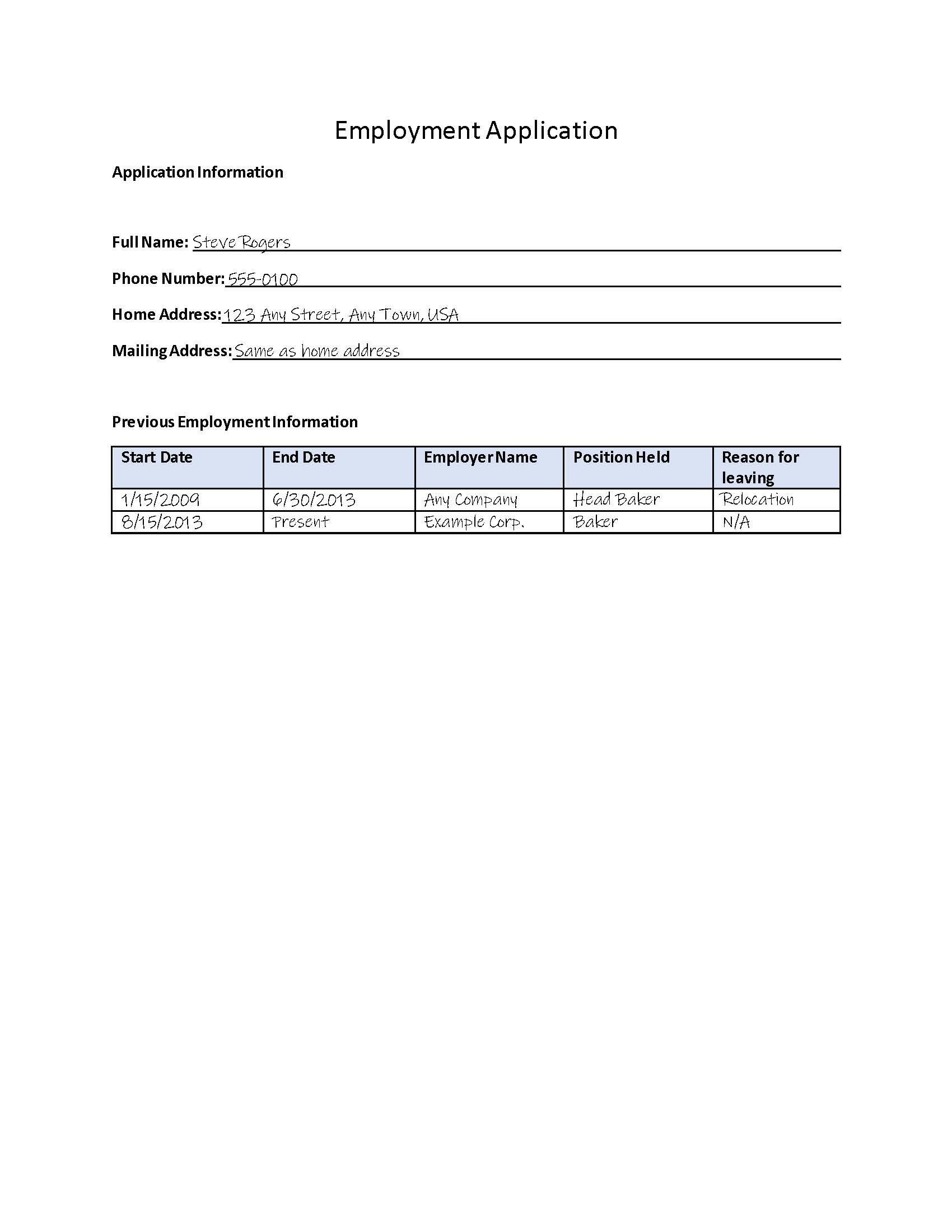
2. Make a JPEG or PNG file available by uploading it to an S3 bucket or saving it locally.
### Steps
#### Build Your Project
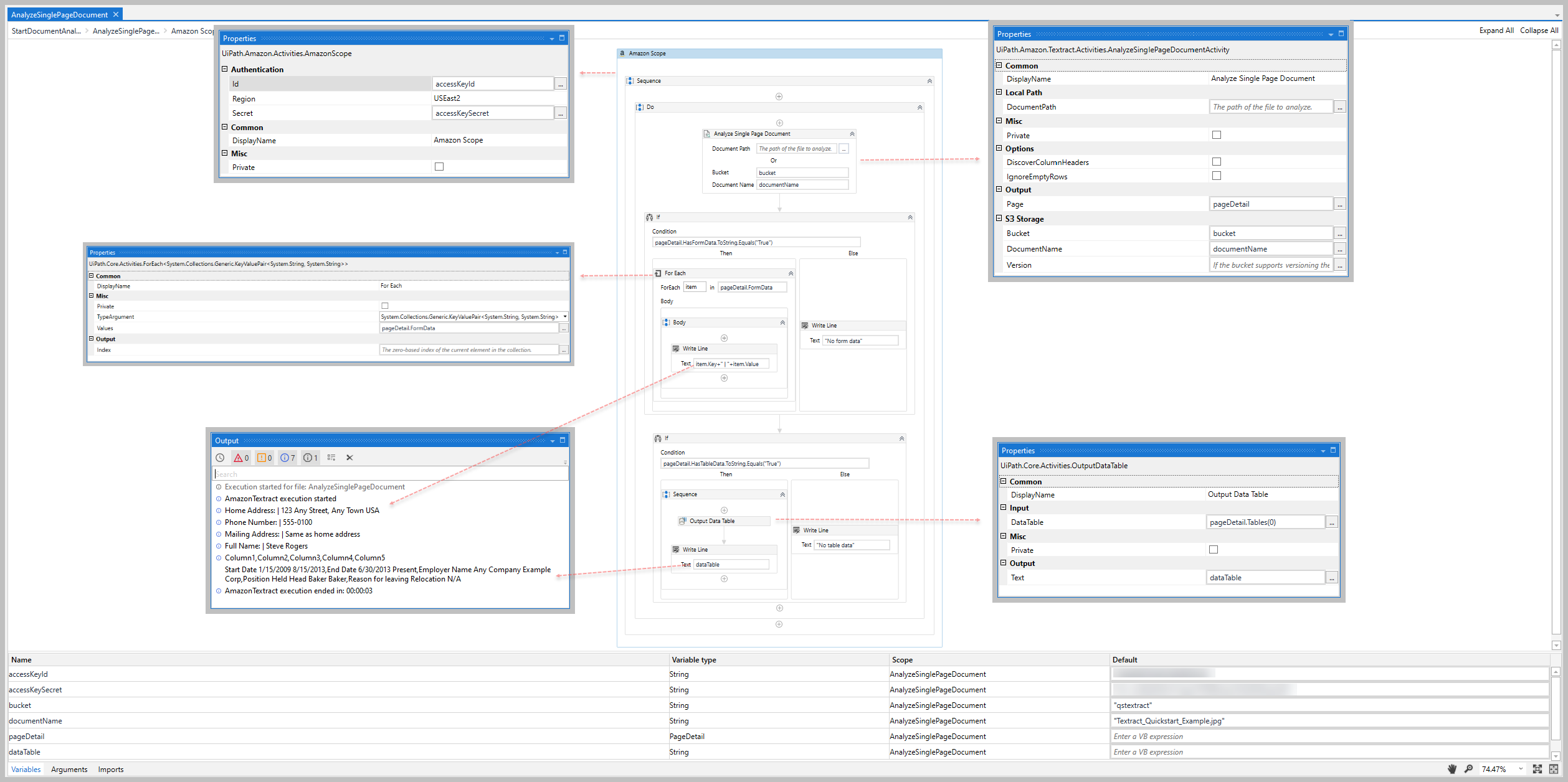
1. Add the [Amazon Scope](https://docs.uipath.com/activities/other/latest/legacy-integrations/amazon-scope#amazon-scope) activity to your project.
2. Enter the **Id**,**Secret**, and **Region** for the IAM user that you want to use for the Amazon Textract activities.
* For more information, see the [Create IAM user](https://docs.uipath.com/activities/other/latest/legacy-integrations/amazon-textract-setup#setup) section in **Setup** guide.
3. Add the [Analyze Single Page Document](https://docs.uipath.com/activities/other/latest/legacy-integrations/amazon-textract-analyze-single-page-document#analyze-single-page-document) activity inside the **Amazon Scope** activity.
4. Enter the **DocumentPath** to, or the **Bucket** and **DocumentName** of, the JPEG or PNG fle that you want to analyze.
5. Create and enter a `PageDetail` variable for your **Page** value (e.g., *pageDetail*).
* When creating your variable, select *UiPath.Amazon.Textract.Client.Models.PageDetail* as the variable type.
6. Add an [If](https://docs.uipath.com/activities/docs/if) activity after the **Analyze Single Page Document** activity.
7. In the **Condition** property, enter the `PageDetail` *variable* you created in the step above and *.HasFormData.ToString.Equals("True")* to determine if the file contains `FormField` objects (e.g., *pageDetail.HasFormData.ToString.Equals("True")*)
8. In the **Then** statement box, add a [For Each](https://docs.uipath.com/activities/docs/for-each) activity.
1. In the **TypeArgument** property, select _UiPath.Amazon.Textract.Client.Models.FormFields
2. In the **Values** property, enter the `FormFields.Items` property of the variable you created for the Get Messages activity (e.g., *pageDetail.FormFields.Items*).
3. In the **For Each** activity, add a [Write Line](https://docs.uipath.com/activities/docs/write-line) activity.
1. In the **Text** property, enter *item.Name+" | "+item.Value+" | "+item.Confidence* to output the form data's `KeyValuePair` values.
4. In the **Else** statement box, add a **Write Line** activity.
5. In the **Text** property, enter *"No form data found."*
9. Add another **If** activity after the first **If** activity.,
10. In the **Condition** property, enter the `PageDetail` *variable* you created in the step above and *.HasTableData.ToString.Equals("True")* to determine if the file contains `DataTable` objects (e.g., *pageDetail.HasTableData.ToString.Equals("True")*)
11. In the **Then** statement box, add an [Output Data Table](https://docs.uipath.com/activities/docs/output-data-table) activity.
1. In the **DataTable** property, enter the `PageDetail` *variable* you created for the **Analyze Single Page Document** activity and *.Tables(0)* to specify the 'DataTable` object in the file (e.g., *pageDetail.Tables(0)*)
2. For the **Text** property, create and enter a `String` variable for the `DataTable` content (e.g. *dataTable*).
3. Add a **Write Line** activity after the **Output Data Table** activity.
1. In the **Text** property, enter the `String` variable you created in the step above to output the `DataTable` content.
4. In the **Else** statement box, add a **Write Line** activity.
5. In the **Text** property, enter *"No table data found."*
12. Click **Run** and verify the **Output** window includes the expected form data and table data.
You're done!
When you're ready, try the other [Quickstart](https://docs.uipath.com/activities/other/latest/legacy-integrations/amazon-textract-quickstarts#quickstarts) guides to get more familiar with the different Amazon Textract activities.
To learn more about the Amazon Textact activities (including example property inputs/outputs), see the [Activities](https://docs.uipath.com/activities/other/latest/legacy-integrations/amazon-textract-activities) page for a complete activity list and links to the activity detail pages.
## Quickstart - Start and Get Analysis
### Overview
The purpose of this guide is to help you create a working sample that uses the Amazon Textract [Start Document Analysis](https://docs.uipath.com/activities/other/latest/legacy-integrations/amazon-textract-start-document-analysis#start-document-analysis), [Get Document Analysis Status](https://docs.uipath.com/activities/other/latest/legacy-integrations/amazon-textract-get-document-analysis-status#get-document-analysis-status), and [Get Document Analysis](https://docs.uipath.com/activities/other/latest/legacy-integrations/amazon-textract-get-document-analysis#get-document-analysis) activities.
This working sample enables you to quickly verify the connection to your AWS resources and get familiar with the activity's input/output datatypes.
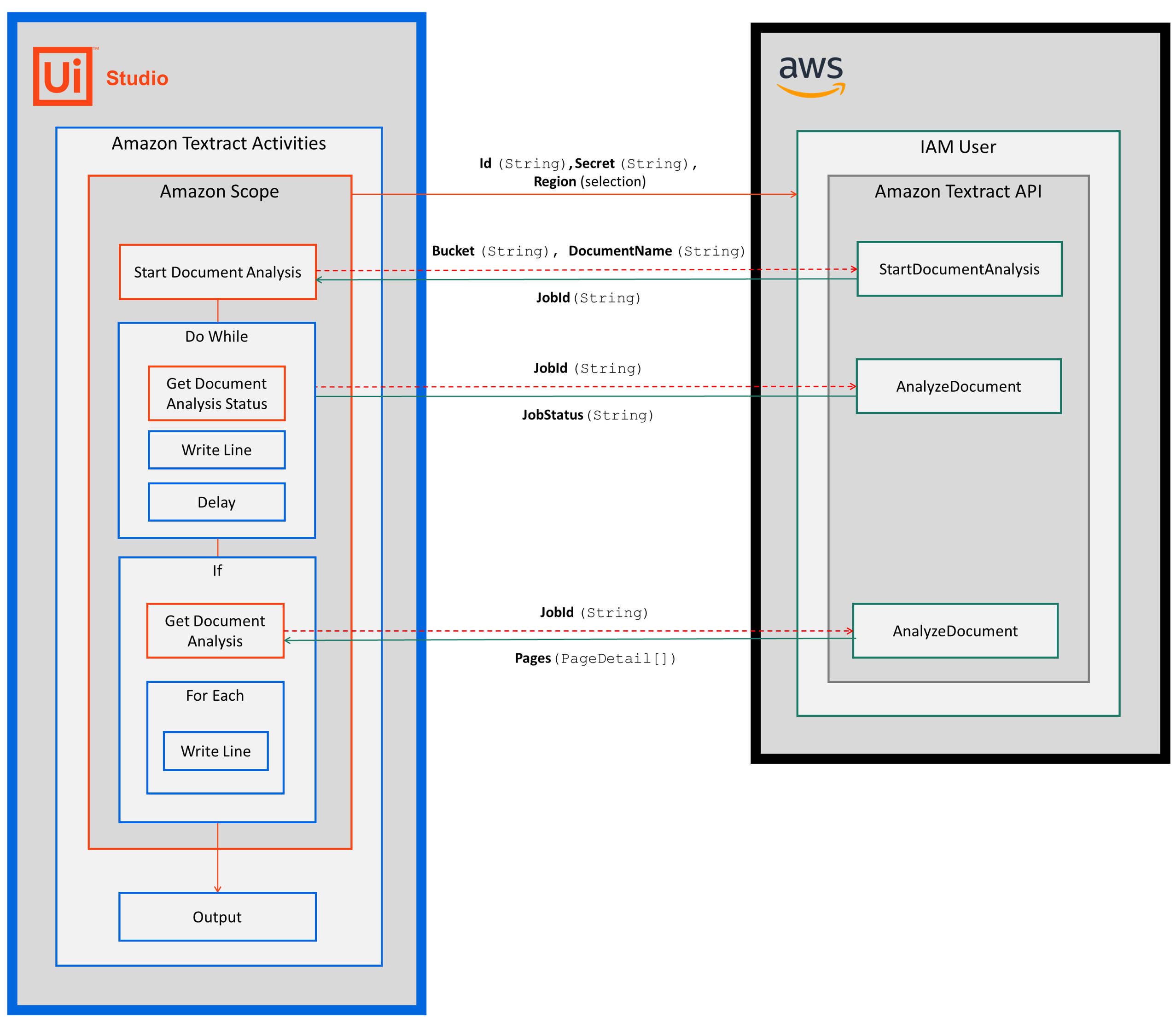
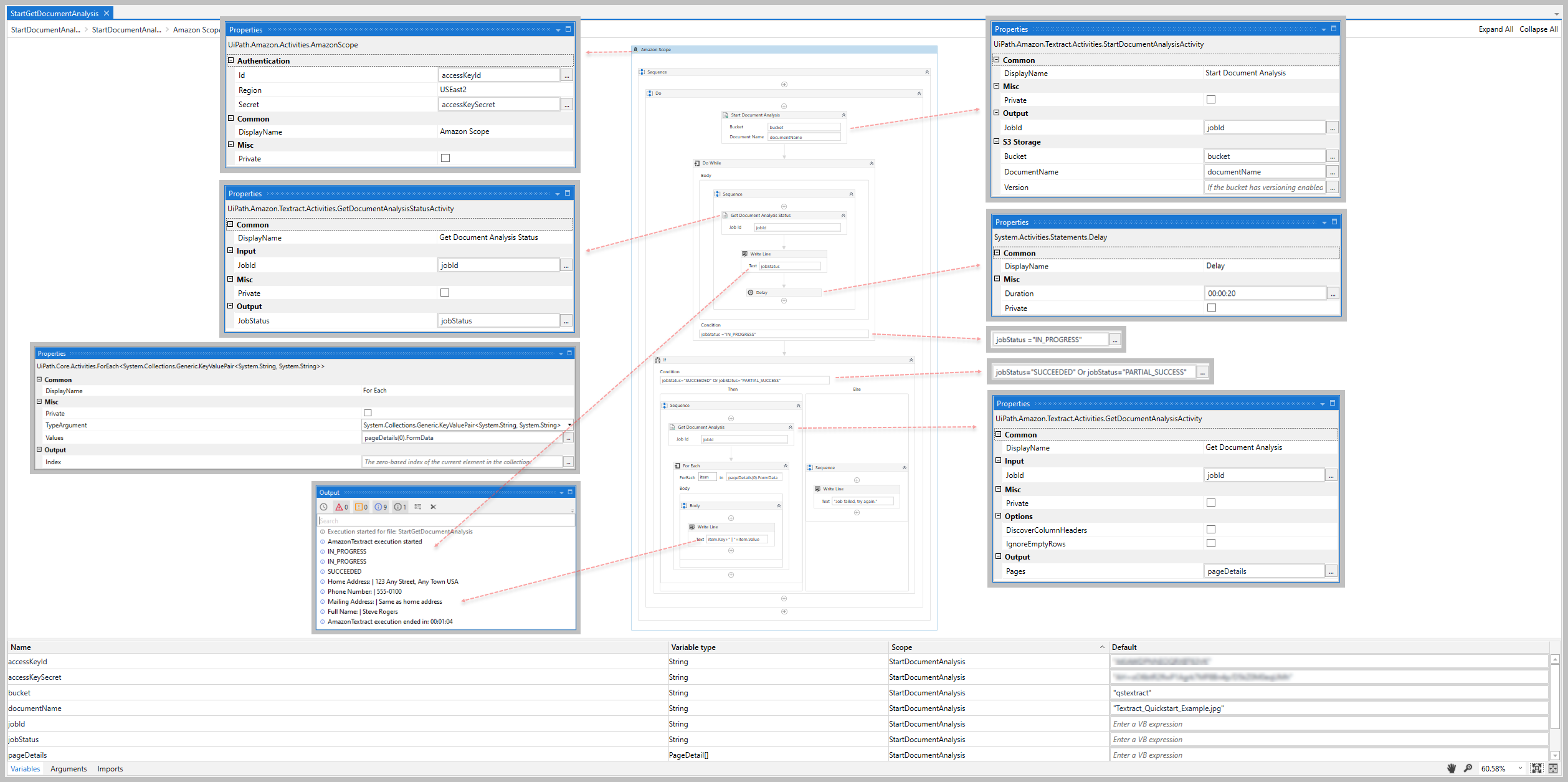
After completing the steps in this guide, you'll have an automation sequence that does the following:
1. Establishes a connection to your AWS resources ([Amazon Scope](https://docs.uipath.com/activities/other/latest/legacy-integrations/amazon-scope#amazon-scope)).
2. Starts an Amazon Textract analysis job ([Start Document Analysis](https://docs.uipath.com/activities/other/latest/legacy-integrations/amazon-textract-start-document-analysis#start-document-analysis)).
3. Retrieves and outputs the status of the started analysis job ([Do While](https://docs.uipath.com/studio/docs/the-do-while-activity), [Get Document Analysis Status](https://docs.uipath.com/activities/other/latest/legacy-integrations/amazon-textract-get-document-analysis-status#get-document-analysis-status), [Write Line](https://docs.uipath.com/activities/docs/write-line), and [Delay](https://docs.uipath.com/studio/docs/the-delay-activity)).
4. Retrieves and outputs the results of the analysis if/when the analysis job is successful ([If](https://docs.uipath.com/activities/docs/if), [Get Document Analysis](https://docs.uipath.com/activities/other/latest/legacy-integrations/amazon-textract-get-document-analysis#get-document-analysis), [For Each](https://docs.uipath.com/activities/docs/for-each), [For Each](https://docs.uipath.com/studio/docs/the-for-each-activity) and [Write Line](https://docs.uipath.com/activities/docs/write-line)).
### Prerequisites
Before you begin:
1. Complete the Amazon Textract [Setup](https://docs.uipath.com/activities/other/latest/legacy-integrations/amazon-textract-setup#setup) steps.
2. Make a JPEG or PNG file available by uploading it to an S3 bucket or saving it locally.
### Steps
### Build Your Project
1. Add the [Amazon Scope](https://docs.uipath.com/activities/other/latest/legacy-integrations/amazon-scope#amazon-scope) activity to your project.
2. Enter the **Id**,**Secret**, and **Region** for the IAM user that you want to use for the Amazon Textract activities.
* For more information, see the [Create IAM user](https://docs.uipath.com/activities/other/latest/legacy-integrations/amazon-textract-setup#setup) section in **Setup** guide.
3. Add the [Start Document Analysis](https://docs.uipath.com/activities/other/latest/legacy-integrations/amazon-textract-start-document-analysis#start-document-analysis) activity inside the **Amazon Scope** activity.
4. Enter the **Bucket** and **DocumentName** of, the JPEG or PNG fle that you want to analyze.
5. Create and enter a `String` variable for the **JobId** value (e.g., *jobId*).
6. Add a [Do While](https://docs.uipath.com/studio/docs/the-do-while-activity) activity after the **Start Document Analysis** activity.
7. Inside the **Do While** activity, add the [Get Document Analysis Status](https://docs.uipath.com/activities/other/latest/legacy-integrations/amazon-textract-get-document-analysis-status#get-document-analysis-status) activity.
8. In the **Job Id** property, enter the `String` variable you created for the **JobId** above (e.g., *jobId*).
9. Create and enter a `String` variable for the **JobStatus** value (e.g., *jobStatus*).
10. In the **Condition** property of the **Do While** activity, enter the **JobStatus** variable along with a condition value (e.g., *jobStatus = "IN_PROGRESS"*)
* For a list of the possible job status values, see the [JobStatus](https://docs.uipath.com/activities/other/latest/legacy-integrations/amazon-textract-get-document-analysis-status#get-document-analysis-status) property section of the **Get Document Analysis Status** details page.
11. Add a [Write Line](https://docs.uipath.com/activities/docs/write-line) activity after the **Get Document Analysis Status** activity.
12. In the **Text** property, enter the `String` variable you created for the **JobStatus** value above (e.g., *jobStatus*).
13. Add a [Delay](https://learn.microsoft.com/en-us/dotnet/api/system.activities.statements.delay?redirectedfrom=MSDN&view=netframework-4.8.1) activity after the **Write Line** activity.
14. In the **Duration** property, enter the estimated amount of time it will take to process your document. In our example, we enter *00:00:20* to demonstrate the **Job Status** output value changes (for non-demo scenarios, we enter *00:00:55* for a single form document).
:::note
In the scenario outlined above, your Robot retrieves and outputs the status of the analysis job every 20 seconds while the status equals *IN_PROGRESS*. This condition enables the Robot to retrieve and output the status until it changes.
:::
15. Add an [If](https://docs.uipath.com/activities/docs/if) activity after the **Do While** activity.
16. In the **Condition** property, enter the **JobStatus** variable along with a condition value (e.g., *jobStatus = "SUCCEEDED" or jobStatus="PARTIAL_SUCCESS"*)
17. In the **Then** statement box, add the [Get Document Analysis](https://docs.uipath.com/activities/other/latest/legacy-integrations/amazon-textract-get-document-analysis#get-document-analysis) activity.
1. In the **Job Id** property, enter the `String` variable you created for the **JobId** property in the **Start Document Analysis** activity. (e.g., *jobId*).
2. Create and enter a `PageDetail[]` variable for your **Pages** value (e.g., *pageDetails*).
* When creating your variable, select *UiPath.Amazon.Textract.Client.Models.PageDetail[]* as the variable type.
18. For our example below, we will only evaluate the first document in the `PageDetail[]` array of the **Pages** property.
1. Create and enter a `PageDetail` variable to store the first item in the array, and use a [Assign](https://docs.uipath.com/activities/other/latest/user-guide/assign) activity after the **Get Document Analysis** activity (e.g., *pageDetail*).
2. Assign the PageDetail(0) as the value to the variable you just created (*pageDetail*)
19. Add a [For Each](https://docs.uipath.com/activities/docs/for-each) activity after the **Assign** activity.
1. In the **TypeArgument** property, select *UiPath.Amazon.Textract.Client.Models.FormFields*
2. In the **Values** property, enter the `FormFields.Items` property of the variable you created for the **Assign** activity (e.g., *pageDetail.FormFields.Items*).
3. In the **For Each** activity, add a [Write Line](https://docs.uipath.com/activities/docs/write-line) activity.
1. In the **Text** property, enter *item.Name+" | "+item.Value+" | "+item.Confidence* to output the form values.
4. In the **Else** statement box, add a **Write Line** activity.
5. In the **Text** property, enter a message for a failed job (e.g., _"Job failed, try again.")
20. Run the sequence and verify the **Output** window includes the job status and expected form data values.

You're done!
When you're ready, try the other [Quickstart](https://docs.uipath.com/activities/other/latest/legacy-integrations/amazon-textract-quickstarts#quickstarts) guides to get more familiar with the different Amazon Textract activities.
To learn more about the Amazon Textact activities (including example property inputs/outputs), see the [Activities](https://docs.uipath.com/activities/other/latest/legacy-integrations/amazon-textract-activities) page for a complete activity list and links to the activity detail pages.