# Amazon Scope
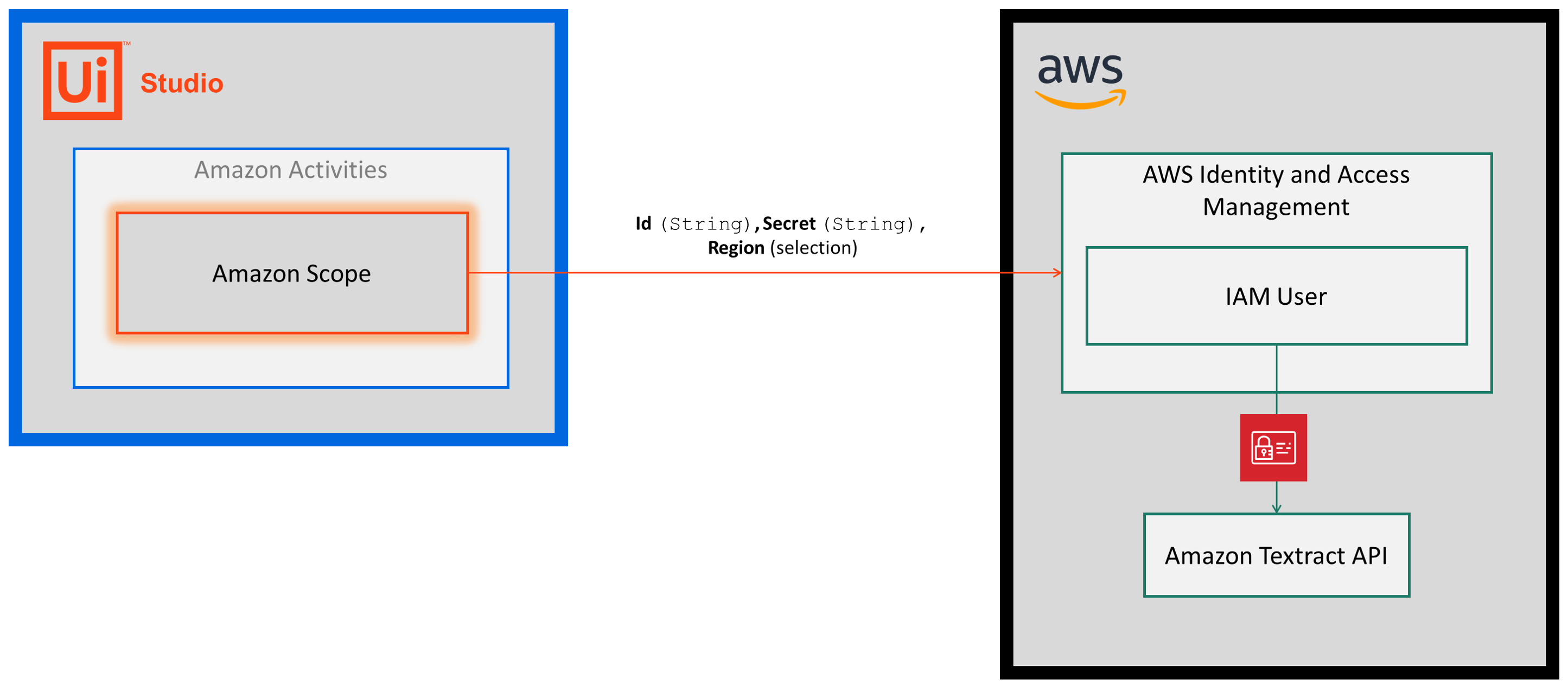
> The Amazon Textract and Rekognition activities use the [AWS Identity and Access Management (IAM)](https://docs.aws.amazon.com/IAM/latest/UserGuide/introduction.html) service to establish an authenticated connection between UiPath and your AWS resources. This connection enables a Robot to call the Amazon Rekognition APIs to read and write resources on your behalf.
The Amazon Textract and Rekognition activities use the [AWS Identity and Access Management (IAM)](https://docs.aws.amazon.com/IAM/latest/UserGuide/introduction.html) service to establish an authenticated connection between UiPath and your AWS resources. This connection enables a Robot to call the Amazon Rekognition APIs to read and write resources on your behalf.
To establish an authenticated connection, you create or use an existing [IAM user](https://docs.aws.amazon.com/IAM/latest/UserGuide/id_users.html) and generate [access keys](https://docs.aws.amazon.com/IAM/latest/UserGuide/id_credentials_access-keys.html) (Access Key Id and Secret Access Key). When you create your IAM user, you assign the [policies and permissions](https://docs.aws.amazon.com/IAM/latest/UserGuide/access_policies.html) that specify the resources your Robot can access (e.g., *AmazonRekognitionFullAccess*).
After creating your IAM user and assigning your policies, you enter the Access Key Id and Secret Access Key in the **Amazon Scope** activity. When you run your automation project, the keys are used to sign the API requests being made by each of the activities.
## How It Works
The following steps and message sequence diagram is an example of how the activity works from design time (i.e., the activity dependencies and input/output properties) to run time.
1. Complete the [Setup](https://docs.uipath.com/activities/other/latest/legacy-integrations/amazon-textract-setup#setup) steps.
2. Add the **Amazon Scope** activity to your project.
3. Enter values for the [Authentication](https://docs.uipath.com/activities/other/latest/legacy-integrations/amazon-scope#authentication) properties.
## Properties
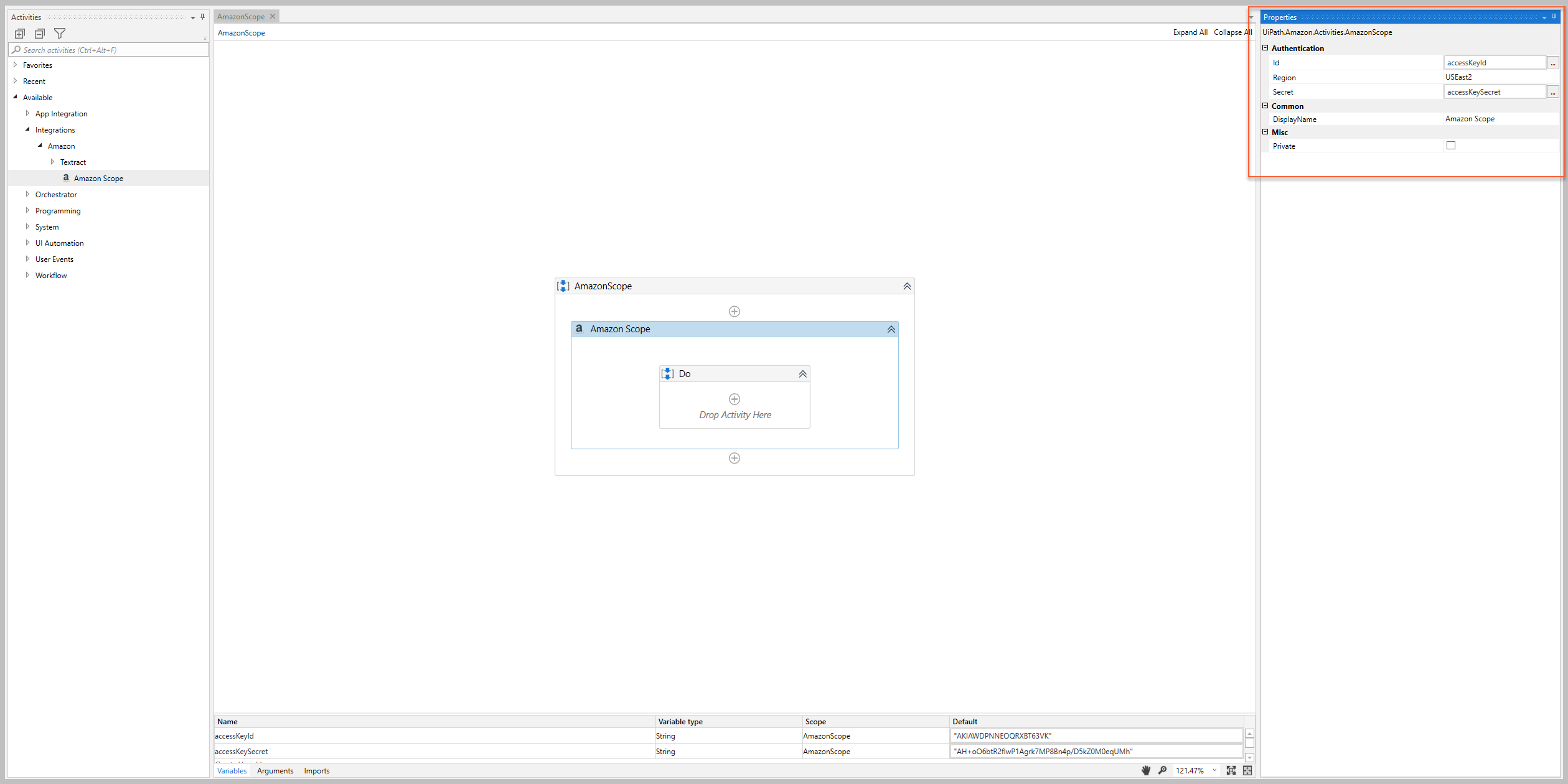
The values for the following properties are specified when adding this activity to your project in UiPath Studio.
### Common
#### DisplayName
The display name of the activity.
| Attributes | Details |
| --- | --- |
| **Type** | `String` |
| **Required** | Yes |
| **Default value** | *Amazon Scope* |
| **Allowed values** | Enter a `String` or `String` variable. |
| **Notes** | N/A |
### Authentication
#### Id
The [Access Key ID](https://docs.aws.amazon.com/IAM/latest/UserGuide/id_credentials_access-keys.html) of the [IAM User](https://docs.aws.amazon.com/IAM/latest/UserGuide/id_users.html) that you want to authenticate.
Attributes
Details
Type
String
Required
Yes
Default value
Empty
Allowed values
Enter a String or String variable.
Notes
To retrieve the Access Key ID, see one of the following sections in the AWS documentation:
Managing Access Keys (Console)
Managing Access Keys (AWS CLI)
Managing Access Keys (AWS API)
#### Region
The [AWS Service Endpoint](https://docs.aws.amazon.com/general/latest/gr/rande.html) that you want to use for your connection.
Attributes
Details
Type
Drop-down list
Required
Yes
Default value
_US_East_N_Virginia
Allowed values
Use the drop-down list to select the applicable region.
Notes
Depending on the activities you're using, select a region where the service(s) is available.
For a list of regions where Amazon Rekognition is available, see AWS Service Endpoints - Amazon Rekognition in the AWS documentation.
#### Secret
The [Secret Access Key](https://docs.aws.amazon.com/IAM/latest/UserGuide/id_credentials_access-keys.html) of the [IAM User](https://docs.aws.amazon.com/IAM/latest/UserGuide/id_users.html) that you want to connect to the Amazon Rekognition service.
Attributes
Details
Type
String
Required
Yes
Default value
Empty
Allowed values
Enter a String or String variable.
Notes
To retrieve the Secret Access Key, see one of the following sections in the AWS documentation:
Managing Access Keys (Console)
Managing Access Keys (AWS CLI)
Managing Access Keys (AWS API)
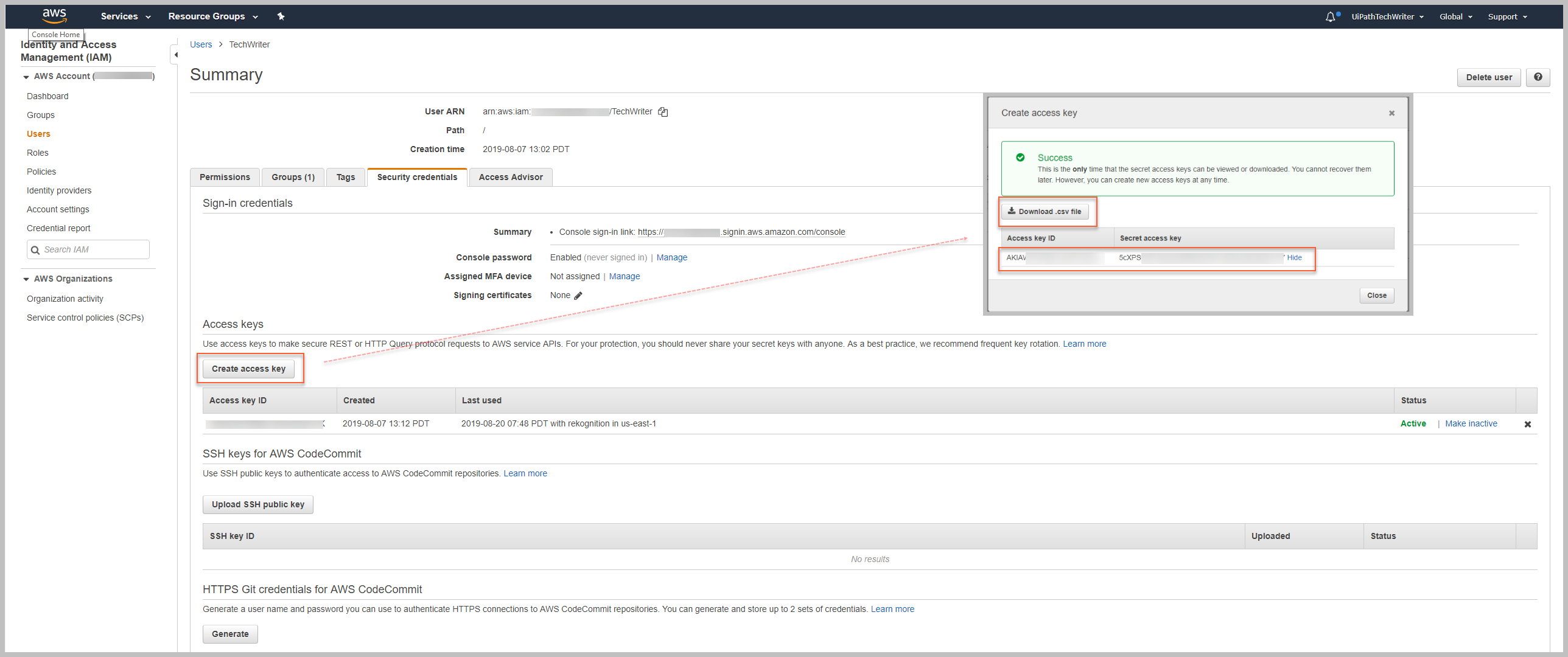
See additional note and image below.
:::important
If you're using an existing IAM user and no longer have the **Secret Access Key**, you create a new one by clicking the **Create access key** button in your IAM user summary - this action also creates a new a **Access Key Id** After you click the **Create access key** button a dialogue box opens. Per the AWS instructions: "Choose Download .csv file to save the access key ID and secret access key to a CSV file on your computer. Store the file in a secure location. You will not have access to the secret access key again after this dialog box closes. After you have downloaded the CSV file, choose Close." Amazon recommends frequent key rotation, so you can create new keys at anytime if you can't find the **Secret Access Key** associated with your **Access Key ID**. If you do create new keys, be sure to update any **Amazon Scope** activities in your existing projects. To learn more, see [Managing Access Keys for IAM Users](https://docs.aws.amazon.com/IAM/latest/UserGuide/id_credentials_access-keys.html?icmpid=docs_iam_console) in the AWS documentation.
:::
### Misc
#### Private
If selected, the values of variables and arguments are no longer logged at Verbose level.
| Attributes | Details |
| --- | --- |
| **Type** | Checkbox |
| **Required** | No |
| **Default value** | Not Selected |
| **Allowed values** | Selected or Not Selected |
| **Notes** | N/A |